

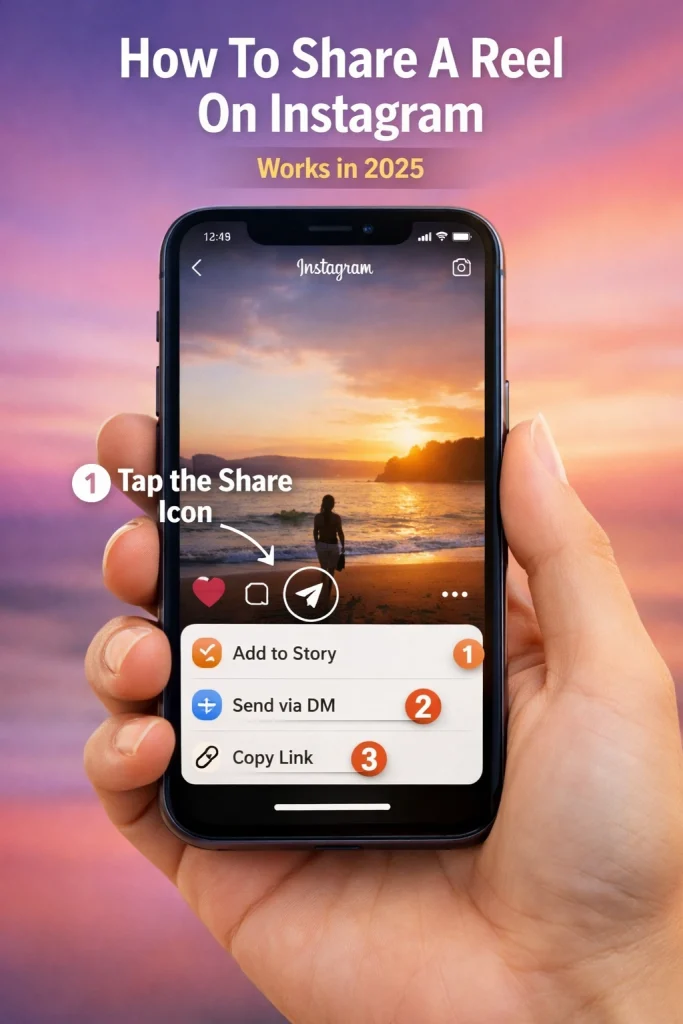

Knowing how to share a reel on Instagram can feel confusing, especially with constant app updates and changing features. Whether you’re trying to repost your own content, share someone else’s reel to your Story, or send it in a DM, it’s easy to miss a step and wonder if you’re doing it right.
How we verified this: We referenced publicly available documentation and reputable guides to explain what Instagram currently shows (and doesn’t show). Features can vary by app version and region, so if your menus look different, update the app and check Instagram’s settings/help pages.
This guide will walk you through exactly how to share a reel on Instagram in different ways. You’ll learn the correct steps for sharing to your feed, Story, and private messages—so your content reaches the right audience every time.
To share a Reel on Instagram, tap the paper airplane icon below the Reel, then choose to share it to your Story, send it via DM, repost it, or copy the link to share elsewhere.
Before sharing a Reel on Instagram, it’s essential to understand what Instagram allows—and what it restricts. Whether you’re sharing your own content or someone else’s, several rules influence which options are available.
Public vs. Private Accounts
-
Public accounts: Reels from public profiles can typically be shared through Stories, direct messages, or copied links. These Reels are viewable by anyone, even outside Instagram, as long as they have the link.
-
Private accounts: Reels from private profiles can only be viewed by approved followers. If you share a private Reel, the recipient must already follow that account to see it.
If you’re unable to share a Reel, it’s often because the account is private or your account doesn’t have permission to reshare the content.
Creator Sharing Settings
Even for public accounts, Instagram allows creators to restrict sharing options for individual Reels. If the creator has turned off resharing or limited visibility in their settings, the share icon may not appear at all.
You won’t be able to:
-
Share to your Story
-
Copy the link
-
Send the Reel via DM
These restrictions are controlled entirely by the original creator.
Instagram now supports a native Repost feature. This is different from traditional sharing methods like Story or DM. Here’s how they compare:
| Feature | Story/DM Sharing | Repost Feature |
|---|---|---|
| Audience | Story viewers or recipients | Follower feed and Reposts tab |
| Attribution | Automatic credit | Automatic credit |
| Visibility | Follows standard privacy rules | Follows standard privacy rules |
| Availability | Only for public content | Only for public content |
Reposts appear on your profile in a dedicated “Reposts” tab and can also show up in your followers’ feeds, depending on Instagram’s algorithm.
Instagram limits some sharing actions to protect privacy and prevent misuse. You cannot:
-
Share Reels from private accounts to non-followers
-
Share Reels with resharing disabled by the creator
-
Download and re-upload someone else’s Reel without permission
-
Share Reels that are region-restricted due to music or copyright issues
If you’re looking to manage what you see and control what appears in your Reels feed, you can also remove suggested Reels on Instagram through settings and preferences.
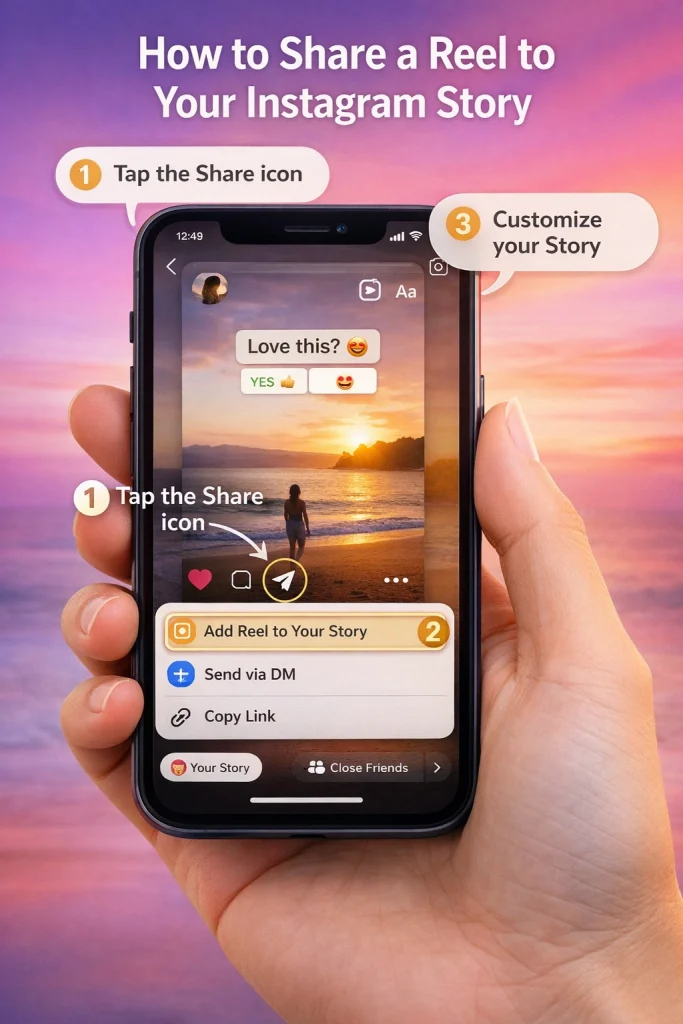
Sharing a Reel to your Instagram Story is a quick way to boost its visibility and engage your followers. Here’s how you can do it in just a few steps:
Step-by-step guide for sharing to stories
1. Tap the paper airplane icon: Open the Reel you want to share and look for the paper airplane icon below the video. This is the same icon you’d use to send the Reel via direct message.
2. Select ‘Add Reel to Your Story’: Once you tap the icon, a menu will pop up. From the options, choose ‘Add Reel to Your Story.’ This will open the story editor with the Reel already added.
3. Customize your Story: Before posting, you can make your Story more engaging by adding stickers, text, or effects. For example, you could include a poll sticker asking your audience for their thoughts on the Reel or use GIFs to highlight key moments.
Instagram’s “Close Friends” feature allows you to share Stories—and in some cases, Reels—with a smaller, curated audience. This gives you more control over who sees your content while maintaining the engagement benefits of Reels.
What Is the Close Friends Feature?
Close Friends is a privacy tool that lets you create a private list of people who can see content you don’t want to share with your full audience. While it originally applied only to Stories, Instagram now allows some users to share Reels directly to their Close Friends as well.
This feature is ideal for:
-
Sharing personal moments with a trusted group
-
Testing new content with a smaller audience
-
Avoiding overexposure while still using Reels
This feature may not be available to all users yet, but where supported, here’s how to use it:
-
Start by creating your Reel: Record or upload your video as usual within the Instagram app.
-
Proceed to the sharing screen: After editing your Reel, tap “Next” to move to the final share options.
-
Choose your audience: Look for the option labeled “Audience” or “Share to.” If available, select “Close Friends.”
-
Publish your Reel: Once you’ve selected Close Friends, tap “Share” to publish the Reel to that list.
The Reel will only be visible to the people you’ve added to your Close Friends list. Others won’t see it on your main feed, explore page, or Reels tab.
Managing Your Close Friends List
You can add or remove users from your Close Friends list at any time:
-
Go to your Instagram profile
-
Tap the three-line menu in the upper right
-
Select Close Friends
-
Add or remove accounts as needed, then tap Done
This list is private—only you can see who’s on it.
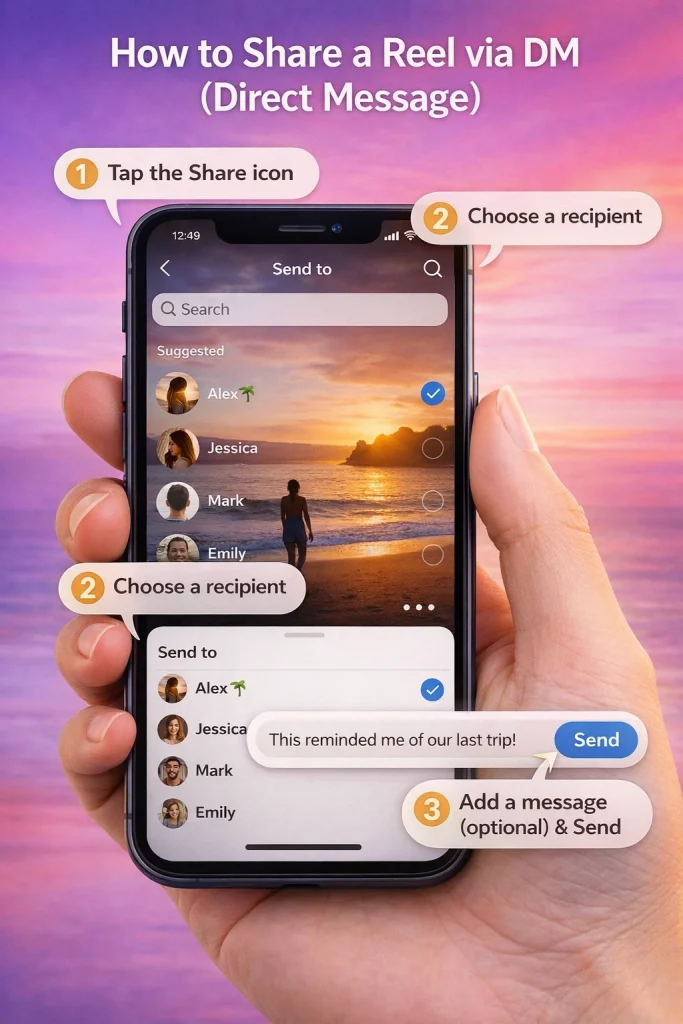
Sharing a Reel privately via Instagram’s Direct Message (DM) feature is quick and straightforward. Here’s exactly how to do it and some tips to keep in mind:
Steps to send a Reel privately
1. Tap the paper airplane icon below the Reel. Once you’ve found a Reel you want to share, locate the small paper airplane icon directly below the video. This is the key to accessing Instagram’s sharing options.
2. Choose a recipient from your contacts or search for a username. Instagram will show a list of recent contacts, but you can also use the search bar to find specific users. Tap their profile to select them as the recipient.
3. Add an optional message before sending. If you want to personalize the message, type your thoughts in the provided text box. Once ready, tap the “Send” button to complete the process.
Also, if you accidentally share a Reel with the wrong person and delete it, here’s what you need to know about whether Instagram notifies users when you unsend a message.
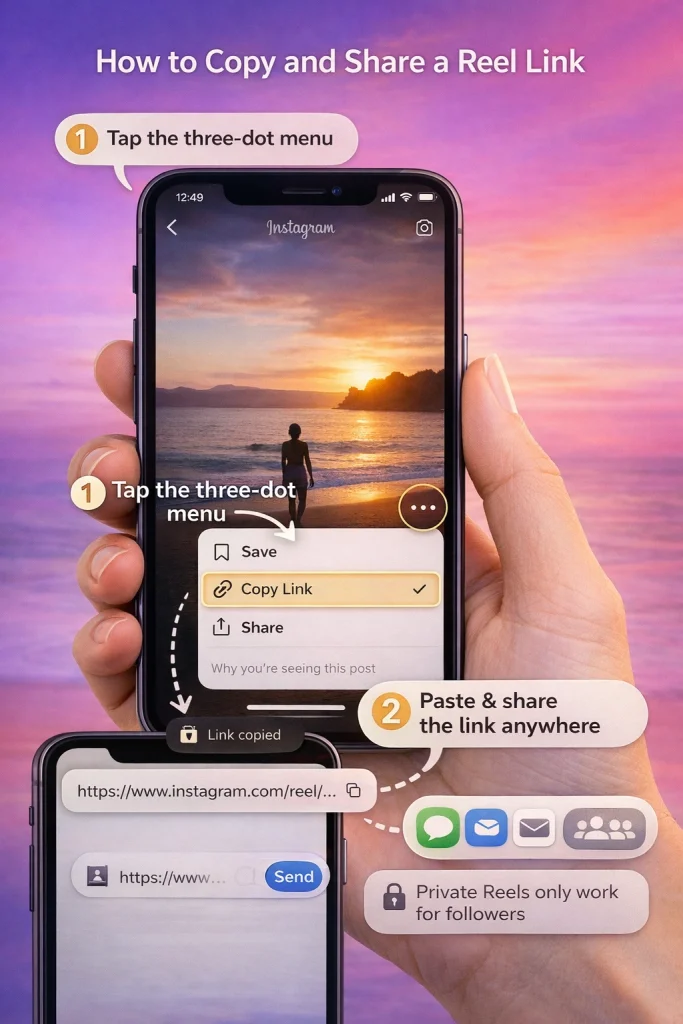
Copying and sharing a link to an Instagram Reel is one of the simplest ways to distribute content across platforms, including email, messaging apps, or websites. This method is especially useful for sharing outside of Instagram.
How to Copy a Reel Link
To copy the link to a Reel:
-
Open the Instagram app and navigate to the Reel you want to share.
-
Tap the three-dot menu icon in the lower-right corner of the Reel.
-
Select Copy Link from the menu.
-
The link is now copied to your device’s clipboard and can be pasted into messages, emails, or browser tabs.
This method works whether the Reel belongs to you or another user—as long as the Reel is public and the creator has not restricted sharing.
Once copied, you can paste the link into:
-
WhatsApp, iMessage, or SMS
-
Email newsletters or personal messages
-
Group chats on platforms like Slack or Discord
-
Facebook posts, tweets, or other social platforms
Clicking the link will take the recipient directly to the Reel in the Instagram app (or browser, if they aren’t logged in).
Use Case: Sharing Reels Outside Instagram
This feature is commonly used to:
-
Share marketing or promotional content across platforms
-
Include Instagram Reels in articles or blogs
-
Send a quick video highlight to a friend without tagging them
If your goal is visibility beyond Instagram, copying and sharing a public Reel link is the most flexible and scalable method available.
While Instagram is primarily built for in-app engagement, there are still ways to share Reels with people who don’t have an Instagram account. However, there are important limitations based on privacy settings and account visibility.
The most direct method is to copy the Reel’s link and send it via text, email, or any other messaging platform. Here’s how to do it:
-
Open the Reel you want to share.
-
Tap the three-dot menu icon in the lower right corner.
-
Tap Copy Link.
-
Paste the link into an email, text message, or any external platform.
If the recipient clicks the link on a browser, Instagram will prompt them to log in. However, they may still be able to preview the Reel depending on their device and browser, even without an account—but only if the Reel is public.
What Doesn’t Work (and Why You Should Avoid It)
-
Third-party apps or websites that promise to show private Instagram content should be avoided. These tools often violate Instagram’s terms of service and can compromise account security.
-
Screenshots or screen recordings may seem like a workaround, but they strip away video quality, interactivity, and attribution. They’re also not a substitute for true sharing.
How to Repost a Reel on Instagram (What “Repost” Means Now)
Instagram now includes a built-in Repost feature that allows users to reshare Reels and Feed posts directly to their followers. This functionality replaces the need for third-party reposting apps and provides proper credit to the original creator.
What Is Instagram’s Repost Feature?
Reposting on Instagram means sharing someone else’s public Reel or Feed post to your own followers’ feeds. Reposted content appears in a dedicated “Reposts” tab on your profile and may also be shown in your followers’ main feeds, similar to original posts.
Unlike sharing to Stories or sending a DM, Reposts give the content longer visibility and reach, with full attribution to the original creator.
How to Repost a Reel on Instagram
To repost a Reel:
-
Open the public Reel you want to repost.
-
Tap the paper airplane (share) icon below the Reel.
-
Select Repost from the sharing options.
-
Optionally, add a caption or note.
-
Tap Share to repost it.
Once shared, the Reel will appear under the Reposts tab on your profile. Followers may also see it in their feeds depending on Instagram’s algorithm.
What Content Can Be Reposted?
-
You can repost public Reels and Feed posts.
-
Private account content cannot be reposted, even if you follow the account.
-
The repost option may not appear if the creator has restricted sharing.
Instagram automatically attributes the original creator and does not allow editing of the reposted content. If you’re also looking to repost static content, this guide explains how to repost Instagram posts to your feed using both native tools and best practices.
| Feature | Visibility Duration | Where It Appears | Requires Login to View |
|---|---|---|---|
| Repost | Permanent (unless deleted) | Feed + Reposts tab | Yes |
| Story Share | 24 hours | Story view | Yes |
| Direct Message | Ongoing | Private inbox | Yes |
By default, when you share a Reel to your Instagram Story, it typically appears as a short preview—often limited to around 15 seconds. This preview encourages viewers to tap through and watch the full Reel on the original post, but it can be limiting if you want your audience to see the entire video directly in the Story format.
Why Instagram Only Shows a Preview
Instagram’s built-in sharing feature for Stories is designed to drive engagement with the original post. When you tap the “paper airplane” icon to share a Reel to your Story, Instagram generates a tappable preview—not the full video playback. This is true even for Reels under 90 seconds.
The limitation is intentional and cannot currently be changed using standard sharing tools.
If you want your followers to view the entire video within your Story—without needing to tap through—you have two main options:
Option 1: Upload the Reel as a Story video
-
Save the original video to your device (if it’s your own Reel).
-
Open Instagram and swipe to the Story creation screen.
-
Select the video from your camera roll.
-
Post it as a regular Story video.
This allows you to bypass the 15-second preview limitation. However:
-
The Story version won’t link back to the original Reel.
-
It may be broken into 15-second segments, depending on length.
-
You must own the video; this method should not be used with someone else’s content.
This is the built-in method:
-
Tap the paper airplane icon below the Reel.
-
Choose Add Reel to Your Story.
-
Customize the Story with stickers or text if desired.
-
Tap Share.
The Story will include a tappable link to the full Reel and automatically credit the original creator.
If you’re unable to share a Reel on Instagram, it’s often a quick fix. Follow these steps to troubleshoot:
Common issues and fixes
1. Ensure your app is updated: An outdated app version can cause sharing issues. Go to your device’s app store, search for Instagram, and check if an update is available. Install it if needed.
2. Restart the app: Sometimes, temporary glitches can be resolved by simply closing and reopening the app. On most devices, you can swipe up from the bottom (or use the multitasking menu) to force close Instagram before opening it again.
3. Clear the app cache: If restarting doesn’t work, clearing the app cache can help. On Android, go to Settings > Apps > Instagram > Storage > Clear Cache. iPhone users may need to reinstall the app since iOS doesn’t offer a direct cache-clearing option.
Why the share button might be missing
1. Reel creator’s settings: If the creator has disabled sharing for their Reel, the share option won’t appear. This is common for private accounts or users who restrict sharing in their settings. In this case, you’ll need to respect their preferences.
2. Account settings or restrictions: Sharing options may also be limited if your account has restrictions, such as a temporary block from Instagram due to policy violations. Check your notifications for any alerts from Instagram
For users managing purchased or transferred Instagram accounts, understanding how Reel sharing works is part of maintaining responsible account activity. If you’re operating an account acquired through platforms like InstaDeal, it’s important to know how privacy settings, resharing restrictions, and content ownership can affect what you can and cannot share. Reels previously posted by a former owner may have different settings or engagement patterns that influence visibility. Staying informed helps ensure consistent management, especially when inheriting or transferring digital assets.
Sharing a Reel on Instagram is simple once you understand the platform’s built-in tools and privacy settings. Whether you’re posting to your Story, sending it privately, copying a link, or using the new Repost feature, each method has its own purpose and limitations. By using these features correctly, you can share content effectively while respecting the original creator’s settings and Instagram’s guidelines.

Benjamin Amiri
Benjamin Amiri is a digital growth consultant and senior contributor at InstaDeal. He specializes in Instagram engagement strategies, Facebook ads innovation, and TikTok product marketing. With a track record of scaling brands and creator accounts, Benjamin turns performance data into actionable growth tactics that deliver measurable results.


