

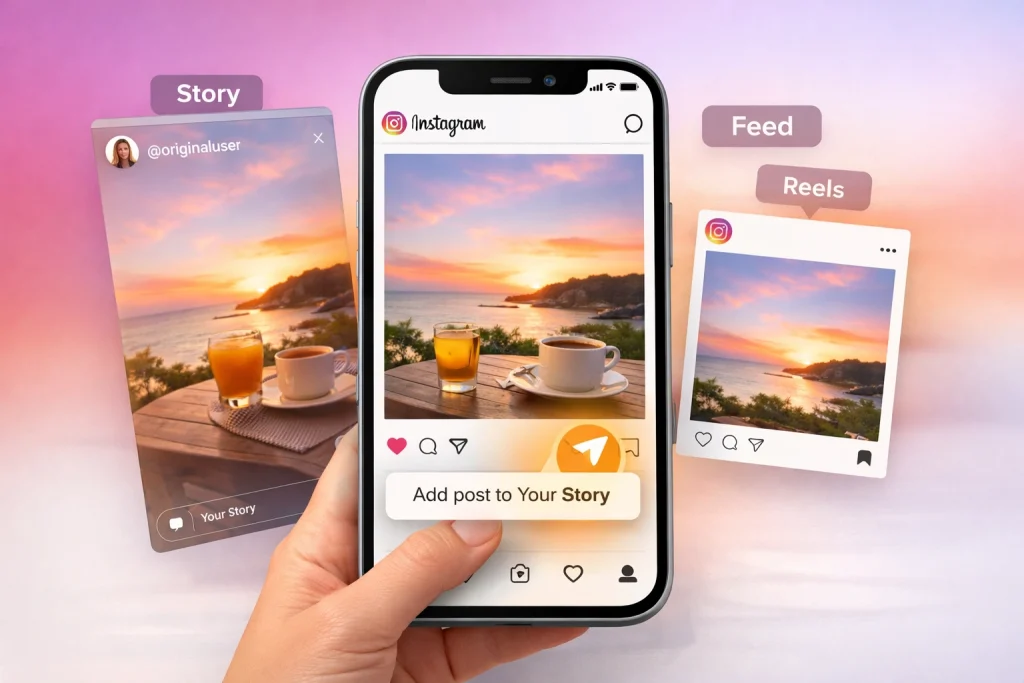

Knowing how to repost Instagram posts can feel like a mystery, especially when others seem to do it effortlessly. Whether you’re trying to share a friend’s photo or highlight a brand collaboration, not knowing the right method can make you feel left out or unprofessional.
Instagram reposting depends on what features you have (rollout varies), but you can always share to Stories—and you can repost to Feed using native repost when available or safe permission-based methods.
Quick Answer: How to Repost Instagram Posts
You can repost Instagram posts by sharing them to your Story using the paper airplane icon or by using a repost app to publish them to your Feed. Always credit the original creator.
This guide will show you exactly how to repost Instagram posts the right way—without breaking platform rules or losing image quality. You’ll learn the tools, settings, and etiquette needed to share content effectively on your feed or stories.
Reposting on Instagram involves sharing someone else’s content—whether it’s a post, Story, or Reel—to your own account or Story. This feature allows users to amplify content they find interesting or relevant, but the options for reposting vary depending on the type of content and the tools you use.
Instagram’s native reposting features are somewhat limited. For instance, you can share a regular Feed post or Reel directly to your Story or send it via Direct Messages (DMs). However, if you want to repost content directly to your Feed, you’ll need to rely on third-party apps, as Instagram doesn’t offer a universal repost button for everyone. It’s worth noting that third-party tools may raise privacy or permission concerns, especially if the original creator hasn’t explicitly approved the repost.
The lifespan of the reposted content also depends on where you share it. Stories are temporary and disappear after 24 hours, making them ideal for quick highlights or time-sensitive updates. In contrast, Feed posts and Reels are more permanent, staying on your profile unless you choose to delete them. This difference is important when deciding how and where to share content.
How to Repost an Instagram Post to Your Story (Step-by-Step)
Reposting an Instagram post to your Story is a simple way to share content with your followers, but it’s important to understand the steps and privacy settings involved.
Steps for reposting to Stories
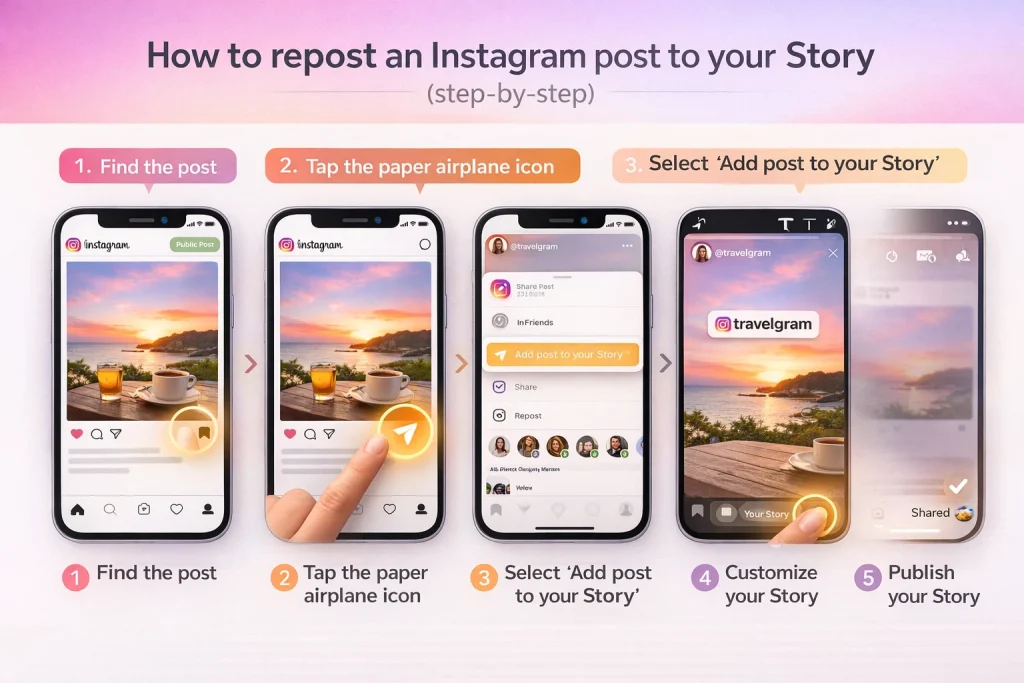
1. Locate the post you want to share: Find the Instagram post you’d like to repost, ensuring it’s from a public account.
2. Tap the paper airplane icon: Below the post, look for the paper airplane icon (used for sharing). Tap it to reveal sharing options.
3. Select ‘Add post to your Story’: From the menu, choose the option to add the post to your Story. This creates a preview of the original post within your Story editor.
4. Customize your Story: Use Instagram’s creative tools to personalize your Story. Add stickers, text, mentions, or even draw on the post to make it more engaging.
5. Publish your Story: When you’re satisfied with your customization, tap ‘Your Story’ to share it with your followers.
If you want a deeper walkthrough focused only on Stories, this guide on reposting Instagram Stories step by step explains additional options and limitations in more detail.
Why you may not see “Add to story”?
If you don’t see the “Add post to your story” option when tapping the paper plane icon, it’s not a bug—it’s usually due to Instagram’s sharing rules or account settings.
Here are the current, verified reasons this option may be missing:
1. The original account is private
Instagram only allows resharing to Stories from public accounts.
If the post comes from a private profile, you won’t see “Add to story” unless:
-
You are tagged in the post, or
-
The account owner explicitly allows resharing (rare for private accounts)
2. The creator has disabled resharing
Creators can turn off the ability for others to share their posts or Reels to Stories.
When this setting is off, Instagram hides the “Add to story” option for everyone.
3. You’re using an outdated app version
Instagram frequently gates sharing features behind app updates.
If your app isn’t current:
-
New repost or resharing options may not appear
-
Menus may look different from tutorials you’ve seen
Fix: Update Instagram from the App Store or Google Play, then force-close and reopen the app.
4. The post is an ad or sponsored content
Paid ads and some branded content cannot be reshared to Stories, even if the account is public.
5. Regional or account-based feature differences
Instagram rolls out features gradually. Two users on the same day may see:
-
Different icons
-
Different sharing menus
-
Different repost options
This is normal and not something you can manually enable.
6. You’re trying to repost from desktop
Instagram’s web version has limited sharing functionality.
“Add post to story” is primarily available on the mobile app, not desktop browsers.
To let people repost your Instagram posts or Reels to their Stories, you need to enable resharing in your settings.
How to turn it on:
-
Go to your profile
-
Tap the menu (☰) > Settings and privacy
-
Select Sharing and reuse
-
Tap Posts and reels
-
Turn on Allow sharing to stories
Once enabled, others can share your public posts to their Stories using the paper plane icon.
Notes:
-
Only works if your account is public
-
Doesn’t apply to ads or branded content
-
Users on older app versions may not see the option
Tip: If you want more reach, keep this setting on and encourage followers to share your posts.
How to Repost Instagram Posts to Your Feed (4 Methods)
Instagram doesn’t offer a universal repost button for feed posts, but there are four reliable ways to share someone else’s post to your feed, depending on your account features and permissions.
Method 1: Use Instagram’s Repost Feature (if available)
Instagram is gradually rolling out a built-in Repost option. If your account has access, you’ll see “Repost” after tapping the three-dot menu on a public post. Selecting it will reshare the post to your followers’ feeds and add it to a new “Reposts” tab on your profile.
This feature is only available for public content and may not be available on all accounts yet.
Method 2: Re-upload using screenshots or screen recordings
If the original post is from a private account or the Repost feature isn’t available, you can manually share the content by taking a screenshot (for photos) or a screen recording (for videos), then uploading it to your feed.
It’s important to credit the original creator in your caption and ask for their permission, especially if the content is copyrighted or personal.
Method 3: Use a third-party repost app
Apps like Repost for Instagram or Buffer can help you save and reshare content while automatically including attribution. However, choose apps carefully—avoid any that ask for full access to your Instagram account or login credentials.
Use this method only when the original content is public and you have the creator’s approval to repost.
Method 4: Ask to be added as a collaborator
Instagram’s Collab feature lets the original creator invite you to co-author a post. Once accepted, the post appears on both your profiles and reaches both audiences.
This is often a better alternative to reposting, especially for partnerships, features, or joint announcements.
How to Repost Instagram Reels (What Works Natively vs Workarounds)
Instagram offers limited native options for reposting Reels. If you want to share a Reel created by someone else, your options depend on where you want to share it and whether you have access to Instagram’s Repost feature.
Native sharing options
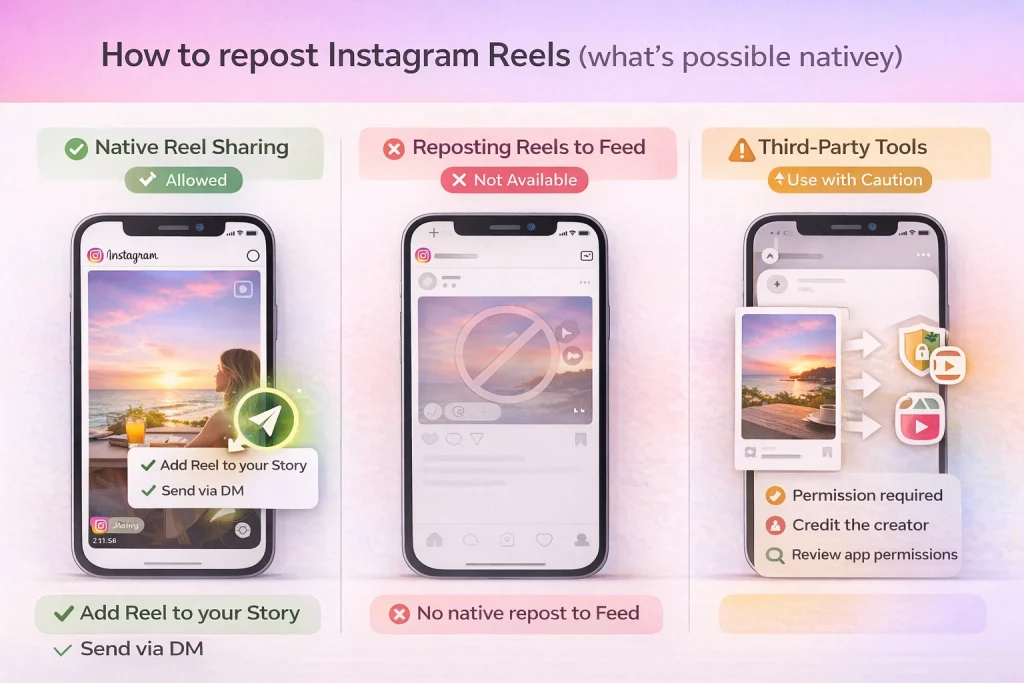
You can share any public Reel directly to your Story or through direct messages. To do this, tap the paper plane icon below the Reel and choose either “Add Reel to your Story” or select a recipient.
Instagram does not currently allow all users to repost Reels directly to their Feed using a built-in button, but this is gradually changing. If your account has the Repost feature enabled, you may be able to repost public Reels directly to your Feed, similar to feed posts. Reposted Reels appear in your followers’ feeds and under a “Reposts” tab on your profile. If Reels start to dominate your feed after interacting with shared content, learning more about managing which Reels appear in your feed can help keep your recommendations balanced.
Workarounds if reposting isn’t available
If you don’t have access to the Repost feature, or the Reel is from a private account, you can manually share it by saving the video and uploading it as a new post. You can do this by screen recording the Reel or using a repost app that downloads and saves the content.
When using this method, you should always ask for permission from the original creator and clearly credit them in the caption. Re-uploading without permission can violate copyright policies and damage trust with creators.
Permission & Credit: Do You Need Consent to Repost?
Reposting someone else’s content on Instagram isn’t always as simple as tapping “share.” In many cases, especially when reposting to your Feed, you need the creator’s permission—both legally and ethically.
When you need permission
If you’re reposting to your Feed using a screenshot, downloaded content, or a repost app, you should ask for explicit permission from the original creator. This applies to photos, videos, Reels, or Stories that were not made by you. Even public posts are still protected by copyright, and resharing without consent can lead to takedown requests or account warnings.
Reposting to your Story using Instagram’s built-in “Add to Story” feature typically doesn’t require permission, but it’s still good practice to credit the original poster, especially for user-generated or branded content.
How to properly credit a creator
Always tag the original creator in the image (if applicable) and mention their username in your caption. For example:
Repost from @creator — check out their original post.
Even if you’re using a repost app that includes a watermark or auto-credit, it’s best to add manual attribution to avoid any confusion over ownership.
When reposting isn’t recommended
Avoid reposting if:
-
The content is from a private account
-
You don’t have permission, and no repost feature is available
-
The content is sensitive, personal, or potentially copyrighted without clear usage rights
When in doubt, reach out to the creator with a direct message and ask.
Where Your Reposts Appear (And How to Remove Them)
If you use Instagram’s built-in Repost feature, the content you share doesn’t show up as a regular post on your main grid. Instead, it appears in two specific places.
Where reposts show up
-
In your followers’ feeds — When you repost a public post or Reel using the Repost option, it’s shown to your followers just like any other post.
-
On your profile under the “Reposts” tab — Instagram creates a separate tab on your profile where all reposted content is displayed. This tab is visible to anyone who visits your profile, similar to your tagged posts.
Reposts do not appear in your main feed grid or Reels tab unless you were originally tagged or added as a collaborator.
How to remove a repost
To delete a repost from your profile:
-
Go to your profile and open the Reposts tab
-
Find the reposted content you want to remove
-
Tap the three-dot menu (⋯) on the post
-
Select Remove repost
This removes the shared content from your profile and stops it from appearing to your followers, but it does not delete the original post.
Note: You can only remove reposts you’ve shared via Instagram’s Repost feature. If you manually re-uploaded a screenshot or video, you’ll need to delete the post from your feed like any other upload.
Why You Can’t Repost Some Instagram Posts
If you’re unable to repost a post or Reel on Instagram—either to your Feed or Story—there are several common reasons. These restrictions are built into the platform and often depend on privacy, settings, or feature availability.
1. The account is private
You can only repost content from public accounts. Posts from private profiles cannot be shared to your Story or reposted using Instagram’s built-in features unless you’ve been tagged in the content.
2. Resharing is disabled by the creator
Users can turn off the ability for others to share their posts or Reels to Stories. If this setting is disabled, the “Add to Story” option will not appear.
3. The content is a paid ad or branded post
Promoted posts, branded content, and some ads are protected and cannot be reshared using Instagram’s standard tools.
4. The Repost feature is not available to your account
Instagram is gradually rolling out its Repost feature. Not all accounts have access yet, and even among those that do, the option may not appear for every post. Availability can also vary by region, account type, or app version.
5. You’re using an outdated app version
Older versions of the Instagram app may not support newer features, including Repost. Updating to the latest version can restore missing options.
6. You’re trying to repost from desktop
Instagram’s desktop version has limited sharing capabilities. Most reposting features—including Story resharing and native Repost—are only available through the mobile app.
FAQ: Common questions about reposting on Instagram
No. Instagram won’t let you share private feed posts to Stories unless you’re explicitly allowed (e.g., you’re tagged and the account’s settings allow it).
Can I repost a Story if I’m not tagged?
Instagram has been rolling out broader Story resharing for public accounts, but controls depend on the creator’s settings. If the creator disables story resharing, you won’t be able to reshare it.
Reddit reports suggest it can disappear due to temporary bugs, UI tests, or rollout changes. If it vanishes, update the app and check again later.
Conclusion
Reposting on Instagram is a great way to share content, highlight others, and keep your profile active. Whether you’re sharing user-generated posts or partner content, always get permission, credit the original creator, and follow Instagram’s rules.
Reposting, Account History, and Ongoing Management
Reposting on Instagram isn’t just about sharing content—it also reflects how an account’s settings, permissions, and history are configured. This becomes more relevant for accounts that have changed hands, such as those acquired through a marketplace like InstaDeal, where reposting options, collaboration settings, or past restrictions may differ from a newly created profile. Reviewing repost permissions, privacy controls, and content attribution helps ensure reposting works as expected and avoids issues tied to previous account activity. Understanding these operational details makes ongoing account management smoother and more predictable.

Benjamin Amiri
Benjamin Amiri is a digital growth consultant and senior contributor at InstaDeal. He specializes in Instagram engagement strategies, Facebook ads innovation, and TikTok product marketing. With a track record of scaling brands and creator accounts, Benjamin turns performance data into actionable growth tactics that deliver measurable results.


