

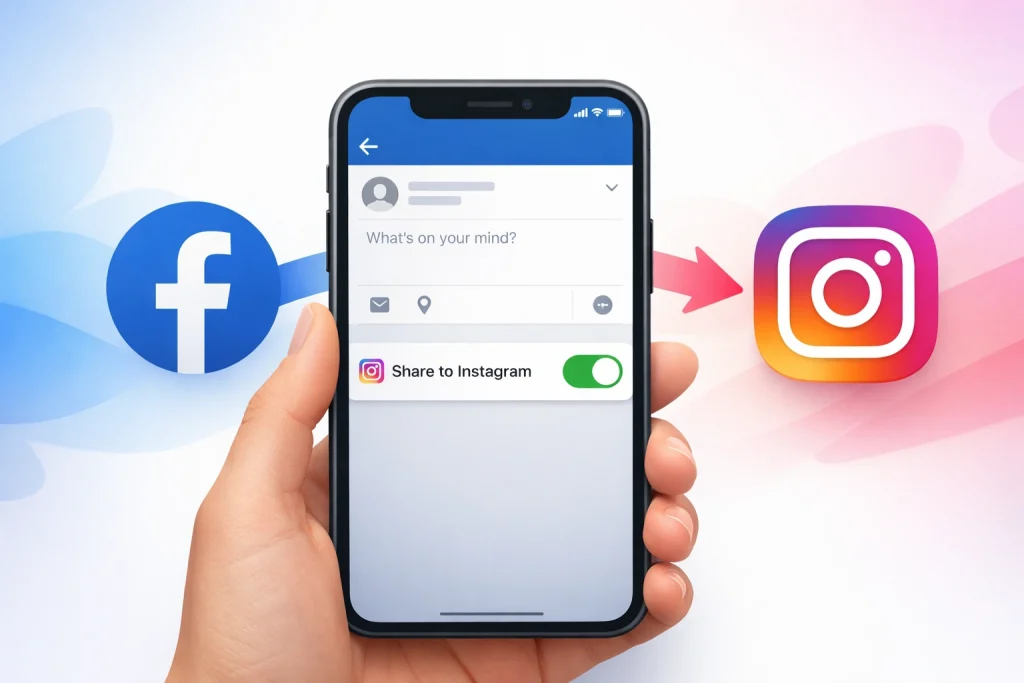

Facebook to Instagram cross-posting allows you to automatically share eligible Facebook posts—such as photos, videos, and reels—to Instagram through Meta’s Accounts Center. Many users assume their posts will automatically sync, only to find out they’ve missed a crucial setting or step.
How we verified this: We referenced publicly available documentation and reputable guides to explain what Instagram currently shows (and doesn’t show). Features can vary by app version and region, so if your menus look different, update the app and check Instagram’s settings/help pages.
This guide will show you exactly how to share Facebook posts to Instagram, whether you’re using a personal profile or a business page. You’ll learn the correct settings, limitations, and how to avoid common mistakes that prevent cross-posting.
Quick Summary
– Explain how to link your Facebook and Instagram accounts correctly
– Show where to enable cross-posting in Facebook settings
– Debunk myths about sharing personal posts vs. business posts
– Clarify which types of Facebook content can be shared to Instagram
– Protect your post quality by using proper image and caption formats
To share a Facebook post to Instagram, you must link your accounts through Meta’s Accounts Center and enable cross-posting before publishing. This option is only available for supported post types like single images or short videos.
Steps to enable and use cross-posting:
-
Open the Facebook app and go to Settings & privacy.
-
Tap Accounts Center > Sharing across profiles.
-
Select your Facebook Page as the source and Instagram as the destination.
-
Enable sharing for Posts, Stories, or Reels.
-
When creating a new post, toggle on Share to Instagram before publishing.
How Facebook to Instagram Sharing Works in 2026
In 2026, Meta continues to support cross-posting between Facebook and Instagram, but the feature now functions under stricter conditions and clearer boundaries. While the two platforms share infrastructure, the sharing behavior is not fully automatic—and is shaped by direction, content type, and platform-specific updates.
Key Platform Shifts in 2026
-
Cross-posting is format- and context-dependent.
Even when accounts are linked, not all post types can be shared. Cross-posting is only possible when Meta detects a supported format and shows the Instagram toggle at the time of post creation. -
Meta has deprioritized automatic sharing from Facebook.
Sharing is off by default and must be actively enabled. Unlike past versions where cross-posting stayed persistent, users now need to confirm sharing settings regularly—especially when using new devices or after password changes. -
Facebook → Instagram sharing behaves differently than Instagram → Facebook.
Sharing from Instagram to Facebook supports more formats (including Reels and Stories) and tends to be more consistent. In contrast, sharing from Facebook is more limited—particularly outside Business Suite workflows.
Meta’s Current Intent
Meta is pushing for:
-
Platform-native content, not identical duplication.
-
Customization via tools like Business Suite, which allow tailored captions and asset previews.
-
Intentional publishing, where creators choose how and where content appears.
Why It Matters
These changes reflect a broader trend: Meta is shifting toward algorithmic preference for content designed for each surface. Users who treat Facebook and Instagram as interchangeable channels may see reduced reach. On the other hand, those who adapt formatting and presentation per platform—while leveraging shared scheduling tools—can still benefit from time-saving cross-posting without hurting performance.
When it comes to cross-posting from Facebook to Instagram, not all content types are supported. While Meta has integrated both platforms through the Accounts Center, only specific formats can be shared, and sharing must typically be enabled before you publish a post.
Below is a breakdown of what is commonly supported and what isn’t, based on current functionality as of 2026.
Supported Post Types (if toggle appears during creation)
| Post Type | Can Share to Instagram? | Notes |
|---|---|---|
| Single Image Posts | ✅ Yes | Most reliably supported format |
| Short-Form Videos (Reels) | ⚠️ Sometimes | Supported when created in Business Suite |
| Stories | ✅ Yes | Must enable “Share to Instagram” in story settings |
| Text + Image Posts | ✅ Yes | Works if image is the primary format |
| Scheduled Posts (via Meta Business Suite) | ✅ Yes | Works if Instagram is selected during scheduling |
Unsupported or Restricted Post Types
| Post Type | Cannot Share? | Why Not |
|---|---|---|
| Text-Only Posts | ❌ No | Instagram requires visual content |
| Shared Links (link previews) | ❌ No | Instagram does not support clickable links in posts |
| Facebook Albums / Carousels | ❌ No | Multi-image post sharing is not supported |
| Polls, Events, or Group Posts | ❌ No | Unsupported content types for Instagram |
| Already Published Posts | ❌ No | Cross-posting must be enabled during creation |
Before You Start: Requirements Checklist
Before you can share Facebook posts to Instagram, there are a few essential requirements to check. First, ensure that both your Facebook and Instagram accounts are linked in the Meta Accounts Center. This connection is the backbone of cross-posting and allows the two platforms to communicate seamlessly.
Next, privacy settings play a critical role. Posts on Facebook must be set to “Public” to be eligible for sharing to Instagram. Private posts or those with restricted audience settings will not be cross-posted. This is a common oversight that can lead to confusion, so double-check the visibility of your content before attempting to share.
It’s also important to note that not all types of Facebook content are supported for cross-posting. For instance, polls, posts within private groups, and Marketplace listings cannot be shared to Instagram. This limitation ensures that only relevant and shareable content appears on both platforms.
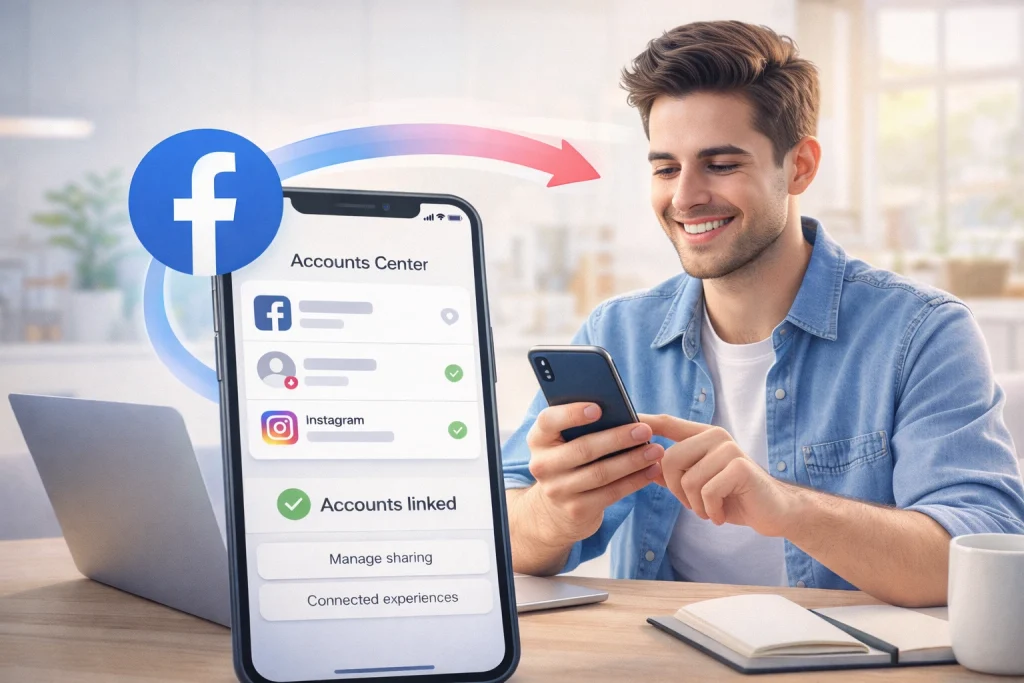
Step 1: Link Facebook and Instagram in Meta Accounts Center
To link your Facebook and Instagram accounts, start by navigating to the Meta Accounts Center. You can access this feature through the settings menu in either app. On Facebook, go to “Settings & privacy,” and on Instagram, open “Settings.” Look for the option labeled “Accounts Center” and select it. This centralized hub allows you to manage both accounts in one place.
Once in the Accounts Center, follow the prompts to log in and authorize the linking process. It’s crucial to use the same email address or phone number for both accounts to ensure a smooth connection. If you encounter any issues, double-check that your login details match across both platforms.
Step 2: Enable Cross-Posting (Sharing Across Profiles)
Once your Facebook and Instagram accounts are linked through Meta’s Accounts Center, the next step is to activate cross-posting between the two platforms. This process enables content to automatically appear on both Facebook and Instagram when posting, without needing to duplicate the post manually.
Here’s how to enable it using the latest Meta interface as of 2026.
How to Enable Cross-Posting from Facebook to Instagram
1. Open Meta’s Accounts Center
-
On Facebook: Go to Settings & privacy > Settings, then find Accounts Center in the left-hand menu.
-
On Instagram: Go to Settings > Accounts Center.
2. Access Connected Experiences
-
In Accounts Center, select Connected experiences.
-
Tap or click on Sharing across profiles.
3. Set Sharing Preferences
-
Under Share from, choose your Facebook Page or Profile.
-
Under Share to, select your Instagram business or creator account.
You’ll see toggle switches for:
-
Your posts
-
Your stories
-
Your reels (availability may vary)
Enable each content type you want to automatically share from Facebook to Instagram.
Cross-Posting Tips
-
The toggle options apply only when the post originates from Facebook and the formats are supported.
-
If you don’t see the Instagram toggle when creating a new post, double-check that cross-posting is turned on and that your account type supports the post format.
-
You can revisit the Sharing across profiles settings at any time to change preferences.
What If the Toggle Is Missing?
If the Instagram option doesn’t appear during posting:
-
Revisit the Accounts Center and disconnect/reconnect your Instagram account.
-
Confirm your Instagram account is set to Business or Creator, not Personal.
-
Update both the Facebook and Instagram apps to the latest versions.
Not all post types are eligible for cross-posting. If the format is unsupported (like a link post or carousel), the option simply won’t show, even if sharing is enabled.
With cross-posting activated, your eligible Facebook posts will automatically appear on Instagram, saving time and ensuring consistent content across platforms. The key is enabling sharing before you publish—and making sure your account connections are fully updated.
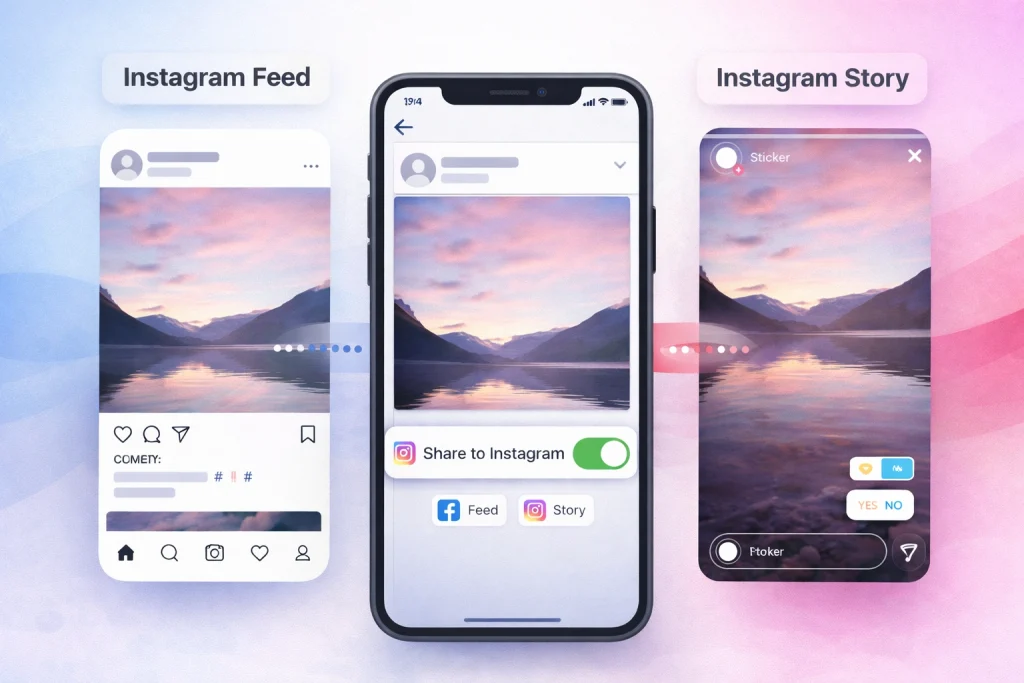
Sharing your Facebook posts to Instagram can help you reach a broader audience, but it’s important to tailor your content for each platform. Here’s how you can share posts to both Instagram Feed and Stories, along with tips to optimize your cross-posting.
Sharing to Instagram Feed
To share a Facebook post to your Instagram Feed, start by creating your post on Facebook as usual. Before publishing, look for the toggle option labeled **’Share to Instagram’** in the posting settings. Make sure your Facebook and Instagram accounts are linked beforehand to enable this feature.
Once the toggle is activated, your post will automatically appear on your Instagram Feed after publishing. However, Instagram’s audience preferences differ from Facebook’s, so it’s a good idea to customize your captions, hashtags, and tags. For example, Instagram users tend to engage more with concise captions and trending hashtags. If your Facebook post has a long caption, consider shortening it for Instagram to make it more visually appealing.
Sharing to Instagram Stories
For eligible posts, Facebook allows you to share directly to Instagram Stories. To do this, locate the post you want to share on Facebook, then click on the **’Share’** button and select the option **’Share to Instagram Story’**. This feature may vary depending on the type of post or account settings.
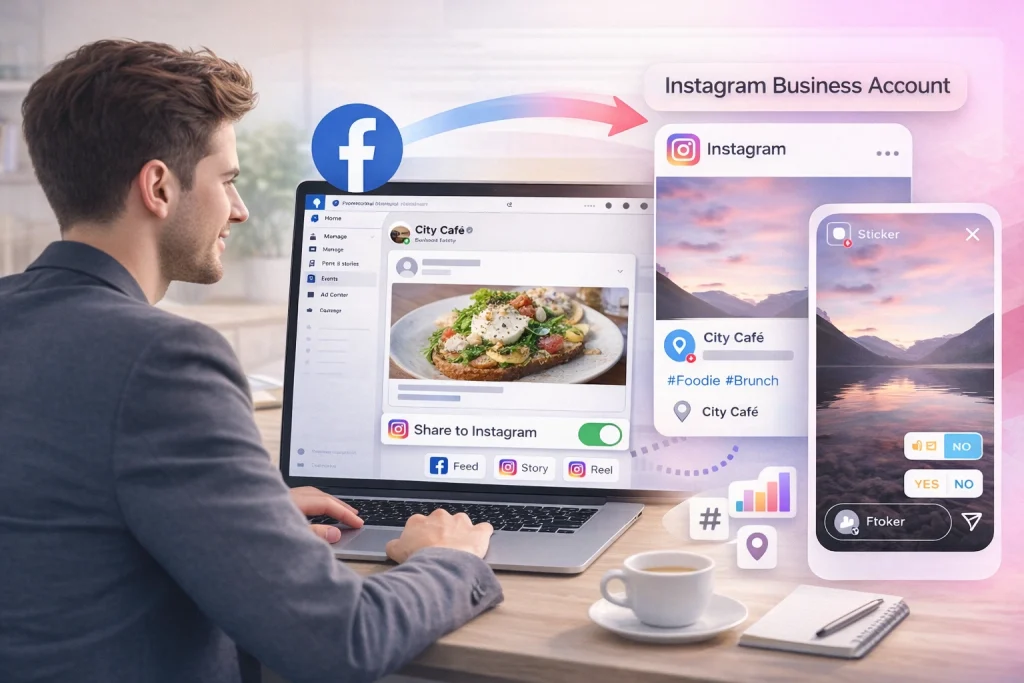
Sharing posts from a Facebook Page to a linked Instagram business account is a powerful way to streamline your social media strategy. This feature is available exclusively for business accounts, allowing you to manage posts for both platforms efficiently.
Cross-posting for business accounts
To get started, ensure both your Facebook Page and Instagram account are set up as business accounts. This unlocks advanced features like cross-posting. Once linked, you can enable cross-posting directly from Facebook. Navigate to your Page settings, locate the cross-posting option, and connect your Instagram business profile. From there, you can choose to share posts, stories, or reels automatically or manually. Keep in mind that feature availability may vary depending on updates.
If the option to share Facebook posts to Instagram isn’t appearing, there are a few quick fixes you can try. These steps address common compatibility and account-related issues, ensuring everything is set up correctly for cross-posting.
Update your apps
First, make sure both the Facebook and Instagram apps are updated to their latest versions. Outdated apps can cause compatibility issues, preventing features like cross-posting from working properly. This issue isn’t always one-sided—you may also run into cases of Instagram not posting to Facebook, which follows a similar troubleshooting path.
Check account linking
Verify that your Facebook and Instagram accounts are properly linked in the Meta Accounts Center. If you’ve recently changed your account passwords or settings, the link between the two accounts may have been disrupted.
Verify post type
Not all posts are eligible for cross-posting. For example, private posts, posts shared within groups, and certain types of content like polls or events may not support the Share to Instagram feature.
Best Practices to Avoid Reach Drops When Cross-Posting
Cross-posting from Facebook to Instagram can save time and expand your reach—but doing it poorly can hurt engagement on both platforms. In 2026, Meta’s algorithms increasingly favor content that feels native to each platform. That means simply copying the same post to both Facebook and Instagram may result in lower visibility.
To protect your reach and engagement, follow these updated best practices.
1. Customize Captions for Each Platform
Facebook:
-
Supports longer captions with links, context, and multi-paragraph structure
-
Engagement tends to come from comments and shares
Instagram:
-
Prioritizes shorter, visually aligned captions
-
Put key content in the first 125 characters
-
Avoid placing links in captions—Instagram doesn’t support them
Tip: Use Meta Business Suite to customize captions separately for each platform before posting.
-
Instagram: Hashtags help with discoverability and feed placement. Use 5–10 relevant, niche-targeted hashtags.
-
Facebook: Hashtags have minimal impact. Limit to 1–2 if any.
Avoid using the exact same hashtag stack on both platforms—Instagram’s algorithm looks for tailored engagement signals.
3. Match the Image or Video Format to Instagram’s Layout
| Format | Recommended Size | Notes |
|---|---|---|
| Instagram Feed | 1080 x 1080 px (1:1) | Best for most posts |
| Instagram Story | 1080 x 1920 px (9:16) | Vertical format only |
| Reels | 1080 x 1920 px (9:16) | Maximize screen coverage |
| Facebook Link Post | 1200 x 628 px (1.91:1) | May crop poorly on Instagram |
If Reels aren’t delivering results or feel off-brand, you might want to remove suggested Reels from your feed for better content alignment.
4. Preview Before Posting
Meta Business Suite allows you to:
-
Preview how your post will appear on each platform
-
Toggle specific platforms on/off
-
Edit captions and tags separately
Always review before publishing to avoid visual issues or formatting conflicts.
5. Avoid Copy-Paste Automation Without Intent
Posting identical content without adjusting formatting, tags, or copy can result in:
-
Lower engagement (users ignore repeated content)
-
Missed algorithmic opportunities (Instagram deprioritizes “duplicated” content)
-
Reduced performance for posts with non-native formatting
If you’re sharing the same message, adapt how it looks and feels for each audience.
By tailoring each cross-posted post—even slightly—you protect performance on both platforms. The goal is consistency without duplication: match each platform’s tone, format, and expectations to maintain reach and grow your audience effectively.
Managing Cross-Posting with Account Ownership in Mind
For users managing multiple Instagram profiles or business pages, maintaining control over account connections and cross-posting settings is essential. This becomes even more relevant when ownership of an account changes or is transferred. Platforms like InstaDeal, a marketplace for buying and selling Instagram accounts, intersect with these operational concerns by enabling users to acquire accounts that may already be linked to Facebook or configured for content sharing. In such cases, reviewing and reconfiguring cross-posting permissions ensures that content strategies remain aligned with current ownership and platform policies.
No. Facebook-to-Instagram sharing is generally only available at the time you create the post, not retroactively after it’s live.
Do I have to enable “connected experiences” to cross-post?
Yes. If connected experiences aren’t enabled in Accounts Center, you won’t be able to share posts, stories, or reels across Facebook and Instagram.
Reels sharing depends on your Accounts Center sharing settings; if the reels toggle is off (or resets), reels may stop cross-posting until you re-enable it.
Conclusion: Best Setup for Reliable Facebook → Instagram Sharing
Sharing Facebook posts to Instagram is an efficient way to expand your reach—if done correctly. By linking your accounts through Meta’s Accounts Center and using supported post types, you can cross-post content with minimal effort.
Stay updated on Meta’s tools and adapt your approach to match platform changes. Small adjustments—like formatting, captions, and using the right settings—can make a big difference in performance.
Use this guide as your foundation, and refine based on what resonates with your audience.

Benjamin Amiri
Benjamin Amiri is a digital growth consultant and senior contributor at InstaDeal. He specializes in Instagram engagement strategies, Facebook ads innovation, and TikTok product marketing. With a track record of scaling brands and creator accounts, Benjamin turns performance data into actionable growth tactics that deliver measurable results.


