


You hit “Share to Facebook.”
Instagram nods like, “sure thing.”
Then… nothing shows up on Facebook.
Annoying? Yep.
Confusing? Also yes.
And if you’re posting for a business or creator account, it can feel like you’re bleeding reach for no reason.
The good news: this problem is almost never mysterious. It’s usually one of a small handful of settings or connection issues — especially since Meta shifted most cross-posting controls into Accounts Center over the last couple years.
Let’s walk it down in the fastest order possible, so you’re not randomly reinstalling apps out of desperation.
Quick Answer – Why Instagram Isn’t Posting to Facebook (In Plain English)
If Instagram isn’t posting to Facebook, it’s almost always one of these three things:
-
The accounts aren’t linked correctly in Meta Accounts Center.
Meta moved cross-posting into Accounts Center → Connected experiences → Sharing across profiles. If that link breaks (or you linked the wrong Facebook profile/page), sharing silently fails. -
Sharing toggles are off for the specific content type you’re posting.
Posts, reels, and stories each have their own sharing switches. So reels might cross-post while regular posts don’t, or stories refuse with a weird message. The controls live under Sharing across profiles for each format. -
You’re trying to share to a Facebook Page without the right setup.
In 2025, Instagram’s own help docs are clear: cross-posting to a Facebook Page requires a professional Instagram account plus Page admin rights, and the Page must be selected in Accounts Center. Personal IG accounts can be limited here.
Do These 60-Second Checks First If Instagram Isn’t Posting to Facebook
Start here because it fixes a lot of cases fast. Most “Instagram not posting to Facebook” issues are either a temporary app hiccup, a content-type mismatch, or a destination mistake (profile vs Page). These checks tell you which one you’re dealing with before you touch deeper settings.
Run this mini-checklist in order:
-
Check if it’s one format or everything.
Try sharing a regular post and a reel. If reels share but posts don’t, you’re looking at a sharing toggle issue, not a broken link. Meta keeps separate switches per format. -
Confirm you’re sharing to the right place.
On the final share screen, look for the “Also share to Facebook” line. If it shows your personal profile but you meant a Page (or vice versa), that’s your culprit. Accounts Center can silently default to the last destination you used. -
Do a “test post” with something boring.
A throwaway photo or a one-line reel is fine. The point is to see if the pipeline works at all. If nothing gets across, move to the linking section next. -
Update both apps.
Yeah, I know everyone says this. But cross-posting relies on API connections between two apps, and outdated versions are a top 2025 cause of silent sharing failures. -
Quick restart trick.
Force-close Instagram and Facebook, reopen Instagram, then try again. A stale session can block sharing until the app re-auths.
And if Instagram still acts glitchy after a restart, it’s worth doing a quick cleanup — here’s a simple guide on how to clear your Instagram cache without losing data so the app can refresh properly.
How to Make Sure Instagram and Facebook Are Linked Correctly in Meta Accounts Center
If the cross-post link is even slightly off in Meta Accounts Center, Instagram will “share” your post and Facebook will quietly ignore it. No error. Just… nothing. This is the #1 root cause in 2025.
Here’s how to check it the right way:
-
Open Instagram → go to your profile.
-
Tap the three lines (top right) → Settings and activity.
-
Tap Accounts Center.
-
Go to Connected experiences → Sharing across profiles.
-
Under Share from, pick your Instagram account.
-
Under Share to, pick the correct Facebook destination:
-
your Facebook profile, or
-
your Facebook Page (if you’re a business/creator).
-
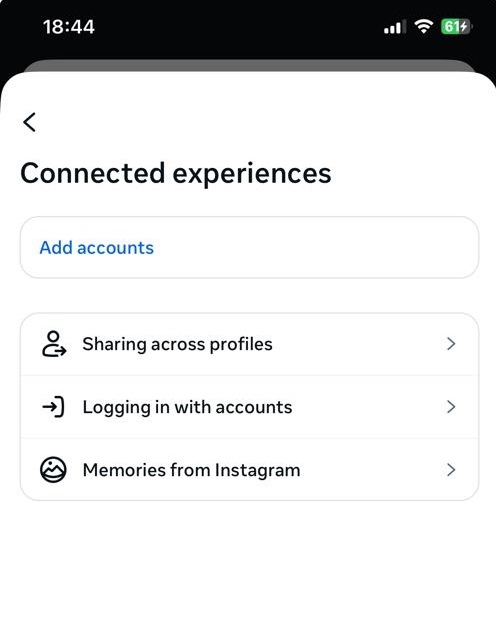
Now the important part people skip:
-
If your Facebook account isn’t listed at all, tap Add accounts and log in.
-
If the wrong Facebook profile/Page is selected, change it here. This menu controls where sharing goes by default, even if your share screen looks “on.”
Common 2025 gotchas:
-
You’re linked to a Facebook profile but trying to post to a Page.
-
You have multiple Facebook accounts on one phone and the “wrong” one is active.
-
You merged or renamed Pages recently — and Accounts Center didn’t update the destination.
Once this is correct, cross-posting starts working again for most people.
Fix Instagram Not Posting to Facebook for Posts, Reels, and Stories
Even if your accounts are linked, sharing won’t happen unless the format-specific toggles are on. Meta treats posts, reels, and stories as separate pipes. One can work while the others stay broken.
Here’s where to look (and what to flip):
-
Instagram → Settings and activity → Accounts Center
-
Connected experiences → Sharing across profiles
-
Choose your IG under Share from, then your Facebook profile or Page under Share to.
-
Now you’ll see three separate switches:
-
Your Instagram posts
-
Your Instagram stories
-
Your Instagram reels
-
Turn on the ones you want. Simple. But a couple 2025 quirks matter:
Fix Instagram Not Posting to Your Facebook Page (Business, Creator & Meta Tools)
If you’re trying to post from Instagram to a Facebook Page (not your personal profile), the setup rules are stricter in 2025 — and that’s where most business/creator failures come from.
Here’s what has to be true for Page cross-posting to work:
-
You need a professional Instagram account.
Meta no longer lets personal Instagram accounts auto-share to Facebook Pages you manage. If your IG is “Personal,” it may still share to your Facebook profile, but Page sharing won’t stick. Follow this quick guide on how to switch to a creator account on Instagram so your posts can actually cross-post to your Facebook Page. -
You must be an admin on that Page.
Editor or “partial access” roles can look fine in Facebook, but cross-posting often fails unless your Facebook account has full admin rights. It’s a permissions thing, not a bug. -
The Page has to be selected inside Accounts Center.
This trips people up constantly. You can be linked to Facebook and have sharing toggles on… but if Accounts Center is still pointing at your profile, posts won’t go to the Page. Go to
Accounts Center → Connected experiences → Sharing across profiles → Share to
and pick the Page explicitly.
A couple real-world edge cases:
-
If you recently merged Pages, renamed one, or got new admin access, unlink/relink the Page in Accounts Center. Meta treats Page identity changes like a new destination.
-
If you’re using Meta Business Suite or a Business Portfolio, make sure the same Facebook account that owns that portfolio is the one linked to IG. Mismatched owners = silent failure.
If all three requirements are met, Page cross-posting is usually rock-solid.
When Instagram Still Isn’t Posting to Facebook: Meta Bugs, Outages & Temporary Blocks
Sometimes cross-posting fails because Meta is having a bad day, or your account gets a quiet, temporary restriction. If your settings look perfect and it still won’t share, this is the lane you’re in.
First, check for outages.
Meta services go down more than people think, and when they do, cross-app features like IG→FB sharing are often the first to glitch. You’ll usually see a wave of reports on tools like Meta Status or Downdetector within minutes.
Meta has had multiple large-scale Instagram/Facebook outages in 2025, and cross-posting failures were part of user complaints during those windows.
If there’s a clear spike, don’t burn an hour reinstalling apps. Just retry later.
Second, watch for temporary blocks.
Instagram and Facebook both rate-limit features to fight spam. If you post or share a lot in a short burst, you may get the “You’re Temporarily Blocked” message — or worse, no message at all, just silent failure. Facebook explicitly lists “posting too fast” as a reason for short sharing bans.
These blocks are usually short (often under 24 hours), but they can stop cross-posting until they clear.
What to do if you suspect a block:
-
Slow down posting for a day. Seriously.
-
Avoid rapid reposts, mass tagging, or “same caption everywhere” bursts.
-
In Instagram: Settings → Help → Report a problem and mention cross-posting specifically.
If it’s an outage or a block, the fix is patience plus a clean retry — not more settings changes. If you’re worried it’s something more serious than a short block, check out our breakdown of temporary vs permanent Instagram bans so you know exactly what you’re dealing with.
FAQ: “Instagram Not Posting to Facebook” – Tricky Edge Cases
Here are most common questions about Instagram not posting to Facebook, collected from entire web by InstaDeal‘s expert:
Most of the time, stories fail because the story-specific toggle in Accounts Center is off or Meta has a temporary stories-only bug.
Not globally. In 2025, most people still see a reels toggle under Sharing across profiles (IG → FB). But some accounts lose it during tests/bugs, or when they’re not properly added to the same Accounts Center.
That message usually means:
-
the Facebook side rejected it (permissions, Page role, or age restrictions), or
-
Meta hit a backend error while pushing it across.
I’ve tried everything. Is there any way to get a real human from Meta?
For most people, the only official route is:
-
In Instagram: Settings → Help → Report a Problem (attach screenshots).
-
If you run ad accounts or business assets, use Meta Business Help / chat from a browser — business spend gets slightly better support.

Alex Morris
Alex Morris is a social media strategist and lead writer at InstaDeal. He specializes in Instagram, TikTok, and creator monetization trends, helping influencers and brands grow smarter online. With over 10 years of digital marketing experience, he simplifies complex topics into practical insights.


