

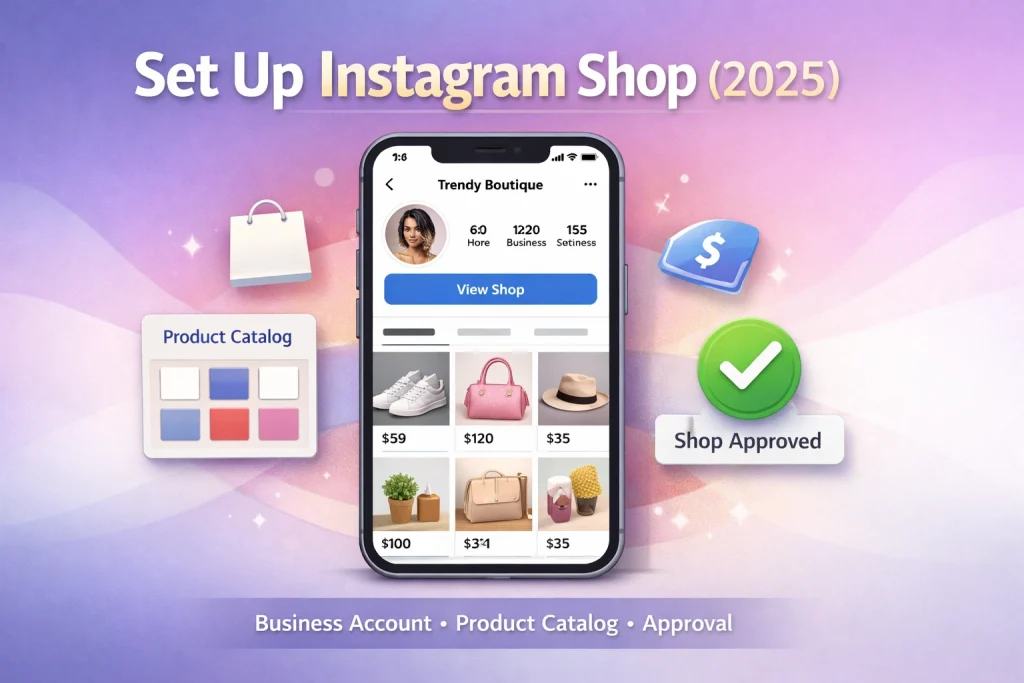

Knowing how to set up Instagram Shop can feel overwhelming, especially with constant platform updates and confusing requirements. If you’re a small business or creator trying to sell products directly on Instagram, missing just one setup step can prevent your shop from going live.
How we verified this: We referenced Instagram’s Help Center and publicly available documentation and reputable guides to explain what Instagram currently shows (and doesn’t show). Features can vary by app version and region, so if your menus look different, update the app and check Instagram’s settings/help pages.
Safety note: Avoid third-party “viewer” or “hide chat” tools that ask for your Instagram login—these can risk account access.
This guide will walk you through how to set up Instagram Shop from start to finish. You’ll learn how to meet eligibility, connect your product catalog, and get your shop approved so you can start selling directly through your Instagram profile.
Quick Summary
– Explain how to meet Instagram Shop eligibility requirements
– Show how to connect a product catalog to your Instagram account
– Debunk common mistakes that delay Instagram Shop approval
– Clarify how to enable Instagram Shopping features in settings
– Protect your shop by following Instagram’s commerce policies
How To Set Up Instagram Shop?
To learn how to set up Instagram Shop, start by ensuring your account meets eligibility requirements. An Instagram Shop lets you showcase products directly on your profile for easy shopping.
1. Switch your account to a Business or Creator account in Instagram settings.
2. Connect a product catalog through Facebook Business Manager.
3. Submit your account for review from the Instagram Commerce Manager.
4. Enable the Shopping feature once your account is approved.
5. Tag products in your posts and stories to showcase them in your shop.
What Is an Instagram Shop (vs Instagram Shopping)
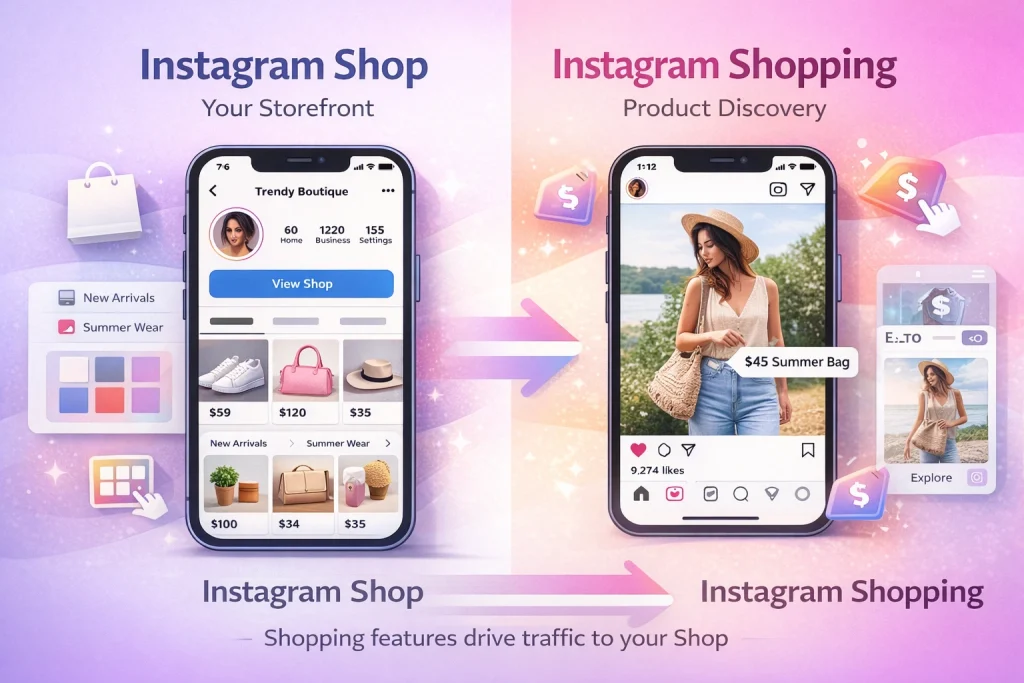
Instagram Shop is a customizable storefront directly on your profile, where businesses can showcase products in one centralized location. On the other hand, Instagram Shopping refers to the broader set of features that allow users to discover and buy products through tags in posts, Stories, and Explore.
Understanding this distinction is crucial when setting up your shop. If your goal is to create a branded, permanent space for your products, Instagram Shop is the way to go. It acts as a digital storefront, similar to a mini e-commerce site within Instagram. For example, a clothing brand could use their Instagram Shop to group collections like summer wear or new arrivals, making it easy for shoppers to browse.
Instagram Shopping, by contrast, focuses on discovery. Features like product tags in posts or shoppable Stories encourage impulse purchases by embedding products directly into content. This is ideal for engaging users who might not visit your profile but interact with your posts in their feed.
Instagram Shopping Features You Should Know
Instagram Shopping isn’t just one feature—it’s a set of tools that help you create a seamless buying experience directly inside the app. Before you set up your Instagram Shop, it’s helpful to understand the key features available so you can take full advantage of them after approval.
Instagram Shop Tab (Storefront on Profile)
Once your account is approved, your profile gets a dedicated Shop tab, where users can browse your entire product catalog in one place. This acts like a mini e-commerce storefront on Instagram, allowing you to group items into collections, highlight featured products, and organize by category.
Product Tagging in Posts, Stories & Reels
Tag products directly in:
-
Feed posts (single or carousel)
-
Instagram Stories
-
Instagram Reels
This lets users tap the product and go straight to its detail page. You can tag: -
Up to 20 products or shops in a feed post
-
Up to 30 products or a collection in a Reel
-
One product sticker per Story frame
Tagging turns everyday content into shoppable experiences.
Checkout Options
Depending on your region, you can enable:
-
Checkout on Instagram (U.S. only) — users buy without leaving the app
-
Checkout on your website — users tap a product and complete the purchase externally
-
Checkout via Facebook Shops — especially useful if you don’t have a standalone site
Saved Products & Wishlists
Users can save products they’re interested in and revisit them later via their Saved tab. This improves retention and helps with retargeting strategies via ads.
Shoppable Discovery Surfaces
Your products can appear in:
-
The Explore tab
-
The Shop discovery feed
-
Search results for relevant terms
This increases organic discoverability beyond your follower base.
After your Shop is live, regularly update product info and refresh visuals. A high-quality storefront + consistent tagging increases both engagement and conversions.
Benefits of Setting Up an Instagram Shop
Setting up an Instagram Shop does more than just unlock product tagging—it transforms your profile into a conversion-ready storefront. Here’s why businesses and creators should take advantage of it in 2025 and beyond.
Seamless Shopping Without Leaving Instagram
Instagram Shop minimizes friction by letting users discover and shop products without leaving the app. Whether you’re using in-app checkout or sending users to an external site, each click is optimized for speed and simplicity—reducing drop-offs and abandoned carts.
More Product Visibility Through Tags and Explore
Tagged products can appear in:
-
User feeds
-
Explore tab
-
Shopping search
-
Product detail pages (cross-linking)
This increases organic exposure to people who don’t follow you—Instagram automatically recommends shoppable posts based on user behavior.
Product Discovery Feels Native to the Content
When products are tagged in Reels, Stories, or carousel posts, the shopping experience feels integrated—not interruptive. This makes impulse buying easier and encourages exploration while users engage with your content.
Analytics and Insights for Smarter Selling
Once set up, you get access to Instagram Insights, where you can track:
-
Product views
-
Clicks
-
Taps on tags
-
Follower engagement with your shop
This data helps you refine your catalog, improve visuals, and test content formats that convert better.
Ideal for Brands Without a Website
Even if you don’t have a standalone store, Instagram Shop (connected through Facebook Commerce Manager) allows you to sell via your Facebook or Instagram storefront—making it perfect for startups or creators testing product-market fit.
Instagram Shop Eligibility Requirements (2026)
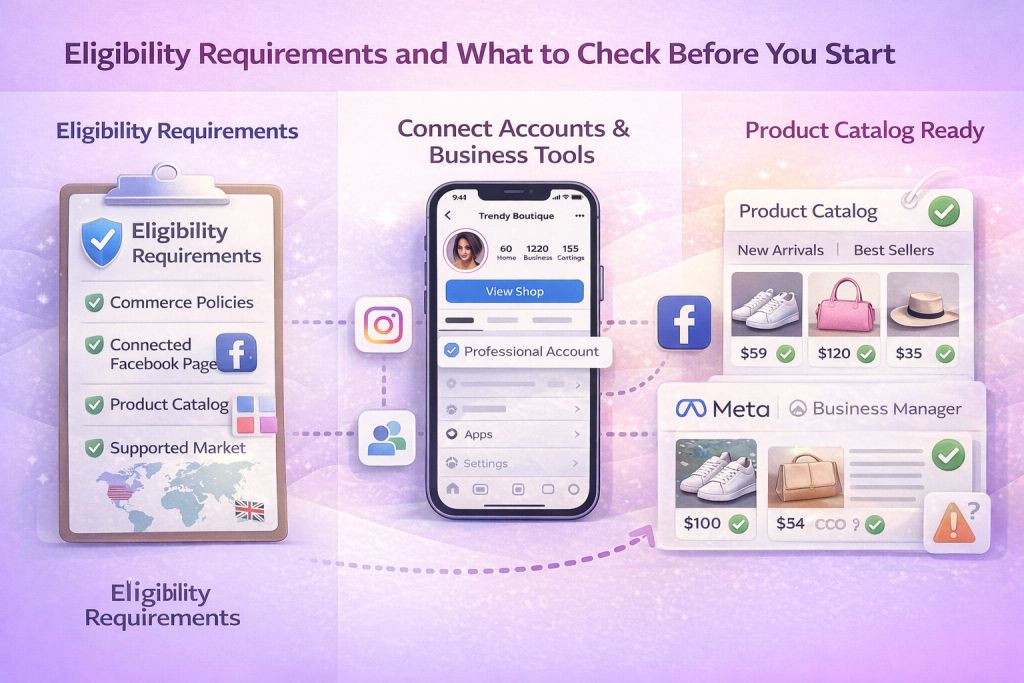
Before setting up an Instagram Shop, it’s crucial to ensure your business meets the platform’s eligibility requirements. These criteria ensure a seamless shopping experience for users and compliance with Instagram’s policies.
First, your business must adhere to Instagram’s Commerce Policies. These policies cover everything from prohibited content to guidelines on product accuracy and fulfillment. Ignoring these rules can lead to rejection or suspension of your shop.
Second, you’ll need a connected Facebook Page and a product catalog. The product catalog acts as the backbone of your shop, housing all the items you plan to sell. You can create this catalog through Facebook’s Commerce Manager or integrate it with an existing e-commerce platform like Shopify.
Finally, your business must operate in a supported market. Instagram Shopping is available in various countries, including the United States, Canada, and the UK. However, some regions may have limited functionality, so confirm your location’s eligibility on Instagram’s official list of supported markets.
Step 1: Switch to a Business or Creator Account
Switching to a professional account on Instagram is the first step to unlocking essential business tools, including Instagram Shopping. Begin by navigating to your profile, tapping the menu icon in the top right corner, and selecting Settings. From there, choose Account and scroll down to the option labeled Switch to Professional Account. If you need more help, here’s a full guide on switching to a Creator account on Instagram with updated screenshots and tips.
Next, connect your Facebook Page to your Instagram account. This step is crucial because Instagram Shopping requires a linked Facebook Page. Go back to your Instagram Settings, select Business, and then tap Connect a Facebook Page. Choose an existing page that represents your business or create a new one. Ensure that the page is fully set up with accurate business details, including your address, phone number, and website, as these details will sync with your Instagram Shop.
Step 2: Set Up Meta Business Manager & Commerce Manager
Meta Business Manager acts as your business’s central hub for managing assets like ad accounts, pages, and permissions. To start, visit the Meta Business Manager website and create an account using your business details. Make sure the information matches what you’ll use for your Instagram Shop to avoid potential verification delays.
Commerce Manager, on the other hand, is where you’ll manage your product catalog and orders. Begin by accessing Commerce Manager. If you’ve already created a commerce account, you’ll see an option to set up your shop. Follow the prompts to link your Instagram account, upload your product catalog, and configure payment settings. Double-check that your product descriptions, prices, and inventory details are accurate and consistent.
Step 3: Create or Connect a Product Catalog
To set up your Instagram Shop, you’ll need to either create a new product catalog or connect an existing one through Facebook’s Commerce Manager. This catalog acts as the foundation of your shop, housing all the products you want to showcase.
When adding products, prioritize high-quality images that showcase each item clearly. Use multiple angles or lifestyle shots to make your listings more engaging. Pair these visuals with detailed, SEO-friendly descriptions. For example, instead of saying “blue shirt,” you might write “Men’s Slim-Fit Cotton Blue Shirt – Casual and Comfortable for Everyday Wear.” This not only helps potential customers but also improves your shop’s visibility in search results.
Organizing your products into categories is another step that enhances user experience. Whether you sort by type, season, or collection, this structure makes it easier for shoppers to browse and find what they need. For instance, categories like “Summer Essentials” or “Best Sellers” can guide customers directly to popular items.
Step 4: Submit Your Instagram Shop for Review
Once your business account is connected to a product catalog and meets Instagram’s commerce policies, it’s time to submit your Instagram Shop for review—a required step before Shopping features go live on your profile.
Here’s exactly how to do it:
1. Final Check: Make Sure Everything’s Connected
Before submitting, double-check:
-
Your Instagram account is set to Business or Creator
-
A Facebook Page is linked
-
A Commerce Account is created in Meta Commerce Manager
-
Your product catalog is linked to Instagram
In Commerce Manager, under “Shops,” your Instagram account should appear connected. If it’s missing, go back and link it in your Instagram Settings > Business > Shopping section.
2. Submit for Review via Instagram App
Now go to the Instagram app:
-
Navigate to Settings > Business > Shopping
-
Select the catalog you want to use
-
Tap Submit for Review
If you don’t see the Shopping option, make sure:
-
Your catalog is correctly linked
-
You’re using the latest version of Instagram
-
Your region supports Instagram Shopping
Note: The “Shopping” option won’t appear until all other setup steps are complete.
3. Wait for Approval (Usually a Few Days)
Most reviews take a few days, though Instagram states it can take up to 2 weeks in some cases. You’ll get a notification when your account is approved or if there’s an issue that needs fixing.
To check your status:
Go to Settings > Business > Shopping — it will show whether your account is still under review, approved, or rejected.
How to Tag Products in Posts, Stories & Reels
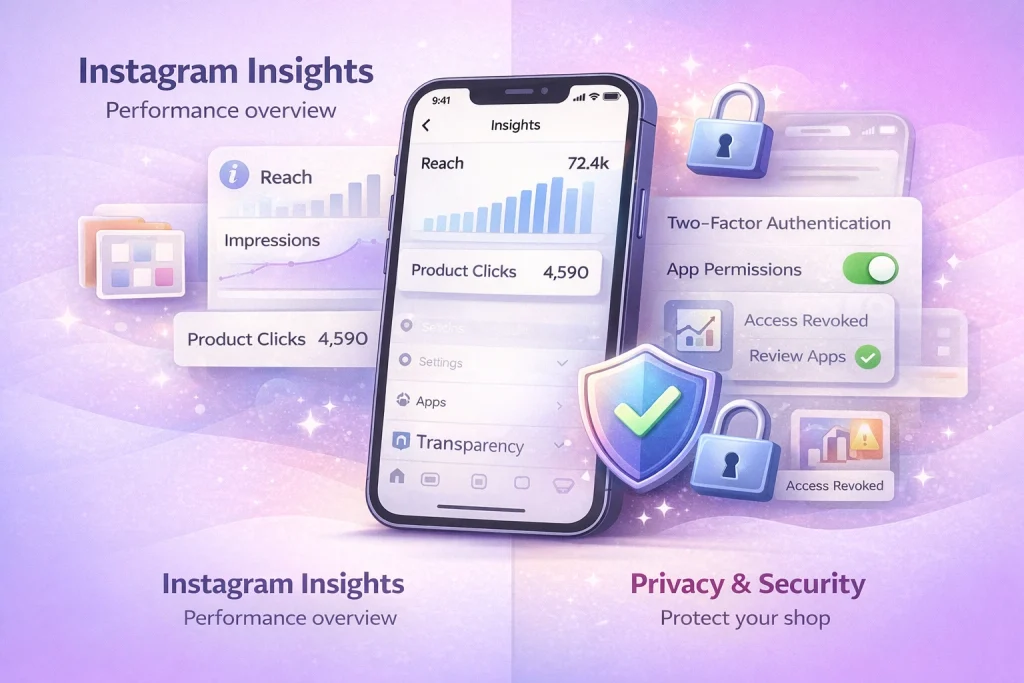
After your Instagram Shop is approved, you can begin tagging products in your content. This is one of the most powerful ways to drive sales—because it turns everyday posts into shoppable experiences.
Here’s how to tag products across different formats:
Tag Products in Feed Posts
-
Create a new photo or carousel post.
-
Tap “Tag Products” (after selecting your image).
-
Tap the product in the image, then search your catalog.
-
Select the correct item and publish the post.
Tagging limits:
-
Up to 5 products per single image post
-
Up to 20 products total in a carousel post
Tag Products in Reels
-
Tap “+” > Reel, and create or upload your video.
-
Before sharing, tap “Tag Products” or “Add Product”.
-
Choose the item(s) or collection from your catalog.
You can tag:
-
Up to 30 products or one collection per Reel
Tag Products in Stories
-
Create a Story using an image or video.
-
Tap the sticker icon at the top.
-
Choose the “Product” sticker.
-
Search and select a product from your catalog.
-
Resize or move the sticker on screen, then post.
Limit: One product sticker per Story frame.
Best Practices for Product Tagging
-
Tag early in the post creation flow to save time.
-
Use relevant hashtags and descriptive captions for visibility.
-
Don’t tag unrelated products—it may violate Instagram’s Commerce Policies.
-
Keep tagging consistent across content types (e.g., tag the same product in Reels, posts, and Stories to reinforce interest).
Tips for Optimizing Your Instagram Shop (Post-Setup)
After your Instagram Shop is live, your goal shifts from setup to sales and discoverability. Optimization helps your shop rank better, look more professional, and convert more shoppers.
Here’s how to do it effectively in 2026:
1. Use Scroll-Stopping Product Images
Your visuals are your storefront. Poor lighting or cluttered backgrounds reduce trust and engagement.
Use:
-
Clean, high-resolution photos
-
Multiple angles or lifestyle shots
-
Consistent color tones and branding
Avoid:
-
Dark, blurry, or low-quality images
-
Watermarks or heavy filters
2. Create Collections to Guide Shoppers
Organize your catalog into curated collections based on:
-
Seasons (e.g., “Fall Essentials”)
-
Product types (e.g., “Activewear”)
-
Themes (e.g., “Gifts Under $50”)
This improves navigation and encourages browsing.
Tip: Set your best collection as “Featured” so it shows first in your Shop tab.
3. Optimize Product Titles and Descriptions for Search
Instagram indexes product data from your Commerce Manager.
Good product titles should include:
-
Brand
-
Product type
-
Key features
(e.g., “Men’s Waterproof Hiking Jacket – Lightweight & Breathable”)
Descriptions should:
-
Highlight benefits (not just specs)
-
Include common search terms
-
Be easy to scan
Think like a shopper. What would you search for?
4. Keep Your Catalog Fresh
A neglected catalog = fewer conversions.
Regularly:
-
Remove out-of-stock products
-
Add new arrivals
-
Update prices and descriptions
-
Rotate collections based on trends or holidays
5. Monitor Performance with Insights
Instagram’s built-in analytics show you what’s working. Review:
-
Product tag taps
-
Product page views
-
Content that drives the most shop visits
Use this data to:
-
Prioritize bestsellers
-
Improve weak listings
-
Adjust visuals and copy
6. Highlight Products in More Places
Tag products across all content types:
-
Reels (up to 30 products or a collection)
-
Stories (1 product sticker per frame)
-
Carousel posts (up to 20 products total)
Also:
-
Pin shoppable posts to your profile
-
Create Story Highlights for specific product lines
-
Feature UGC (user-generated content) with product tags
Instagram Shopping Ads & Promotions
Once your Instagram Shop is live and optimized, you can use paid promotions to drive more traffic to your products. Instagram offers several ad formats that directly support Shopping features and integrate with your product catalog.
Here’s how to start using ads to boost visibility and sales:
1. Promote Product-Tagged Posts
You can boost any post that includes product tags—Instagram will automatically create a Shopping ad using your existing content.
To do this:
-
Go to the post
-
Tap Boost Post
-
Choose Shop Visits or Product Views as your goal
-
Define your audience, budget, and duration
Instagram will show your post in feeds, Stories, and Explore placements to people likely to buy.
2. Create Dynamic Product Ads via Meta Ads Manager
For more control, use Meta Ads Manager to run Shopping campaigns.
Steps:
-
Choose the Sales or Catalog Sales objective
-
Select your product catalog (connected through Commerce Manager)
-
Choose Advantage+ Placements (Meta will auto-optimize where your ad shows)
-
Let Meta dynamically show the right product to the right person based on their behavior
These ads are powerful for retargeting people who’ve viewed products but didn’t purchase.
3. Use Advantage+ Shopping Campaigns (Recommended in 2026)
Meta now recommends Advantage+ Shopping as the go-to setup for e-commerce ads.
What it does:
-
Uses AI to test multiple creative versions automatically
-
Finds high-performing combinations faster
-
Works across all placements (Instagram, Facebook, Reels, etc.)
For more Instagram growth and monetization insights, InstaDeal regularly publishes hands-on strategies tailored for creators, influencers, and niche sellers.
4. Run Promotions for Limited-Time Offers
If you’re running:
-
Flash sales
-
Seasonal discounts
-
Product launches
Use paid promotions to amplify reach. Pair your ad with product tags and a strong CTA (like “Shop Now” or “Limited Stock Available”).
Also consider:
-
Countdown stickers in Stories
-
Pinned posts highlighting the offer
-
Story ads with swipe-up product links (if available)
Frequently Asked Questions (FAQ)
Why can’t I click “Set up a shop” on Instagram?
This usually happens when your account hasn’t fully met eligibility requirements, your catalog isn’t properly connected, or there’s a sync issue between Instagram and Commerce Manager. Updating the app and reconnecting your assets often fixes it.
Do I need a Facebook Page to set up an Instagram Shop?
In most cases, yes. Instagram Shopping still relies on a Commerce Manager catalog, which typically requires a connected Facebook Page, even if you don’t actively use the Page.
Why was my Instagram Shop rejected?
Rejections often happen due to incomplete product details, policy violations, inconsistent business information, or selling restricted items. Fixing the issue and resubmitting usually works.
Can I set up an Instagram Shop without a website?
Yes. You can sell using Instagram or Facebook Shops without an external website as long as your product catalog is hosted in Commerce Manager.
Conclusion: How To Set Up Instagram Shop Successfully
Setting up your Instagram Shop is a powerful way to turn your profile into a sales channel. Follow the setup steps carefully, submit your account for review, and make sure your product catalog is complete and compliant.
Once live, focus on optimizing your shop with quality visuals, organized collections, and smart tagging. Small improvements over time can lead to major results.
Buying an Established Account for Instagram Shopping
For some sellers, setting up an Instagram Shop is easier with a profile that already has an engaged audience. Starting from scratch can take time, especially when building trust and visibility for product discovery. This makes pre-owned accounts with real followers and authentic engagement a viable option for those who want to accelerate setup. InstaDeal, a trusted marketplace for buying and selling high-quality Instagram accounts, offers access to vetted profiles with organic reach and top-tier audience quality.
Start today—your next customer might already be scrolling.

Benjamin Amiri
Benjamin Amiri is a digital growth consultant and senior contributor at InstaDeal. He specializes in Instagram engagement strategies, Facebook ads innovation, and TikTok product marketing. With a track record of scaling brands and creator accounts, Benjamin turns performance data into actionable growth tactics that deliver measurable results.


