

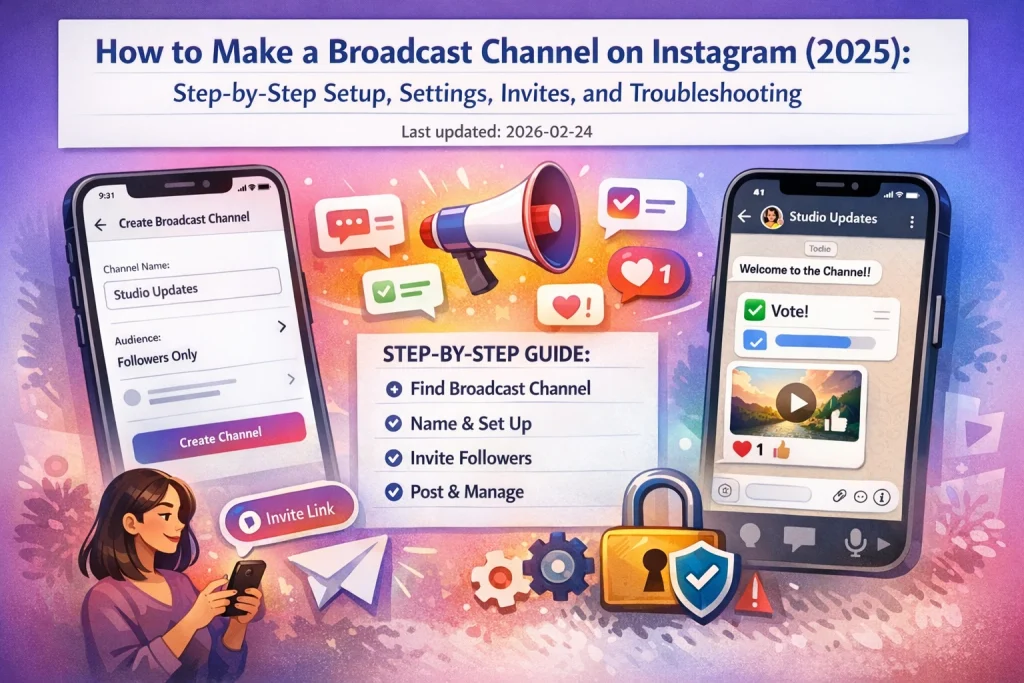

If you’re trying to figure out how to make a broadcast channel on Instagram, the hardest part is usually not the setup. It’s finding the option in the first place, then choosing the right settings so people can actually discover, join, and stay subscribed without muting you.
This guide walks you through the exact creation path most accounts see in 2026, and what to do immediately after launch so your channel doesn’t feel empty. Along the way, you’ll also learn what’s normal when the feature doesn’t show up yet, and how broadcast channels differ from group chats and Close Friends so you pick the right tool for your goal.
Quick Answer: How to Make a Broadcast Channel on Instagram (6 Steps)
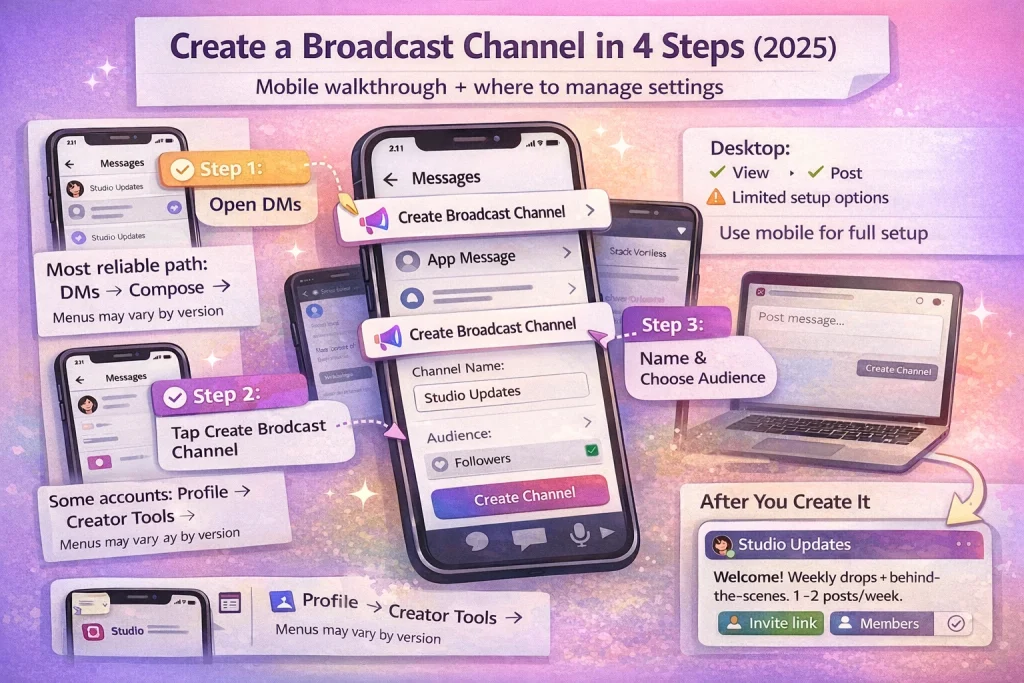
Here’s the fastest way to create an Instagram broadcast channel from the mobile app.
-
Open Instagram and sign into the account you want to use.
-
Tap the Messages/DM inbox icon.
-
Tap the compose (pencil) icon.
-
Tap “Create broadcast channel” (or “Create channel”).
-
Set your channel name and any options shown (audience, show on profile, optional end date).
-
Tap Create, then send your first message to start inviting followers.
To make the setup choices faster, use this mini decision table before you hit Create:
| Setup choice you’ll see | Best default for most creators | When to change it |
|---|---|---|
| Channel name | Your brand/topic + outcome (clear and searchable) | Change if you plan multiple channels by segment |
| Show on profile | On | Turn off only for limited/test channels |
| Audience | All followers (if available) | Restrict if the channel is for a subset (e.g., customers, paid members) |
| End date (if shown) | No end date | Use an end date for event-only or launch-only channels |
What Is an Instagram Broadcast Channel?
An Instagram broadcast channel is a one-to-many messaging space inside Instagram Direct Messages where a creator or brand can send updates to followers who choose to join. It works like a group chat in appearance, but not in behavior. Only the creator (and approved collaborators, if added) can post messages. Members cannot start new conversations. They can typically react with emojis, participate in polls, and in some cases reply to specific messages if replies are enabled.
Broadcast channels live inside the Instagram inbox. When someone joins your channel, it appears as a separate thread in their DMs. Unlike Stories, which disappear after 24 hours, messages in a broadcast channel remain visible unless deleted. Unlike feed posts or Reels, channel updates are delivered in a messaging environment, which feels more direct and less dependent on feed visibility.
To understand where it fits in your strategy, it helps to compare it with two features creators often confuse it with: group chats and Close Friends.
Broadcast Channel vs Group Chat vs Close Friends
Although they may look similar on the surface, these tools serve very different purposes.
| Feature | Broadcast Channel | Group Chat | Close Friends |
|---|---|---|---|
| Who can post | Creator (and collaborators) | All members | Only you |
| Where it appears | DM inbox (separate channel thread) | DM inbox | Stories feed |
| Conversation type | One-to-many | Many-to-many | One-to-many (Stories only) |
| Replies | Limited (reactions, polls, optional replies) | Full messaging | Story reactions only |
| Discoverability | Public join via link (followers must opt in) | Invite only | Manually selected list |
| Best for | Announcements, updates, exclusive drops | Discussions | Private Story sharing |
How Messages Work Inside a Channel
When you post in a broadcast channel:
-
Members may receive a notification (depending on their settings).
-
The message appears in the channel thread inside DMs.
-
Members can usually react with emojis.
-
If polls or prompts are included, they can participate.
-
If replies are enabled, they can respond to individual messages, and those responses may be visible within the channel.
The structure keeps communication focused. You lead the conversation. Members participate in a guided way.
Who Can Create a Broadcast Channel in 2026? Requirements + Availability
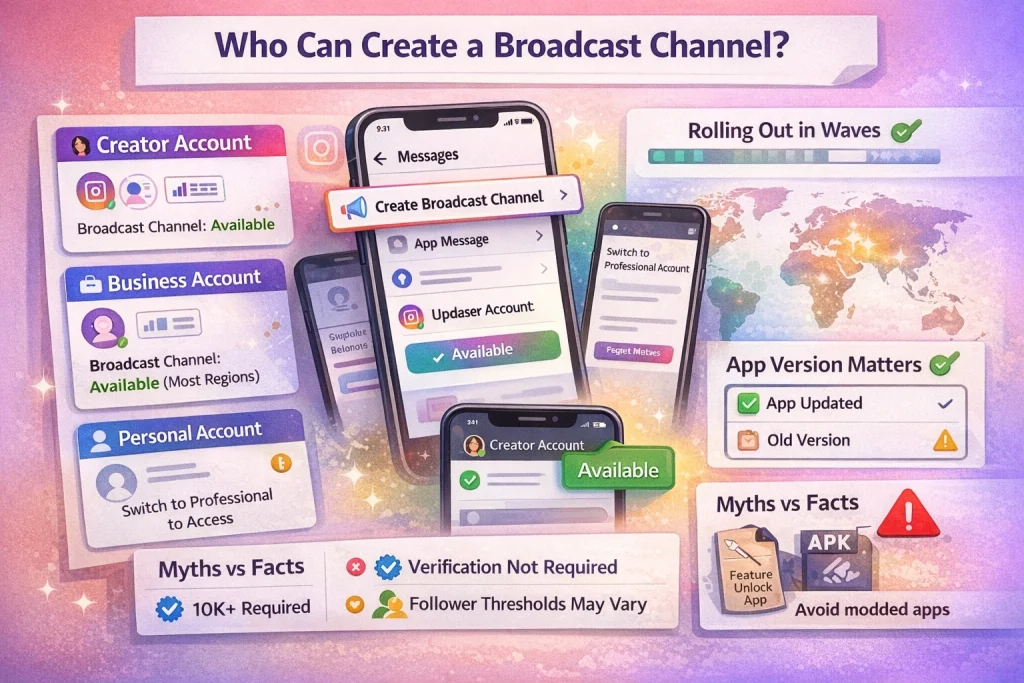
Before you troubleshoot missing buttons or reinstall the app, it’s important to understand how eligibility works in 2026. Access to broadcast channels is not purely feature-based. It depends on account type, follower count in many cases, profile visibility, and staged rollout behavior.
This section focuses strictly on eligibility mechanics and availability variables, not the creation steps already covered.
Account Type Requirements
Broadcast channels are tied to professional accounts. In most current implementations:
-
Creator accounts are eligible.
-
Business accounts may also be eligible.
-
Personal accounts cannot create broadcast channels.
If you’re currently using a personal profile, this step-by-step guide to switching to a Creator account explains exactly how to unlock professional features like broadcast channels.
In many cases, Creator accounts receive feature access earlier than Business accounts during rollout cycles. If your Business profile does not show the option but meets other requirements, switching temporarily to Creator can function as a visibility test.
Follower Count Threshold
Many guides and support references still mention a 10,000 follower benchmark. In practice:
-
Accounts with 10,000+ followers consistently report access.
-
Smaller accounts may or may not see the feature depending on rollout stage.
-
The threshold is not always clearly displayed inside the app.
This means follower count can be a gating factor, but it is not always the only one. Some regions and account clusters receive access gradually, independent of follower size.
If you are below 10,000 followers and do not see the option, the absence may be threshold-based rather than technical.
Public vs Private Profiles
Public profiles are more likely to have full broadcast channel functionality enabled.
Some implementations restrict creation to public professional accounts. Even when private accounts can create channels, discoverability and joining behavior may differ.
If your goal is growth through channel discovery, public visibility improves:
-
Profile entry point visibility
-
Story-based promotion reach
-
External link sharing performance
Switching to public is not mandatory in every case, but it reduces friction.
Regional Rollout and Device Variability
Broadcast channels continue to be rolled out in waves. Availability can depend on:
-
Country or region
-
Account age and standing
-
App version
-
Device platform (iOS vs Android)
-
A/B testing clusters
Two accounts with identical follower counts can see different menus. This is normal during phased feature expansion.
If the option does not appear:
-
Update the Instagram app.
-
Log out and back in.
-
Confirm professional account status.
-
Check profile visibility (public vs private).
-
Wait for staged rollout if all criteria are met.
Feature rollouts are often account-based rather than device-based. Installing the app on another phone does not always trigger access.
Account Standing and Policy Compliance
Accounts that have recent community guideline violations, messaging restrictions, or integrity flags may temporarily lose access to messaging-related features.
If your account has:
-
DM restrictions
-
Recent suspensions
-
Monetization warnings
Broadcast channel access can be delayed or suppressed until standing improves.
Quick Eligibility Summary
| Requirement Category | What Generally Works |
|---|---|
| Account type | Professional (Creator most consistent) |
| Follower count | Often 10,000+, but rollout-dependent |
| Profile visibility | Public preferred for full functionality |
| App version | Latest update required |
| Account standing | No recent restrictions |
If you meet all criteria and still do not see the feature, the most likely cause is staged rollout rather than a technical error.
How to Make a Broadcast Channel on Instagram (Detailed 2026 Walkthrough)
You already saw the basic creation flow in the Quick Answer section. This walkthrough focuses on the setup decisions that influence visibility, discoverability, and long-term performance.
Choosing the Right Channel Name
Your channel name determines whether someone joins immediately or hesitates. Many creators either choose something too vague (“Updates”) or something creative but unclear. A strong name typically communicates:
-
Who it’s for
-
What kind of updates it delivers
-
Optional cadence or theme
For example, combining your niche with a benefit tends to outperform abstract labels. If you plan to create multiple channels later, avoid overly generic names now. Clarity increases joins; ambiguity increases mute rates.
Audience Selection (If Available)
Depending on your account configuration, you may see audience options during setup. These can include:
-
All followers
-
Selected followers
-
Subscriber-only access (if subscriptions are active)
Choose based on intent. A broad announcement channel works best with full follower access. A subscriber-only or customer-only channel works better for gated updates, early drops, or paid tiers.
Avoid unnecessary segmentation early. A fragmented audience without a defined strategy reduces engagement density.
“Show on Profile” Setting
This toggle significantly impacts discoverability.
When enabled:
-
Visitors can join directly from your profile.
-
Growth becomes passive and continuous.
When disabled:
-
Joining depends entirely on shared links.
-
Distribution becomes more controlled.
If growth is your goal, keeping this enabled generally supports stronger expansion. If the channel is temporary or highly specific, limiting profile visibility can make sense.
Optional End Date
Some accounts see the option to set when the channel ends. This is best used for:
-
Event-specific channels
-
Limited-time launches
-
Campaign-focused updates
For long-term communication channels, leaving it open-ended is usually more strategic. Permanent channels build compounding engagement.
Desktop and Web Considerations
While viewing and posting may work on desktop, full setup controls are generally more consistent on mobile. If certain options don’t appear on web, switching to the mobile app usually resolves the limitation.
Managing Multiple Channels
If your account supports multiple broadcast channels, each operates independently with separate members and positioning.
This is useful for:
-
Topic segmentation
-
Product lines
-
Subscriber tiers
-
Regional updates
However, launching multiple channels too early can dilute engagement. Build momentum in one before expanding.
After You Create It: Welcome Message + Positioning Strategy
Many creators make the mistake of treating the first post like a casual “Hey, I made this.” That approach leads to unclear expectations, inconsistent posting, and eventually muted notifications.
Your welcome message should accomplish three things:
-
Define what members will receive
-
Clarify how often you’ll post
-
Direct them toward a simple first action
Without those three elements, members don’t know what they signed up for.
The Structure of a Strong Welcome Message
A high-performing first message typically follows a simple structure:
-
One sentence stating the purpose
-
One sentence explaining posting frequency
-
One sentence telling members what to do next
For example, the structure could look like this:
-
“This channel is where I’ll share behind-the-scenes updates and early product drops.”
-
“You can expect 2–3 short updates per week.”
-
“Vote in the poll below to tell me what you want first.”
This structure works because it reduces uncertainty. People are more likely to stay subscribed when they understand cadence and value.
Positioning the Channel as Exclusive (Without Overpromising)
Exclusivity drives opt-in behavior. However, exclusivity should be framed around access, not hype.
Instead of saying “exclusive content you won’t find anywhere else,” specify the type of access:
-
Early announcements
-
Behind-the-scenes notes
-
Direct polls influencing future content
-
Drop alerts before feed posts
Specificity improves retention. Vague exclusivity increases churn.
Frequency Strategy
One of the fastest ways to get muted is inconsistent volume. Posting five updates in one day and nothing for three weeks trains members to mute notifications.
Instead, decide on a predictable cadence before launch. For most creators, that means:
-
1–3 updates per week for long-term channels
-
Higher frequency only during launches or events
Consistency builds expectation. Expectation builds retention.
Once your broadcast channel is live and positioned properly, growth depends on how you invite people in. Instagram provides several built-in sharing tools. The difference between steady growth and muted frustration usually comes down to how intentionally you use them.
This section focuses on controlled promotion, not aggressive outreach.
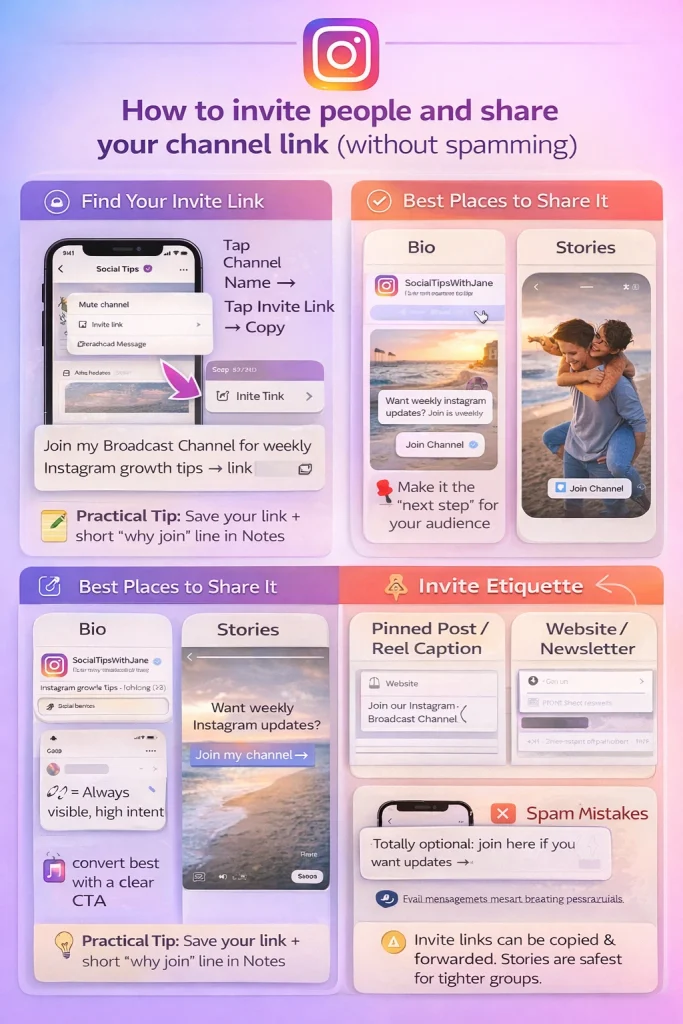
Finding and Copying Your Invite Link
Your broadcast channel generates a dedicated invite link. You can access it from inside the channel by tapping the channel name/header and selecting the invite or share option.
That link allows anyone to open the channel page and choose to join.
The link can be:
-
Copied manually
-
Shared via Instagram DM
-
Added to your bio
-
Placed on external platforms
Because the link is permanent unless reset, treat it like a stable subscription entry point.
Sharing to Instagram Stories
Sharing your channel to Stories is one of the most natural growth methods because it targets followers already engaging with your content.
You can either:
-
Share the channel link directly to a Story
-
Share a specific channel message to your Story
Sharing a specific message often performs better because it previews value. Instead of saying “Join my channel,” you’re showing what members receive.
To avoid fatigue, limit Story promotion frequency. Repeating the same invitation daily reduces response rates. A weekly reminder tied to a strong update typically performs better than generic repetition.
Sharing a Message to Story (Preview Strategy)
When you tap and hold a channel message, you can share it to your Story. This creates a visual preview of the message.
This method works well when:
-
You’ve posted something high-value (early drop, poll result, exclusive insight).
-
You want to demonstrate real-time activity inside the channel.
-
You want proof of consistency.
Preview-based promotion converts better than abstract invitations because it reduces uncertainty.
Direct Message Invitations (Use Carefully)
Instagram allows you to send the invite link through DMs. However, mass unsolicited invites can feel intrusive and increase the risk of negative feedback.
If you use DM invitations, focus on:
-
Followers who recently engaged
-
Customers who opted in for updates
-
People who asked to be notified
Intent-based invitations preserve trust. Broad, unsolicited blasts damage it.
QR Code Sharing
Some accounts have access to a QR code option within the channel settings. This generates a scannable code that opens the channel join page.
QR codes are useful for:
-
Events
-
In-person meetups
-
Packaging inserts
-
Printed marketing materials
This is a situational growth tool, not a primary strategy, but it expands your promotional flexibility beyond digital spaces.
Channel Settings: Visibility, Replies, Permissions, and Controls
After promotion begins and members start joining, your focus shifts from setup to control. Broadcast channels are designed to be structured, but how structured they feel depends on the settings you choose.
This section covers configuration and management — not creation or promotion.
Editing Channel Name and Description
Your channel name can be updated if positioning changes. For example, you may initially launch with a general “Updates” theme and later refine it to reflect a specific niche or content direction.
When renaming:
-
Avoid frequent changes.
-
Maintain clarity over creativity.
-
Update the description if the purpose evolves.
Frequent rebranding inside the same channel can confuse members and weaken retention. Consistency builds recognition.
Enabling or Disabling Replies
Depending on your account’s available features, you may have the option to allow members to reply to individual messages.
When replies are disabled:
-
Members can react to posts.
-
Interaction remains lightweight.
-
Conversation stays controlled.
When replies are enabled:
-
Members can respond directly to messages.
-
Replies may be visible within the channel.
-
Moderation becomes more important.
Enabling replies increases engagement depth but also increases management responsibility. If your goal is announcements rather than discussion, keeping replies off maintains structure.
Removing Members and Managing Issues
If a member violates expectations or disrupts engagement (when replies are enabled), you can remove or block them from the channel.
Keep enforcement consistent. A clearly stated guideline in your welcome message makes moderation feel procedural rather than personal.
Avoid overreacting to minor friction. Broadcast channels are designed to be controlled environments, but excessive restriction can reduce organic engagement.
Resetting Invite Links
If your invite link spreads in unintended ways or you want tighter control, you can reset the link. Resetting invalidates the previous URL and generates a new one.
This is useful if:
-
You want to restrict access after a limited promotion.
-
The link was shared outside your intended audience.
Resetting does not remove existing members. It only affects new joins.
Ongoing Maintenance Strategy
Channel management is less about constant adjustment and more about periodic review. Consider reviewing settings when:
-
Engagement drops sharply
-
Member volume increases significantly
-
You change your content strategy
-
You introduce collaborators
Stable settings support stable growth. Frequent changes create friction.
Next, we’ll shift from configuration to content strategy — what to post inside a broadcast channel and how to structure updates so they feel distinct from feed content.
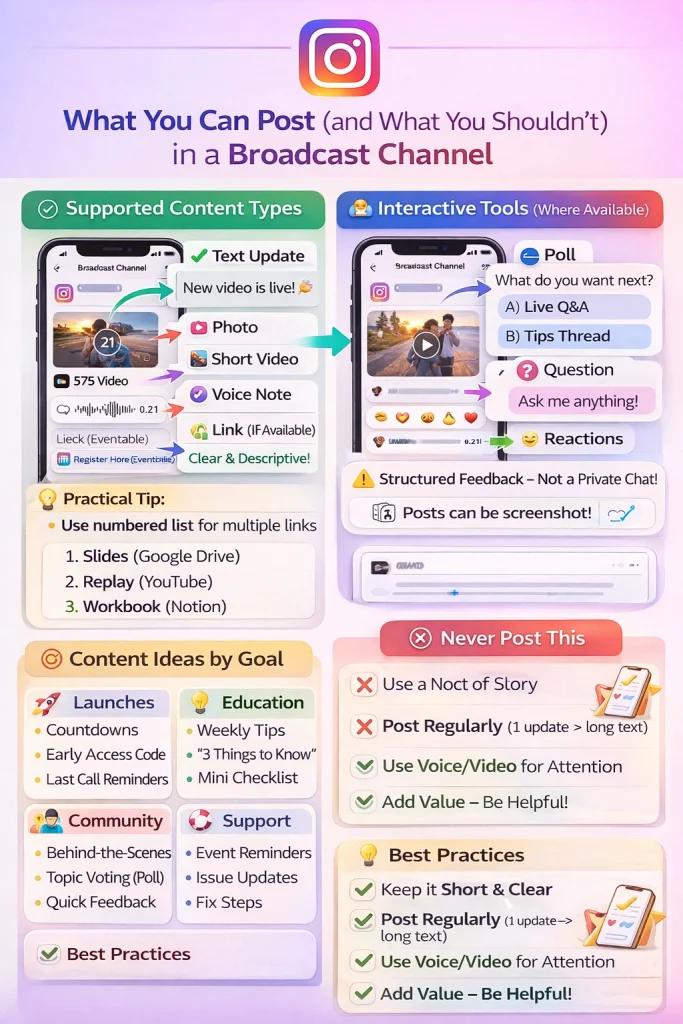
What to Post in a Broadcast Channel (Formats + Content Strategy)
A broadcast channel works best when the content inside feels purposeful, concise, and direct. If you repost everything from your feed without context, members quickly question why they joined.
Supported Content Formats
Broadcast channels support multiple content types. Depending on your account and current rollout stage, you can typically publish:
-
Text updates
-
Images and short videos
-
Voice notes
-
Polls
-
Links (availability may vary)
The strength of the channel lies in simplicity. Long-form content rarely performs better than short, focused updates.
Text works well for:
-
Announcements
-
Quick clarifications
-
Drop alerts
-
Recaps
Images and videos are effective when:
-
Sharing previews
-
Showing behind-the-scenes content
-
Highlighting product updates
Voice notes create a stronger sense of proximity. They are less polished than Reels and more conversational than captions, which makes them effective for updates that feel personal but controlled.
Polls drive interaction without clutter. They allow you to measure preference without opening full discussion threads.
Content That Performs Well in Channels
Broadcast channels perform best when the content answers a specific member expectation. High-retention categories include:
-
Early announcements before feed posts
-
Limited-time alerts
-
Behind-the-scenes insights
-
Quick polls influencing future content
-
Event reminders
If you plan to use early drops or insider updates as part of your strategy, understanding the broader framework for monetizing your Instagram audience can help align your channel content with revenue goals.
Avoiding Feed Duplication
A common mistake is copying captions or reposting identical feed content inside the channel. Instead, use the channel to provide context around public content.
For example:
-
Explain why you posted something.
-
Share an update that didn’t make the caption.
-
Ask for quick feedback before posting publicly.
The channel should feel like the backroom conversation, not a duplicate billboard.
Structuring Short Updates
Short updates outperform long paragraphs inside broadcast channels. A simple structure works well:
-
One clear headline line
-
One or two concise sentences
-
Optional interactive element
This structure keeps messages scannable inside the DM environment.
Consistency in formatting also builds familiarity. If members recognize your update style immediately, engagement friction decreases.
When to Use Polls Strategically
Polls are strongest when they influence something tangible. Asking members to vote without acting on results weakens trust.
Use polls when:
-
Deciding between content directions
-
Testing product ideas
-
Choosing event topics
-
Gathering quick feedback before a public announcement
Closing the feedback loop is critical. Share results or outcomes so members see that participation matters.
Voice Notes as a Differentiator
Voice notes add intimacy without the production pressure of video. They work particularly well for:
-
Recaps
-
Personal updates
-
Quick reactions
-
Informal announcements
However, overusing voice notes can reduce clarity for members who prefer quick scanning. Use them intentionally rather than habitually.
Content Planning Perspective
Think of your broadcast channel as a “priority updates layer” within your Instagram ecosystem. It is not your main content engine. It is your direct line for:
-
Timely information
-
Engagement nudges
-
Insider access
When members feel that the channel consistently delivers something distinct, retention stabilizes.
Collaborators & Moderation: How to Manage Your Channel at Scale
As your broadcast channel grows, management becomes more important than setup. Even though channels are structured and primarily one-directional, scale introduces operational considerations — especially if replies are enabled or you collaborate with others.
This section focuses on control, delegation, and sustainable oversight.
Adding Collaborators
Some accounts have the ability to add collaborators to a broadcast channel. Collaborators can typically post messages and engage with members, but they do not have full administrative control over core settings.
This is particularly useful in scenarios such as:
-
Brand partnerships
-
Joint launches
-
Co-hosted announcements
-
Ongoing content series with another creator
Collaborators allow shared communication without requiring account access or password sharing. However, since collaborators can post inside the channel, alignment on tone and posting frequency is essential before granting access.
Clear boundaries prevent inconsistent messaging.
Defining Posting Roles
If multiple people contribute to a channel, role clarity prevents confusion.
Before adding collaborators, define:
-
Who posts and how often
-
Whether collaborators can post independently
-
Whether all updates require prior approval
-
How tone and formatting should remain consistent
Channels feel more stable when the voice is cohesive. If members notice abrupt shifts in tone or cadence, trust weakens.
A simple internal guideline document — even a short one — can prevent inconsistency.
Managing Replies (If Enabled)
If your account allows replies and you’ve chosen to enable them, moderation becomes active rather than passive.
Replies can increase engagement depth but may introduce:
-
Off-topic comments
-
Self-promotion
-
Repetitive questions
-
Negative interactions
To maintain structure:
-
State reply expectations clearly in your welcome message.
-
Remove disruptive behavior consistently.
-
Avoid public arguments inside the channel.
Moderation should feel procedural, not reactive. When boundaries are established early, enforcement feels neutral.
Removing or Blocking Members
If a member violates expectations, you can remove or block them from the channel. This action affects only the channel, not necessarily the entire account relationship.
Use removal sparingly and consistently. Over-policing can discourage engagement, but under-enforcing allows low-quality interactions to shape the environment.
The goal is clarity, not control.
Scaling Without Overextending
As membership grows, it becomes tempting to increase posting frequency. However, scale does not automatically require higher volume.
Instead, focus on:
-
Maintaining consistent cadence
-
Keeping updates concise
-
Using polls to absorb engagement instead of replies
Structured engagement tools scale more efficiently than open conversations.
Conclusion: How to Make a Broadcast Channel on Instagram
Now you know exactly how to make a broadcast channel on Instagram in 2026 — from meeting eligibility requirements to setting up the channel correctly and promoting it for long-term growth.
Creating an Instagram broadcast channel is only the first step. The real impact comes from how you position it, how consistently you post, and how clearly you communicate the value of joining. When done strategically, a broadcast channel becomes your most direct line to followers inside Instagram’s messaging environment.
If you follow the steps above, you won’t just understand how to make a broadcast channel on Instagram — you’ll know how to structure it for discoverability, engagement, and retention.

Alex Morris
Alex Morris is a social media strategist and lead writer at InstaDeal. He specializes in Instagram, TikTok, and creator monetization trends, helping influencers and brands grow smarter online. With over 10 years of digital marketing experience, he simplifies complex topics into practical insights.


