



Instagram feeling sluggish or hogging storage? Clearing the cache safely frees space, speeds up scrolling, and stops those random glitches—without touching your photos or DMs. This 2025 playbook shows the exact steps for iPhone, Android, and desktop, plus how to clean the in-app browser and search history. You’ll also learn quick ways to verify space saved and what to try if performance still lags. Fast, safe, and no data loss.
Clear Instagram cache on iPhone, Android & desktop (one simple guide)
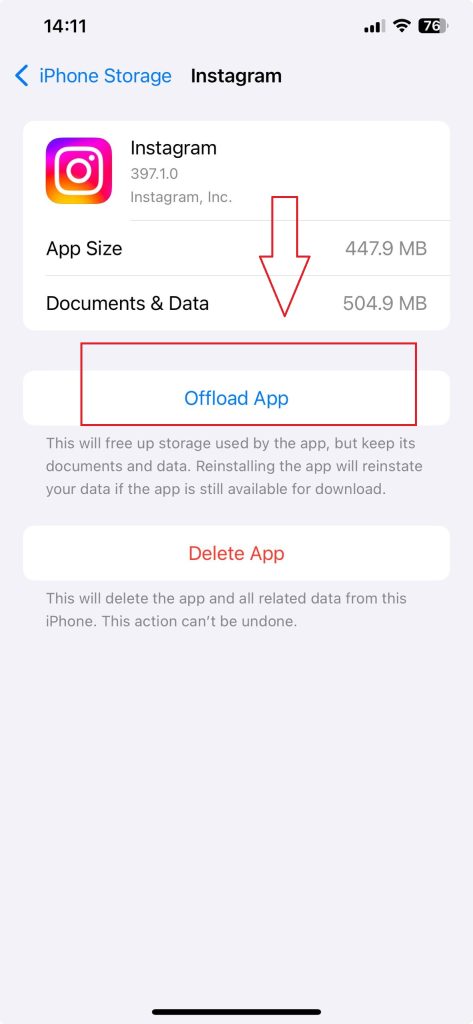
iPhone / iPad (iOS 17/18):
Settings → General → iPhone/iPad Storage → Instagram → Offload App → Reinstall App.
This clears cached files while keeping your documents/data. Want proof it worked? Check Instagram’s size in [Device] Storage before and after. If issues persist, delete + reinstall is the nuclear option—save drafts first.
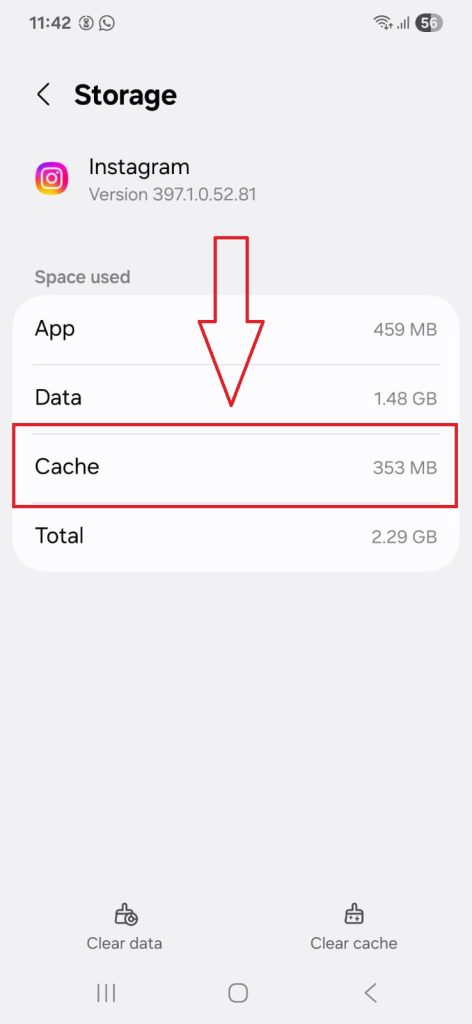
Android (all brands):
Settings → Apps → Instagram → Storage (or “Storage & cache”) → Clear cache.
That’s the safe button; it removes temporary files only. Avoid Clear data/Storage unless you’re fixing a stubborn bug—it resets the app and you’ll sign in again. Verify the win by watching the cache size drop to zero on that screen.
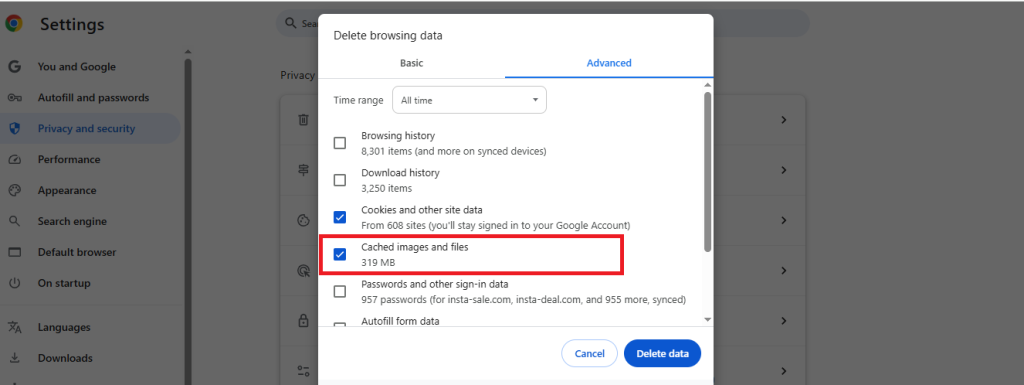
Desktop browsers (Chrome, Edge, Firefox, Safari):
Quick method: press Ctrl/Cmd + Shift + Delete, select Cached images and files, then confirm.
Per-site clean: open your browser’s Site data/Manage Website Data, search instagram.com, and Remove it. Clearing cookies may sign you out; clearing cache usually won’t.
Good-to-know (applies to all):
-
First load after clearing may be slower while fresh files rebuild. Normal.
-
This doesn’t touch your posts or DMs (server-side).
-
In-app browser cookies and search history are separate cleanups (handled in the privacy section).
What does clearing Instagram cache do? (and what it doesn’t)
Think of cache as a speed stash—thumbnails, images you’ve recently viewed, bits of video, preloaded Explore content, and some settings the app stores locally. When that stash gets too big or corrupted, you see slow loads, glitches, or weird feed refreshes. Clearing it forces Instagram to fetch clean files. Yes, your first scroll after clearing may feel a tad slower as it rebuilds. That’s normal.
-
-
Offload App (iPhone/iPad): Removes the Instagram app file and its temporary junk, but keeps your documents/data on the device. The icon gets a little cloud; tap it to reinstall. Your login usually sticks, but you may be asked to sign in again.
-
Delete App (iPhone/iPad): Removes the app and its local data. After reinstalling, you’ll sign in again and any locally saved drafts/downloads can be gone.
-
Clear cache (Android): Deletes temporary files only. Safe, quick space win. Your account, messages, and settings remain.
-
Clear data/Storage (Android): Erases Instagram’s local data and settings—like a mini reset. You’ll sign in again and may lose locally stored items (e.g., unsaved drafts).
-
Cached images & files (browser): Local copies of pictures/scripts so pages load fast. Clearing is safe; first reload may be slower.
-
Cookies (browser & in-app browser): Small files that keep you signed in and remember preferences. Clearing them often signs you out.
-
What stays put? Your photos, comments, DMs, followers, and account settings live on Instagram’s servers. Clearing cache won’t touch them. Drafts and downloaded reels audio are trickier: if you delete or fully clear data, those can vanish. Cache-only clears usually spare them, but if a draft relies on local files, there’s a chance you’ll need to recreate it.
Bonus privacy: clear Instagram in-app browser cache + search history
Instagram’s in-app browser keeps its own cookies/cache that don’t always vanish with a normal app cache clear. To wipe it: open any link inside Instagram, tap the ⋯ menu in the browser, choose Browser settings, tap Clear cookies and cache, then confirm Clear browsing data. That purges the web bits Instagram’s mini-browser stored—great for stubborn logins, trackers, or pages loading the “old” version. Instagram Help Center
Want to go further? You can also control Link history (the list of sites you’ve visited from Instagram). If you don’t want Meta saving that trail, toggle it off in the same browser settings. When you switch it off, Instagram stops saving future links and clears what’s there—handy for privacy-first folks or anyone who shares a phone. Instagram Help Center
Separate but related: your Instagram search history. That lives in your account, not the browser. To clear it: go to your profile → Menu → Your activity → Recent searches → Clear all (or remove items one by one). Two different cleanups, two different menus—do both if you want a full reset of “what Instagram remembers.” Instagram Help Center.
If your Explore feed still feels off, you can also reset the Instagram algorithm to retrain recommendations faster.
How often should you clear Instagram cache? smart cadence & red flags
Don’t clear Instagram cache on a schedule. Do it when you see symptoms—slow loads, glitchy stories, or storage pressure.
Use these red flags as your cue:
-
Reels stutter or fail to upload.
-
The app freezes, shows a blank feed, or crashes on launch.
-
Search suggestions feel “stuck” or repeat old results.
-
Instagram’s storage ballooned (rule of thumb: once it creeps past a gig or two, it’s worth a clean).
-
You’re low on device storage and other apps are struggling.
Instagram still slow after clearing cache? quick fixes that work
Start with the low-friction stuff. It solves most cases.
-
Update Instagram. Open the App Store/Play Store and install the latest version. Bug fixes land quietly and often.
-
Restart your phone. A 20-second reboot clears stuck processes and frees memory. Simple, weirdly effective.
-
Check storage headroom. Keep at least 2–5 GB free. If your device is cramped, everything slows down—IG included.
-
Test your network. Toggle Airplane Mode, switch Wi-Fi ↔ mobile data, or try a different network. If videos hang only on Wi-Fi, reboot the router.
-
Disable throttlers. Turn off Low Power Mode (iOS) or Battery Saver/Data Saver (Android). These can limit background fetching and video quality.
If the app still misbehaves, escalate:
-
Force stop (Android) or quit the app fully (iOS). Then relaunch. On Android: Settings → Apps → Instagram → Force stop.
-
Log out and back in. This can refresh corrupted session data without touching your posts or DMs. Seeing cross-posting hiccups after a reinstall? Here’s how to fix Instagram not posting to Facebook step-by-step.
-
Update your OS. Minor iOS/Android releases often include WebView/network fixes that apps rely on.
-
Reinstall as a last resort. iOS: consider Delete App → reinstall only after offloading didn’t help and you’ve handled drafts. Android: use Clear data/Storage only if a reproducible bug persists; you’ll sign in again and re-set notifications.
Will clearing Instagram cache delete my photos or DMs?
No. It only removes temporary files. Your posts, messages, and followers stay on Instagram’s servers.
Will I be logged out after clearing cache?
Usually no. You’ll be logged out if you delete the app, tap Clear data/Storage (Android), or clear browser cookies.
Clear cache vs. Clear data (Android)—what’s the difference?
Clear cache = temporary files only. Clear data/Storage = app reset (you’ll sign in again and reconfigure settings).
How do I clear cache on iPhone without deleting the app?
Settings → General → iPhone Storage → Instagram → Offload App → Reinstall App.
How often should I clear it?
Not on a schedule—only when you see slowdowns, glitches, or low storage.

Alex Morris
Alex Morris is a social media strategist and lead writer at InstaDeal. He specializes in Instagram, TikTok, and creator monetization trends, helping influencers and brands grow smarter online. With over 10 years of digital marketing experience, he simplifies complex topics into practical insights.


