

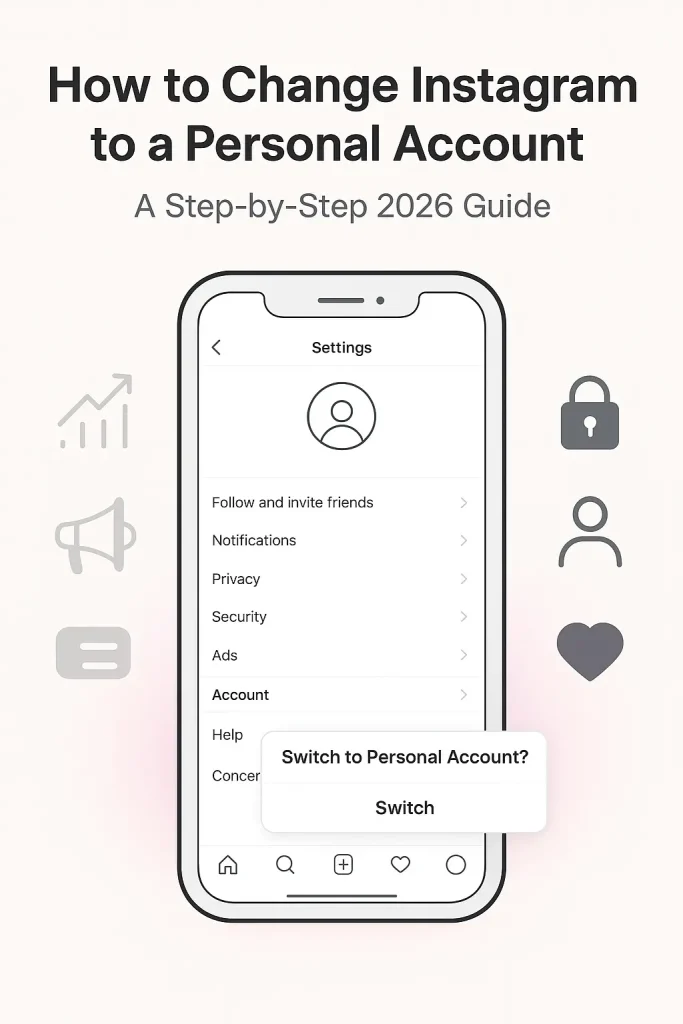

If you’re using a business or creator profile and want to revert back, here’s exactly how to change your Instagram to a personal account in 2026. The process takes less than a minute — but you’ll lose access to insights, ads, and branded tools. Below, we break down the steps, what changes immediately, and whether switching affects your followers.
This guide will show you exactly how to change Instagram to personal account in just a few taps. You’ll learn what features you lose, what settings to check, and how the change affects your profile.
Quick Answer: Switch to Personal Account in 6 Steps
If you want the fastest way to change your Instagram to a personal account, follow these steps:
Open Instagram and go to your profile. Tap the three-line menu in the top-right corner. Select Settings and privacy. Scroll to the For professionals section and tap Business tools and controls or Creator tools and controls, depending on your current account type. Tap Switch account type, then choose Switch to personal account. Confirm your choice when prompted.
What Is a Personal Instagram Account? (Personal vs Creator vs Business)
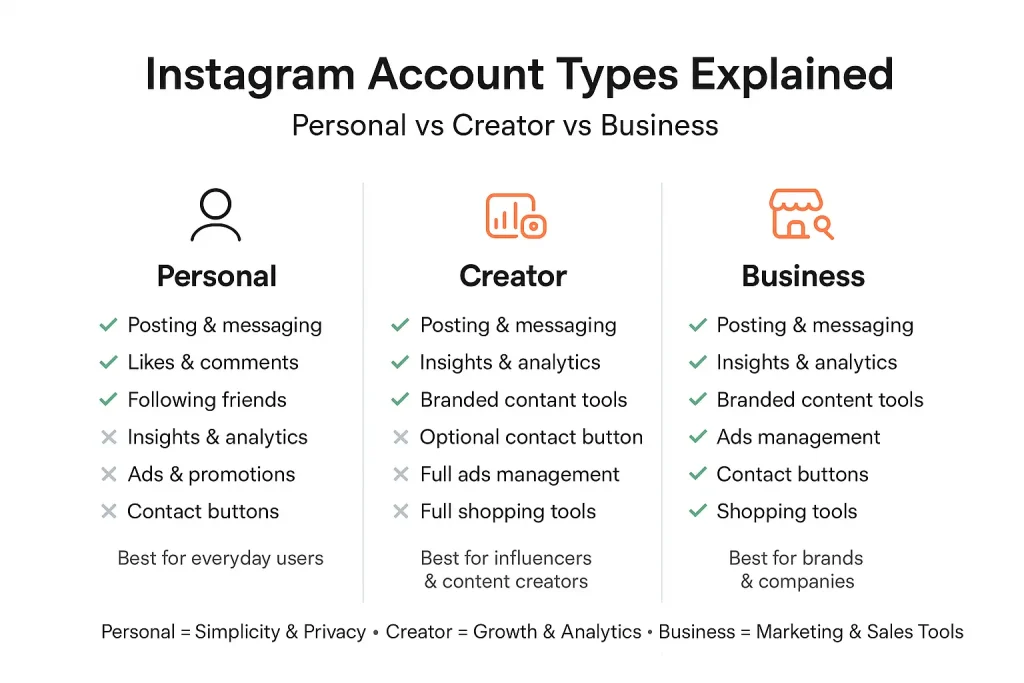
A personal Instagram account is the default profile type designed for everyday users. It allows you to post photos and videos, share stories and reels, send direct messages, follow other accounts, and control your privacy settings without access to professional analytics or monetization tools.
To clearly understand how a personal Instagram account differs from professional profiles, here’s a side-by-side comparison:
| Feature | Personal Account | Creator Account | Business Account |
|---|---|---|---|
| Access to Insights (Analytics) | ❌ No | ✅ Yes | ✅ Yes |
| Post Reach & Engagement Data | ❌ No | ✅ Yes | ✅ Yes |
| Audience Demographics | ❌ No | ✅ Yes | ✅ Yes |
| Run Ads / Boost Posts | ❌ No | ❌ Limited | ✅ Yes |
| Professional Dashboard | ❌ No | ✅ Yes | ✅ Yes |
| Category Label on Profile | ❌ No | ✅ Yes | ✅ Yes |
| Contact Buttons (Email, Call, Directions) | ❌ No | ❌ No | ✅ Yes |
| Branded Content Tools | ❌ No | ✅ Yes | ❌ Limited |
| Third-Party Scheduling Tools | ❌ Limited | ✅ Yes | ✅ Yes |
| Ability to Go Private | ✅ Yes | ❌ No | ❌ No |
Before You Switch: What Changes and What You’ll Lose
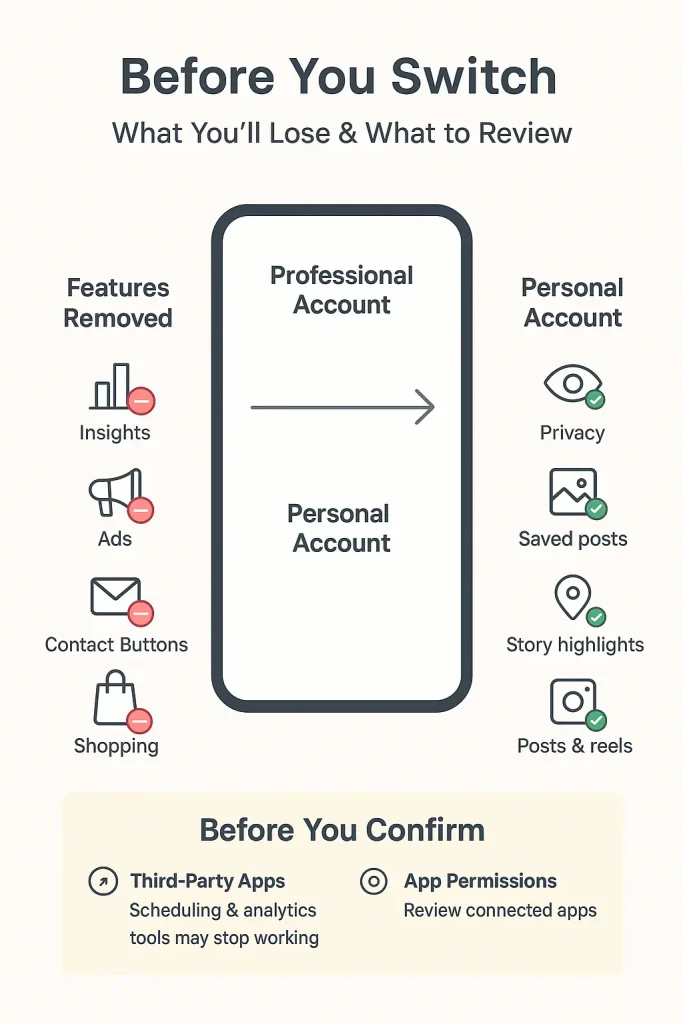
Before you change your Instagram to a personal account, it’s important to understand what the switch actually affects. The transition is immediate and reversible, but it removes access to professional features tied to Business and Creator accounts.
Features You Lose (Insights, Ads, Contact Buttons, Professional Dashboard)
When you move from a Business or Creator profile to a Personal account, Instagram removes access to Insights. This means you can no longer view post reach, impressions, audience demographics, follower growth trends, or content performance metrics.
You also lose the ability to run promotions or ads directly from your profile. Business accounts will no longer have contact buttons such as email, call, or directions displayed on the profile. Category labels tied to professional profiles may also disappear.
If you’ve connected third-party scheduling or analytics tools that rely on professional access, some of those integrations may stop functioning properly after the switch.
What Stays the Same (Followers, Posts, DMs, Reels, Highlights)
Your existing content remains untouched. Posts, reels, archived content, saved items, highlights, and message history stay intact. Your follower count does not reset, and people do not automatically unfollow you because of the account type change.
Your account visibility (public or private) also stays the same unless you manually change it afterward.
How to Change Your Instagram to a Personal Account (Step-by-Step)
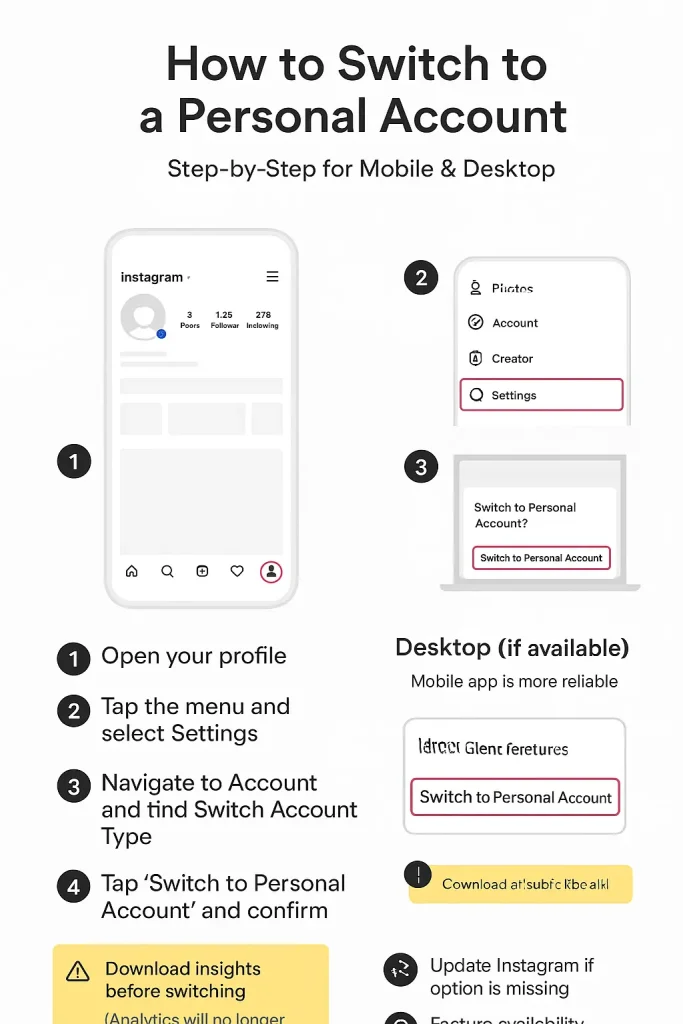
The process to change your Instagram to a personal account is completed inside your account settings. The exact labels may vary slightly depending on your app version and whether you’re currently using a Business or Creator account, but the overall path is consistent.
Instagram places the switch option inside the “For professionals” area under account type controls.
iPhone (iOS) Steps
Open the Instagram app and go to your profile. Tap the three-line menu in the top-right corner and select Settings and privacy. Scroll down to the For professionals section.
If you are using a Business account, tap Business tools and controls. If you are using a Creator account, tap Creator tools and controls. Inside that section, tap Switch account type, then choose Switch to personal account. Confirm when prompted.
The change takes effect immediately.
Android Steps
On Android, the flow is nearly identical. Open Instagram and go to your profile. Tap the three-line menu, then open Settings and privacy. Scroll to For professionals.
Select Business tools and controls or Creator tools and controls, depending on your current account type. Tap Switch account type, choose Switch to personal account, and confirm.
If you don’t see the option right away, ensure your app is updated to the latest version.
Desktop / Web Steps
On desktop, log in to Instagram in your browser and go to your profile. Click the menu icon and open Settings.
Depending on your current profile type, look for sections related to professional account tools or account type settings. If the option to switch account type is visible, select Switch to personal account and confirm.
If you cannot find the option on desktop, use the mobile app, as Instagram sometimes prioritizes account-type controls there.
How to Check Your Current Instagram Account Type
If you’re not sure whether you’re using a Personal, Creator, or Business account, you can check directly inside your settings.
Open Instagram and go to your profile. Tap the three-line menu in the top-right corner and select Settings and privacy. Scroll to the For professionals section.
If you see Business tools and controls or Creator tools and controls, you are currently using a professional account. Inside that section, you should also see the option Switch account type, which confirms you are not on a Personal account.
If instead you see an option labeled Account type and tools with a prompt to Switch to professional account, then you are currently using a Personal account.
This is the most reliable way to verify your account type, since profile appearance alone (such as contact buttons or category labels) may vary depending on previous settings.
Switching from Business or Creator to Personal: Warnings and Prompts
When you change your Instagram to a personal account from a professional profile, Instagram displays a confirmation screen outlining what you will lose. This prompt is important because some professional features cannot be restored retroactively once removed.
Although the switch itself is simple, the impact depends on whether you are moving from a Business or Creator account.
Business → Personal
If you switch from a Business account to a Personal account, Instagram removes access to professional analytics, including post insights, reach data, audience demographics, and engagement metrics.
You will also lose the ability to run ads or boost posts directly from your profile. Contact buttons such as email, call, or directions will no longer appear on your profile. Any category label associated with your business may be removed as well.
Creator → Personal (Branded Content Considerations)
Switching from a Creator account to a Personal account removes access to creator-focused tools such as audience insights, follower growth analytics, and branded content features.
If you are currently participating in paid partnerships or collaborations that rely on Instagram’s branded content tools, those features will no longer be available once you revert to Personal. You should complete or document any required reporting before making the change.
As with Business accounts, the switch does not delete your content or followers. It strictly affects access to professional tools.
Can You Keep Insights or Data After Switching?
No. Once you switch your Instagram to a personal account, you lose access to professional insights and analytics tied to Business or Creator profiles.
This includes post reach, impressions, engagement metrics, follower growth data, audience demographics, and performance statistics for reels and stories. Instagram does not provide a way to continue viewing these insights after the account has been reverted to Personal.
If performance data is important to you, review and record any key metrics before confirming the switch. Some users choose to take screenshots or manually log important numbers for future reference. If you still need analytics but want fewer business features, consider switching to a Creator account instead.
Make Your Account Private After Switching (Optional)
Switching to a personal account does not automatically make your profile private. If your goal is increased privacy, you must manually adjust your privacy settings after the switch.
To make your account private, go to your profile and open the three-line menu. Tap Settings and privacy, then select Account privacy. Turn on the Private account toggle.
Once your account is set to private, only approved followers can see your posts, reels, and stories. New users must send a follow request that you can approve or deny. Your existing followers will remain approved unless you remove them manually.
If your account stays public after switching, anyone can continue viewing your content just as before. Changing the account type and changing privacy settings are two separate actions. If privacy is your main concern, you can also adjust how your highlights appear without changing account type.
Troubleshooting: Can’t Find “Switch Account Type”?
If you don’t see the option to switch to a personal account, the issue is usually related to app version, account status, or where you’re looking inside settings.
First, make sure your Instagram app is updated to the latest version through the App Store or Google Play. Instagram frequently adjusts menu labels and placement, and older versions may not display the correct account-type controls.
Next, confirm you are navigating to the correct area. Go to your profile, tap the three-line menu, open Settings and privacy, and scroll to the For professionals section. If you are using a Business account, look inside Business tools and controls. If you are using a Creator account, check Creator tools and controls. The Switch account type option should appear there.
If you are running active promotions or ads, Instagram may require you to complete or stop them before allowing certain account changes. Review any active promotions under your professional tools and pause or end them if necessary.
Logging out and back in, or clearing the app cache on Android, can also resolve temporary display issues.
If the option still does not appear, check Instagram’s Help Center for region-specific limitations or account restrictions that may apply to your profile.
Conclusion: How to Change Instagram to a Personal Account
Switching your Instagram to a personal account takes less than a minute and doesn’t affect your followers or content. If you no longer need professional tools like insights or ads, changing your Instagram to a personal account can simplify your experience instantly — and you can always switch back later if needed.
Account Type and Considerations When Buying or Selling an Instagram Account
The type of Instagram account you choose—Personal, Creator, or Business—can also influence how an account is evaluated if it’s ever transferred or sold. Professional accounts often include historical analytics and niche positioning, while personal accounts may offer simpler management but less performance data. In secondary markets, buyers typically review account type, engagement history, and security setup before proceeding, which is why marketplaces such as InstaDeal structure transactions around verification and ownership clarity. Purchasing Instagram accounts through unknown or informal channels, on the other hand, can expose buyers to risks like incomplete transfers, recovery claims, or policy violations tied to the account’s previous activity.
FAQS:
Will I lose followers or posts if I switch to a personal account?
No. Switching account type does not delete posts, reels, DMs, or followers.
Can I switch back to Business/Creator later?
Yes. You can switch back anytime—but your old Insights history may be reset/not restored, which is why many users hesitate.
If my promotions/ads are restricted, does switching to Personal help?
Users commonly discuss switching/unlinking Meta connections as a troubleshooting step, but the tradeoff is losing Insights and sometimes other pro features.

Benjamin Amiri
Benjamin Amiri is a digital growth consultant and senior contributor at InstaDeal. He specializes in Instagram engagement strategies, Facebook ads innovation, and TikTok product marketing. With a track record of scaling brands and creator accounts, Benjamin turns performance data into actionable growth tactics that deliver measurable results.


