


Learning how to share a YouTube video on Instagram Story sounds simple—until the link doesn’t open correctly or the video won’t play the way you expected. Instagram doesn’t allow direct YouTube embedding, which means you need to use the right method to make your Story clickable and drive viewers to the full video.
In this guide, you’ll learn three working ways to share a YouTube video to your Instagram Story in 2026, including how to use the Link Sticker, create a short preview clip, and fix common issues when links aren’t working. Whether you’re promoting a tutorial, a YouTube Short, or a new upload, these methods will help you get more taps and fewer technical headaches.
No—Instagram Stories don’t support embedding a playable YouTube video player inside the Story. The reliable approach in 2026 is to use a clickable URL (the Link Sticker) to send viewers out to YouTube.
What Instagram actually supports in 2026 (linking vs embedding)
You can post a Story frame that mentions a YouTube video (thumbnail, text, arrow, “new video” teaser), but the video itself won’t play natively like an Instagram Reel.
Practical tip: treat the Story like a movie trailer—use a quick hook (1–2 key moments or a bold promise) and then one clear call-to-action: “Tap link to watch.”
Limits, constraints, and what’s allowed
Stories are time-limited and commonly run in short segments (often 15 seconds), so don’t try to cram the whole video in—tease, then link out. If you’re unsure how Stories compare to other formats, this guide explains Instagram video length limits across formats, including Reels, feed videos, and Stories.
This is the cleanest way to share a YouTube video on your Instagram Story because it keeps the viewer one tap away from the full video—without risky workarounds. If you need a deeper walkthrough of sticker settings and link behavior, this step-by-step guide to adding links to Instagram Stories explains the full setup in detail.
Step-by-step: share a YouTube link to Story
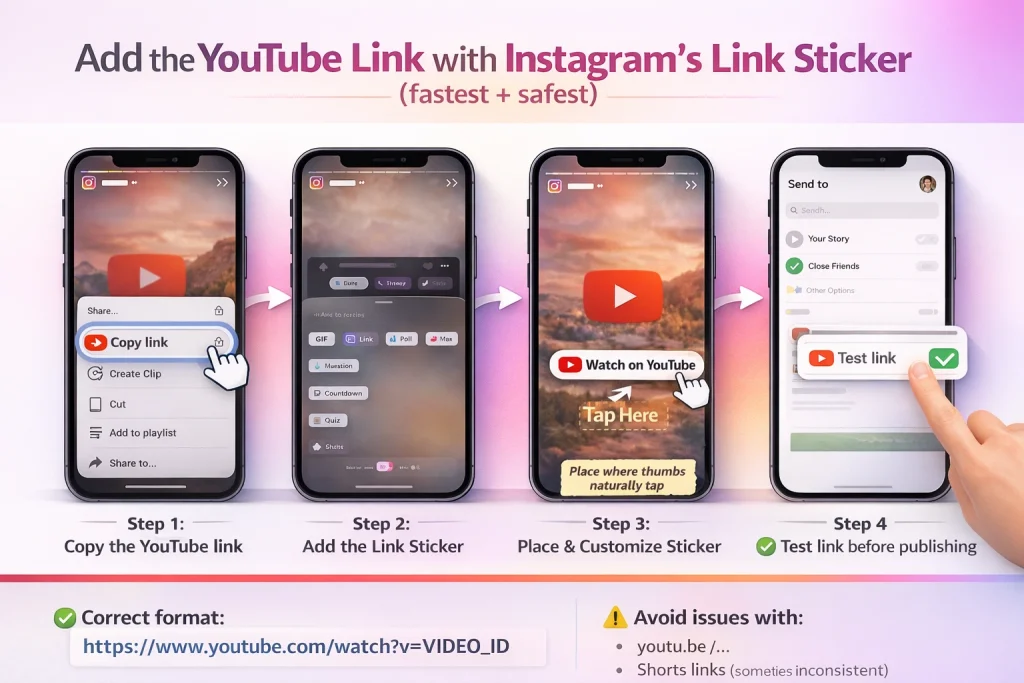
1) Copy your YouTube video link. In the YouTube app: open the video → Share → Copy link. If you’re on desktop/mobile web, you can also copy the URL from the browser address bar.
2) Open Instagram → tap “+” → Story. Pick a background: a photo, a solid color, or (best) a 3–5 second teaser clip that hints at what they’ll get on YouTube.
3) In the Story editor, tap the Sticker icon (the smiley square) → choose Link. If you don’t see it right away, use the sticker search.
4) Paste the YouTube URL → tap Done/Apply. Edit the sticker text to something action-based like “Watch on YouTube” or “Full video here.”
5) Place the sticker where it’s easy to tap. Avoid the extreme bottom edge where Story UI can overlap. Practical tip: add a small arrow GIF or “Tap here” label so people don’t miss it.
Make a Story-friendly teaser that earns the tap
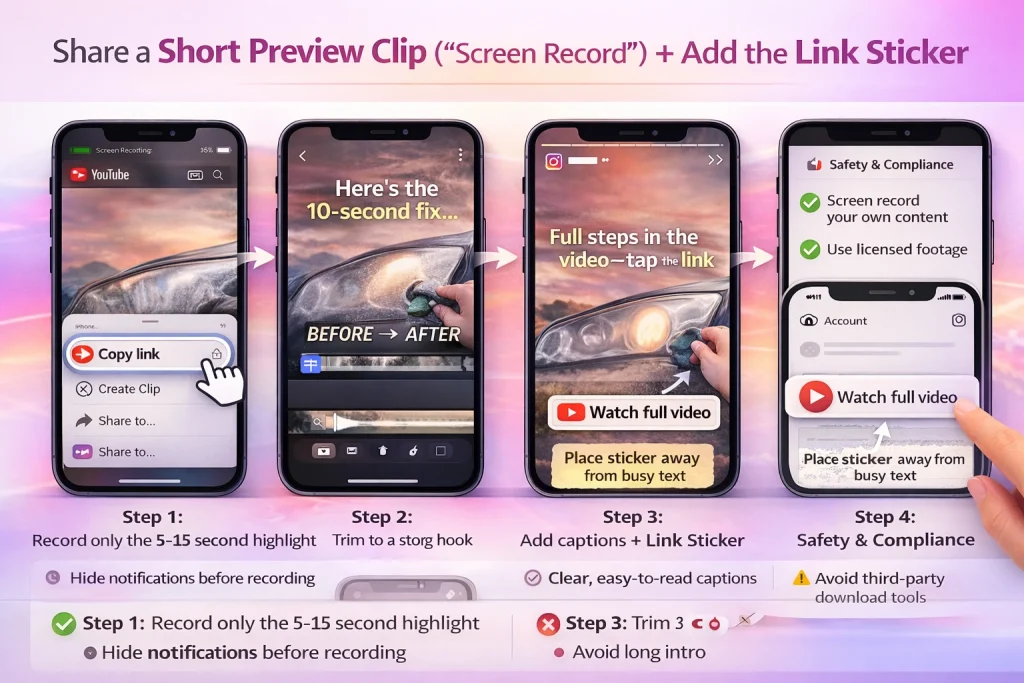
Make a 5–15 second highlight that works even if someone never taps. The trick is pacing: hook in the first 1–2 seconds (a surprising line, the “after” shot, the punchline), then show a quick payoff so the full YouTube video feels like the obvious next step.
iPhone screen recording vs Android screen recording
iPhone: add Screen Recording to Control Center (so it’s one tap away), start recording, play only the relevant portion, then stop. Before you start, clear/avoid unrelated tabs and hide sensitive notifications—screen recordings love to capture the one message you didn’t want shared. Trim the clip in Photos if needed.
Android: use the built-in Screen Recorder (exact steps vary by brand). Turn on Do Not Disturb or otherwise silence notifications to protect privacy, then record a short segment and trim.
Audio, captions, and thumbnail best practices
Upload the clip to your Instagram Story and trim it again with Instagram’s editor. Add on-screen captions/subtitles because lots of people watch Stories muted. For quality: record at the highest available resolution, avoid pinch-zoom (it often turns soft), and keep text big and away from edges so compression doesn’t wreck it. Experience-based tip: placing the Link Sticker over a clean area (not over busy captions) gets more taps.
Safety: avoid risky download tools
Keep this compliance-forward: screen record your own or authorized content. Reposting someone else’s video can trigger copyright claims. Also skip “YouTube downloader” apps/sites that ask for your Instagram login, demand excessive permissions, or push shady profiles/VPNs—those are common scam/malware patterns. When in doubt, use your original export or properly licensed assets, then add the Link Sticker so viewers can tap immediately.
When the Reel-first approach works best
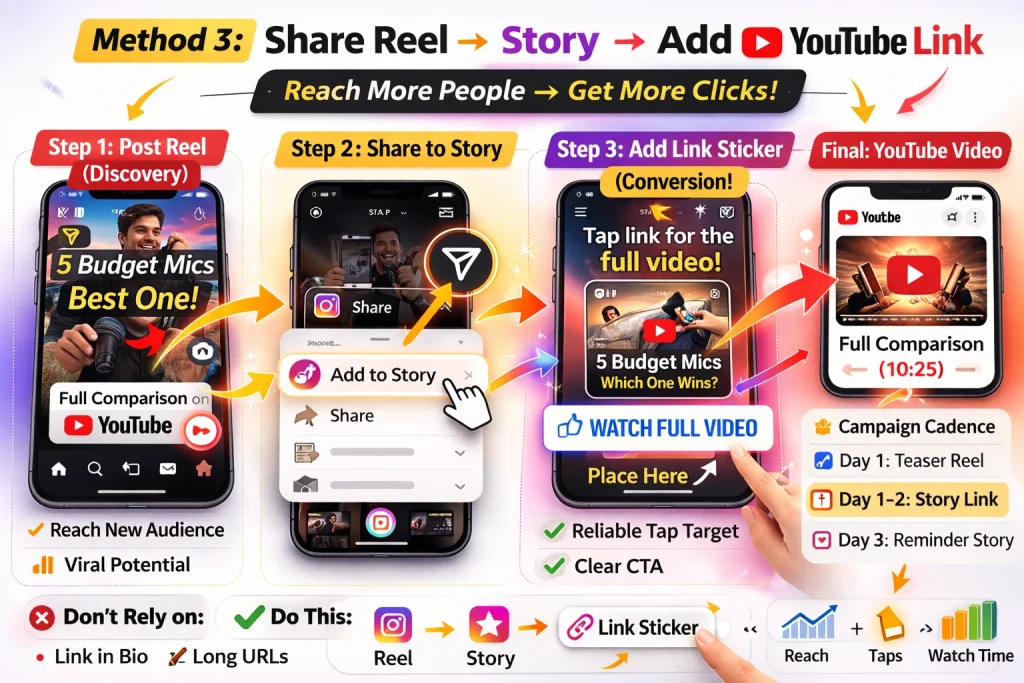
Use this workflow when you want more reach than Stories alone. A Reel (or feed post) can get discovery from people who don’t follow you yet, then your Story does the “click-out” job with a Link Sticker for direct taps.
Step 1 is simple: post a short Reel that teases the YouTube video and clearly says what viewers will get from the full version. Example: “I tested 5 budget mics—here’s the one that surprised me. Full comparison on YouTube.” That promise makes the Story link feel like the next logical step.
If you want to optimize reach before adding the YouTube link, this detailed breakdown of how to share a Reel properly covers formatting, captions, and distribution tips.
How to share a Reel/feed post to Story
After it’s live, open your Reel/feed post, tap the paper-plane Share icon, then choose the option to add it to your Story (wording can vary slightly by app version). You’ll land in the Story editor with a preview of the post.
Where the YouTube link should go in this workflow
Step 3 is where conversions happen: in the Story editor, add the Link Sticker with your YouTube URL and a clear label such as “Watch the full video.” That sticker is the reliable tap target.
Campaign cadence idea: Teaser Reel (day 1) + Story link (day 1–2) + reminder Story (day 3) for warm audiences. In practice, the reminder Story often catches people who saved the Reel but didn’t tap the first time.
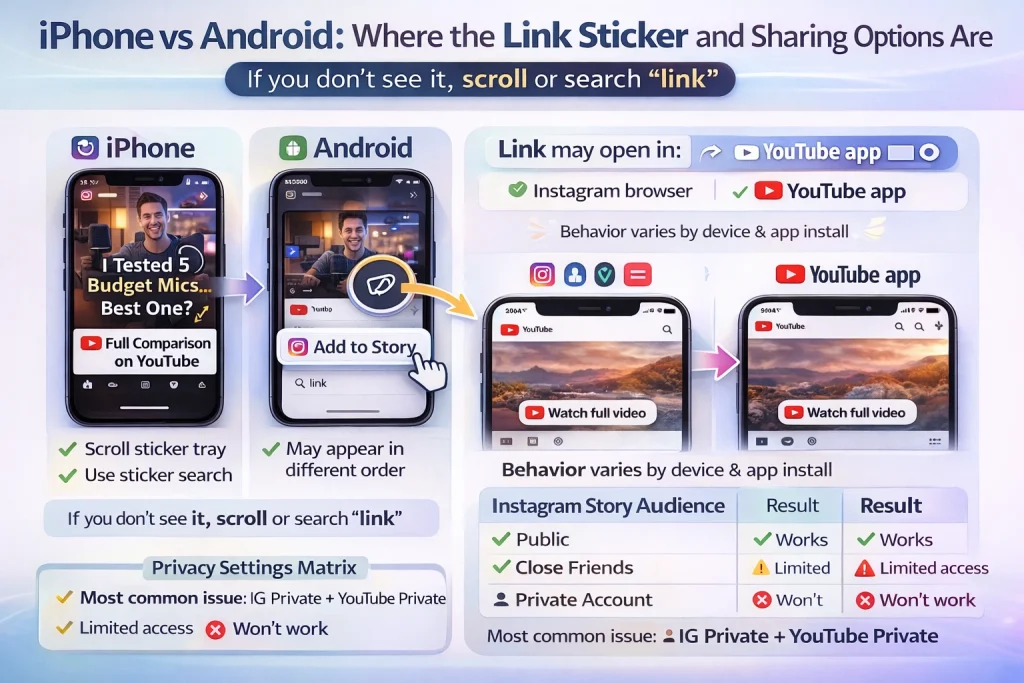
iPhone vs Android: where the Link Sticker and sharing options are (plus privacy settings)
UI differences and where people get stuck
On both iPhone and Android, you add a YouTube link from the Story editor via the Sticker icon. The common “it’s not there” moment usually comes from two things: (1) the Link sticker is farther down the sticker tray than expected, or (2) your app version places it in a slightly different spot. If you don’t immediately see “Link,” scroll the sticker list and use the sticker search to type “link.”
In-App Browser vs YouTube App: What Happens After the Tap
When someone taps your YouTube link in an Instagram Story, the video may open either in Instagram’s in-app browser or directly in the YouTube app. This depends on the viewer’s device, app settings, and whether YouTube is installed. Both behaviors are normal.
To avoid confusion, make sure your Story clearly matches the video. Use a recognizable thumbnail, consistent title wording, or a short caption like “Watch the full video on YouTube.” This reassures viewers they landed in the right place.
If your link opens a blank page or shows an error:
-
Use the full https://www.youtube.com/watch?v=VIDEO_ID format
-
Remove any extra spaces or broken characters
-
Test the link on both Wi-Fi and mobile data
Short links (like youtu.be or some Shorts URLs) can behave inconsistently inside Instagram’s in-app browser. If the link seems unreliable, replace it with the full YouTube URL and test again.
Privacy settings that affect who can see and watch
Instagram privacy controls who can see the Story: Private accounts show Stories only to approved followers, and Close Friends narrows it to that list.
YouTube visibility controls who can watch: Public means anyone; Unlisted means anyone with the link; Private blocks everyone except invited accounts.
How to Make Your Instagram Story Clickable for More YouTube Views
If you want more people to actually tap your YouTube link, treat your Story like a tiny landing page: hook fast, make the tap obvious, then iterate based on what viewers do (not what you hope they do).
CTA formulas that increase taps
Use one clear action per frame. When you stack options (“tap,” “DM me,” “save,” “vote”), people do nothing. Simple CTAs that work:
– “Tap to watch the full video”
– “Watch the full tutorial on YouTube”
– “Full breakdown →”
Also: show the payoff in the first 2 seconds. Lead with the most interesting moment, the result, or a before/after. Example: open with the final shot (“Here’s the edit you’ll learn in 6 minutes”), then follow with the link sticker.
Design: sticker placement, contrast, and motion
Make the Link Sticker unmissable. A reliable layout is mid-to-lower third (not hugging the very bottom edge where thumbs and UI compete). Put a contrasting shape behind it (solid block, highlight, or blurred panel) and add an arrow or pointing gesture aimed at the sticker.
Match messaging: your Story headline should closely match the YouTube title/topic. If your Story promises “3 fixes,” but the video is mostly a vlog, viewers feel bait-and-switched and won’t tap next time.
Add captions/subtitles (or a short text summary) for muted viewers, and avoid tiny text—Story compression can turn small fonts into mush.
Measurement: what to track and iterate
Track link taps, exits, forward/back taps, and replies. A quick loop: if taps are low, test (1) a stronger hook, (2) a different sticker label, and (3) a shorter teaser. One small change per test keeps the signal clear—like swapping one ingredient at a time when you’re dialing in a recipe.
Conclusion
Sharing a YouTube video on your Instagram Story is straightforward once you use the right method. Since Instagram doesn’t support direct embedding, the most reliable option is adding your YouTube URL with the Link Sticker and pairing it with a short, clear teaser.
Keep it simple: match your Story to the video, use one clear call-to-action, and test the link before publishing. When done correctly, your Story becomes a clean bridge that turns Instagram views into YouTube clicks.
FAQs:
Why don’t I have the Link Sticker on Instagram Stories?
Update Instagram, log out/in, and try reinstalling; some accounts get features in staggered rollouts, and account limitations/restrictions can also hide the sticker.
Why does my Instagram Story link open Safari (or a browser) instead of staying in-app?
That behavior varies by link type and device settings; many external links will open in a browser by design, while some Instagram links may deep-link internally. Use clear Story text/thumbnail so viewers trust the handoff.
How do I make Instagram open YouTube in the YouTube app instead of the in-app browser?
Set YouTube to open supported links by default (Android: Apps → YouTube → Open by default; iOS: check YouTube link/open settings), and review Instagram’s Website permissions for how it opens links.
Why is my YouTube link blank / not loading in Instagram’s in-app browser?
Switch to a clean, full HTTPS YouTube URL (youtube.com/watch?v=…), remove trailing spaces/odd characters, and test on both Wi-Fi and mobile data; some short/Shorts URLs can behave inconsistently in-app.
Do I need 10k followers to add links to Instagram Stories?
No—link stickers are generally available broadly; if you don’t see it, it’s more often rollout timing, app version, or account health than follower count.

Alex Morris
Alex Morris is a social media strategist and lead writer at InstaDeal. He specializes in Instagram, TikTok, and creator monetization trends, helping influencers and brands grow smarter online. With over 10 years of digital marketing experience, he simplifies complex topics into practical insights.


