


Knowing how to save Instagram Reels is essential if you want to revisit favorite clips, archive your own content, or watch videos offline. While Instagram offers a built-in Save feature, saving to your phone or camera roll involves different steps—and not all Reels are downloadable.
How we verified this: We referenced publicly available documentation and reputable guides to explain what Instagram currently shows (and doesn’t show). Features can vary by app version and region, so if your menus look different, update the app and check Instagram’s settings/help pages.
This guide walks you through everything from in-app saving and Collections to downloading your own or others’ Reels (when allowed). You’ll also find answers to common problems like missing download options, soundless Reels, and how to find saved or liked videos.
Let’s begin with the quickest method for saving a Reel.
Quick Answer: The Fastest Ways to Save a Reel
If you’re short on time, here’s a quick breakdown of how to save Instagram Reels, depending on your goal:
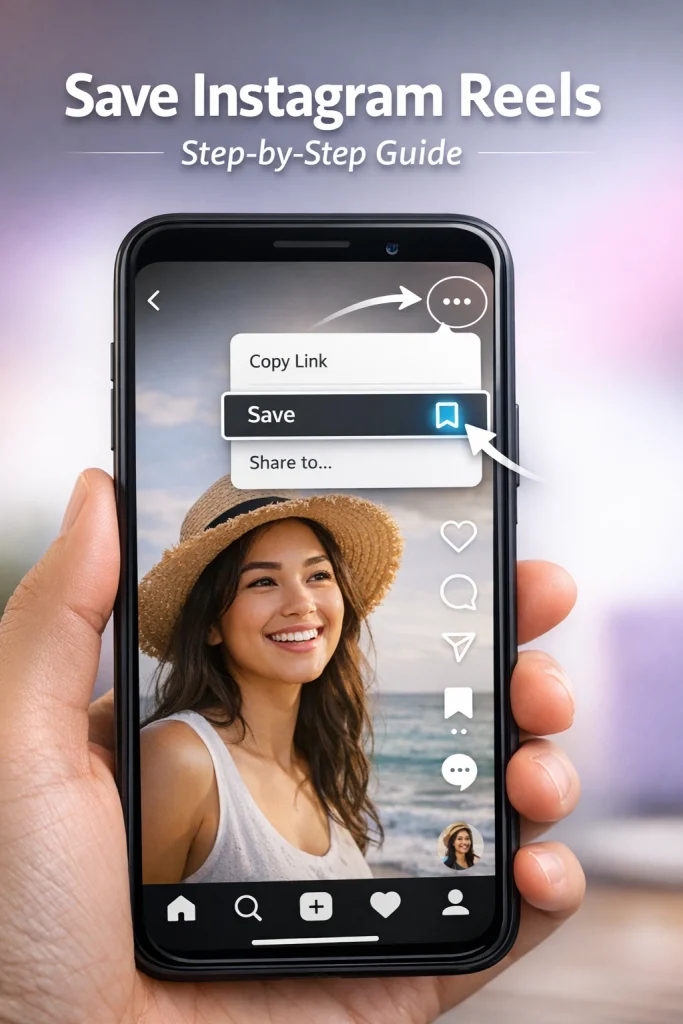
To save a Reel in the app:
-
Open the Reel.
-
Tap the three dots (…) in the bottom-right corner.
-
Select Save. The Reel will be added to your Saved folder.
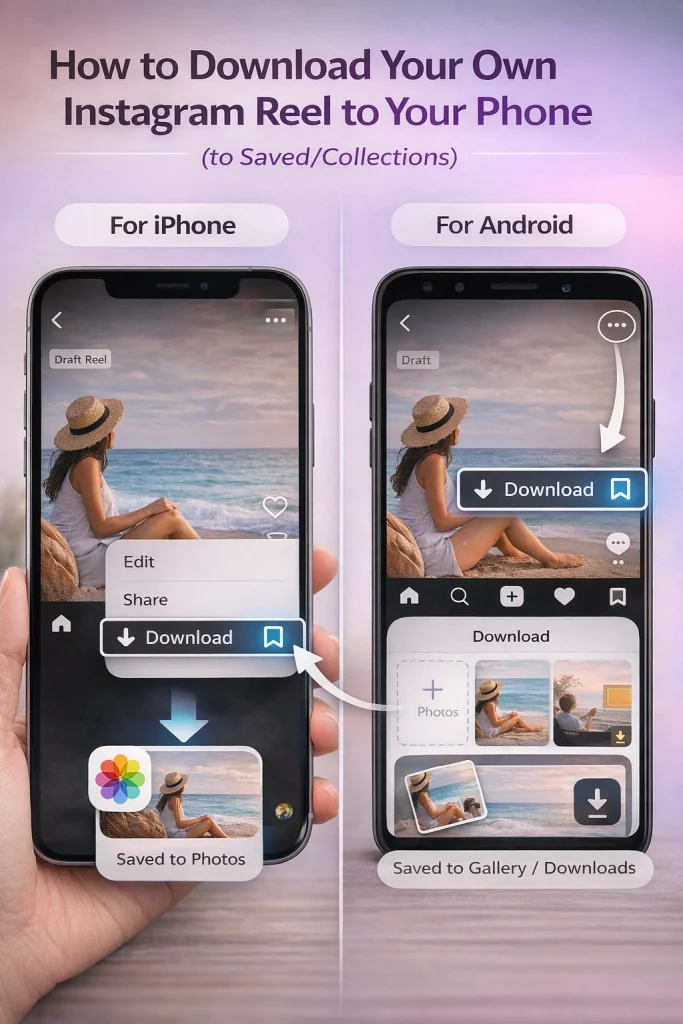
To save your own Reel to your phone:
-
Go to your profile and open the Reel.
-
Tap the three dots.
-
Choose Download. The video will be saved to your device’s camera roll or gallery.
To download someone else’s Reel:
-
You can only do this if the creator has enabled downloads. In that case, the Download option will appear in the Share or three-dot menu.
-
Otherwise, you’ll need to use a third-party tool, though this comes with risks.
To save a draft or a Reel without posting:
-
You can save it manually from your Drafts before publishing, or screen record it.
Each method serves a different purpose. The rest of this guide breaks down these options and limitations in detail.
Save vs Download Instagram Reels: What Each Option Actually Does
Instagram gives users two distinct ways to keep Reels for later: saving and downloading. Although they sound similar, these options serve different purposes and offer different levels of access.
When you save a Reel, Instagram stores it in your private Saved folder, which is tied to your account. This lets you revisit the content without needing to search for it again, but it does not create a file on your device. The Reel stays hosted on Instagram’s servers, and you need an internet connection to watch it. This is ideal for bookmarking tutorials, funny clips, or inspiring posts you want to return to within the app. If saving Reels is part of curating what you see, learning how to manage suggested Reels in your feed can help keep Instagram focused on content you actually want to revisit.
In contrast, downloading a Reel saves a copy of the video directly to your phone’s storage. You don’t need to be logged into Instagram or have a connection to watch it again. Downloading is useful if you want to keep a copy for offline use, edit it, or repurpose your own content for other platforms. However, this option is only available for Reels you’ve created—or for Reels where the creator has allowed downloading.
It’s a common mistake to think that saving a Reel means downloading it. In reality, saving is more like bookmarking, while downloading gives you a local file. Understanding this difference will help you choose the right method depending on whether you want quick access in-app or an offline copy.
Can You Save Instagram Reels to Your Phone? (What’s Possible in 2026)
Saving Instagram Reels to your phone depends on two key factors: whether the Reel belongs to you, and whether the creator has enabled downloads. As of 2026, Instagram continues to limit download access in order to protect privacy and intellectual property.
If the Reel is yours, you can download it directly from the app, either after posting it or from your drafts. This includes both video and original audio, although music from Instagram’s licensed library may be excluded due to copyright restrictions.
If the Reel was posted by someone else, you can only download it if the creator has explicitly enabled the download option. When available, this appears as a Download button in the share or three-dot menu. If the option isn’t there, downloading isn’t permitted—and attempting to bypass this using third-party tools may violate Instagram’s terms of service.
Instagram has also started testing features that allow creators to control download access on a per-Reel basis. This means that even public accounts may disable downloads for specific videos, while allowing others to be saved or shared.
In short, saving Reels to your phone is possible, but limited:
-
You can always download your own Reels
-
You can sometimes download others’ Reels—if they’ve allowed it
-
You can’t download private account Reels unless you’re the owner
If you don’t see the Download option, the Reel likely isn’t eligible for saving outside the app. In that case, the best alternative is using Instagram’s built-in Save feature to bookmark it in your account. Understanding Instagram’s current video length limits can also clarify why certain Reels behave differently when you try to save or reuse them.
How to Save Instagram Reels in the App (Saved + Collections)
Instagram’s built-in Save feature is the fastest and most reliable way to keep track of Reels you want to revisit. This method doesn’t store a copy of the video on your device—it simply bookmarks the content within your account for easy access later.
Save a Reel to your Saved folder
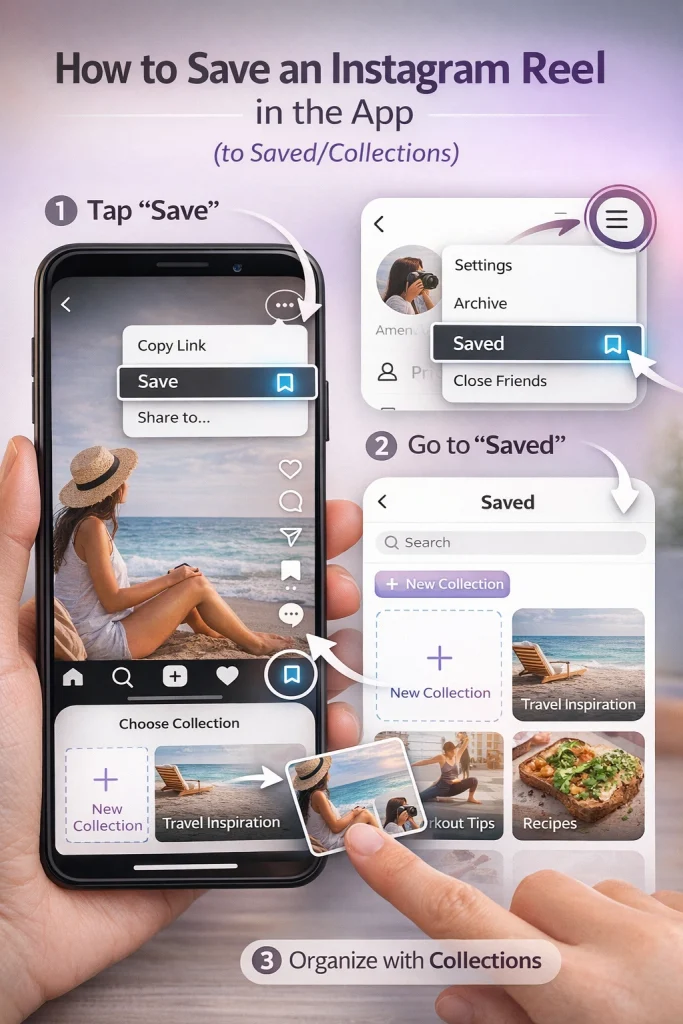
To save a Reel in the Instagram app:
-
Tap the three-dot menu on the Reel you want to save.
-
Select Save from the options that appear.
The Reel will be added to your Saved section, which is private and only visible to you. This method works for any public Reel and for most content from private accounts you follow.
Organize saved Reels into Collections
Instagram also lets you organize saved Reels into Collections—custom folders that help you group content by theme, mood, or purpose. This is especially useful if you save a lot of content and want to keep it organized.
To create a new Collection:
-
Go to your profile and tap the menu icon in the top right.
-
Tap Saved and then tap the + icon.
-
Name your Collection and start adding saved Reels to it.
You can also save a Reel directly into a Collection when you tap Save, by selecting or creating a folder immediately.
Where your saved Reels live in-app
To view your saved Reels:
-
Go to your profile.
-
Tap the menu icon (☰) in the top right.
-
Select Saved. You’ll see all your saved posts, including Reels and Collections.
Saved Reels stay in this section as long as the original post remains live. If a creator deletes the Reel or makes their account private, it will no longer be accessible—even if it’s still in your Saved list.
Using the Save and Collections features is a simple way to keep track of content you love without using up device storage or relying on downloads.
How to Download Your Own Instagram Reel to Camera Roll (iPhone & Android)
Instagram allows you to download Reels you’ve created directly to your phone’s camera roll. This is useful if you want to save a copy of your content for offline viewing, archiving, or sharing outside the platform.
The process differs slightly depending on whether the Reel has already been posted or is still saved as a draft.
Download a published Reel
To download a Reel that you’ve already published:
-
Open Instagram and go to your profile.
-
Tap the Reels tab and select the video you want to download.
-
Tap the three-dot menu on the bottom right.
-
Select Download (or Save to Camera Roll on some devices).
The Reel will be saved to your Photos app (iPhone) or gallery (Android), usually in the Recents, Instagram, or Downloads folder.
Note: If your Reel includes licensed music from Instagram’s audio library, the downloaded version may not include sound. Always check the saved video to confirm.
Download a draft Reel (save without posting)
If you haven’t published the Reel yet, you can still save it to your phone from the Drafts folder:
-
Go to your profile and tap the Reels tab.
-
Tap Drafts.
-
Open the draft you want to save.
-
Tap Edit, then proceed to the final screen where you’d normally post it.
-
Tap the Download icon at the top (downward arrow with a line).
This method captures the current version of the Reel, including any text, filters, or edits. Like with published Reels, sound may be excluded depending on licensing.
Saving your own Reels ensures you always have a copy, regardless of whether you publish them or not. It’s also the only download method Instagram officially supports across all device types.
How to Save or Download Someone Else’s Instagram Reel
Instagram offers limited options for saving or downloading Reels posted by other users. While you can always save someone else’s Reel within the app using the Save feature, downloading it to your device depends on whether the creator has allowed downloads.
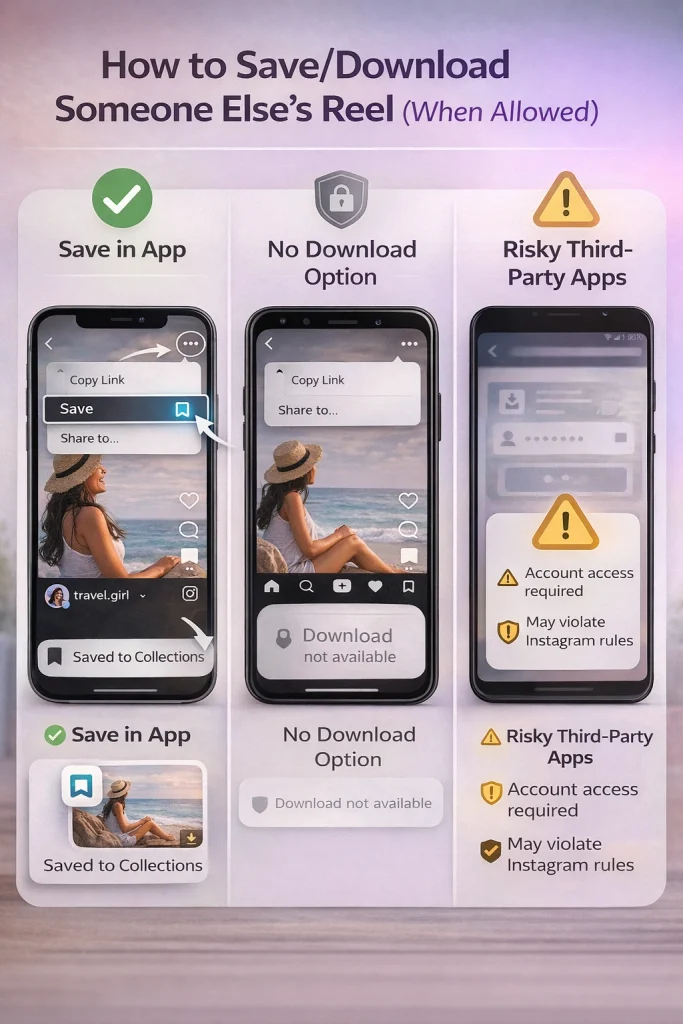
Save it in-app (Saved/Collections)
If you want to bookmark someone else’s Reel for future viewing, the built-in Save feature is your best option.
-
Open the Reel.
-
Tap the three-dot menu in the lower-right corner.
-
Select Save.
This adds the Reel to your private Saved folder. You can organize it into a Collection if you want, but the content will remain on Instagram’s servers and can only be viewed while logged into your account.
Keep in mind that if the creator deletes the Reel or changes their account to private, the video will no longer be accessible from your Saved folder.
Download it to your phone (only if the creator enabled downloads)
Some creators enable a download option for their Reels. When this is available:
-
Tap the Share icon (paper airplane) or the three-dot menu.
-
If the creator has allowed downloads, you’ll see a Download or Save Video option.
-
Tap it to save the video to your camera roll or device gallery.
This feature is not universally available. Instagram lets creators decide whether or not their Reels can be downloaded, and many users choose to keep this disabled to protect their content.
If the Download button is missing, there’s no way to access the file through the app. Using third-party apps to bypass this limitation may violate Instagram’s terms of service and expose your account or device to risks.
Whenever possible, respect the creator’s settings. If you need a copy of their Reel, consider reaching out and asking for permission to download or share it.
How to Save Reels With Sound / Music (and Why Audio Sometimes Disappears)
One of the most common frustrations when saving or downloading Instagram Reels is that the audio—especially music—doesn’t always carry over. Whether you’re saving in-app or downloading to your phone, how Instagram handles sound depends on the source of the audio and platform restrictions.
In-app saving keeps audio
When you save a Reel using Instagram’s Save feature, the video remains fully intact—including any sound or music—because it’s still hosted on Instagram’s servers. When you watch it again from your Saved folder, you’ll hear it exactly as it was originally posted, assuming the Reel hasn’t been taken down or muted by Instagram.
Downloaded Reels may lose music
When downloading a Reel to your phone, Instagram sometimes strips out the audio, especially if it includes:
-
Music from Instagram’s licensed library
-
Commercial or trending songs with copyright protection
This is especially common if you’re downloading your own Reel that uses a popular track. The platform removes the music to comply with licensing agreements and to prevent copyrighted audio from being redistributed outside of Instagram.
You might also find that a downloaded video includes only the visuals, with no background sound at all. This is normal behavior and not a glitch.
How to check audio before sharing
After downloading a Reel, always play the saved file in your device’s video player before sharing it elsewhere. If the sound is missing and the audio is essential to the clip, consider:
-
Recording a screen capture with audio (where permitted)
-
Recreating the Reel with original or royalty-free music
-
Sharing the in-app link instead of the raw video
Instagram does not currently offer a way to download Reels with licensed music intact. If sound quality or completeness is important, the safest option is to save the Reel in-app rather than trying to download it.
Where to Find Saved Reels (and Liked Reels)
Once you’ve saved or liked a Reel on Instagram, finding it again later is simple—as long as you know where to look. Saved Reels and liked Reels are stored in different places within the app, and each has its own limitations.
Find Saved Reels
To access Reels you’ve saved:
-
Open Instagram and go to your profile.
-
Tap the menu icon (☰) in the top right corner.
-
Select Saved from the menu.
-
Inside this section, you’ll see all your saved posts, including Reels and any Collections you’ve created.
Saved Reels are only available while you’re logged into your account. You’ll also need an internet connection to view them, since they aren’t stored locally on your device. If a Reel is deleted or made private by the original creator, it will no longer be accessible from your Saved folder.
Find Liked Reels
To find Reels you’ve previously liked:
-
Go to your profile and tap the menu icon (☰).
-
Tap Your activity.
-
Select Likes or Interactions depending on your app version.
-
Browse the list of posts you’ve liked, including Reels.
Note that Instagram only shows your recent likes. You may not see every Reel you’ve ever liked, especially if you interact with a lot of content. Also, if the creator deletes the Reel, it won’t appear in your liked posts anymore.
If you’re trying to rewatch a specific Reel and can’t find it in either location, try searching your browser history or ask a friend if they saved or shared it.
Troubleshooting: Why You Can’t Save or Download a Reel
If you’re unable to save or download an Instagram Reel, there are a few common reasons behind the issue. These limitations often stem from account settings, creator preferences, or app restrictions—not a bug.
If the Download option is missing from the menu, it means the creator has disabled downloads for that Reel. Instagram allows users to control whether others can download their content, and many opt to keep this setting off to protect their videos.
There’s no way to override this from your end. If you need a copy, consider asking the creator for permission or using Instagram’s Save feature instead.
Private account limitations
Reels from private accounts can only be viewed by approved followers, and they can’t be downloaded under any circumstances. Even if you follow the account, Instagram restricts downloads to protect privacy.
You can still use the Save feature to keep track of the Reel within your account, but downloading will not be possible unless the content belongs to you.
Storage permissions and app version
If you’re trying to download a Reel but the option isn’t working—or the file doesn’t appear in your gallery—check your device storage and app settings:
-
Make sure your phone has enough available space.
-
Check that Instagram has permission to access your Photos (iPhone) or storage (Android).
-
Update to the latest version of the Instagram app, as some download features may not be available in older versions.
Reinstalling the app can also fix download issues caused by software glitches or outdated permissions.
Reel saved but not in camera roll
Sometimes a download appears to succeed, but you can’t find the file afterward. On iPhones, check the Photos app in the Recents album or under Instagram if you use automatic album sorting. On Android devices, check the Gallery, Downloads, or use your file manager to search for recently added videos.
If the file is still missing, it’s possible the download failed due to a poor internet connection or unsupported media type. Try repeating the download on a stronger connection or restarting the app.
Understanding these limitations will help you troubleshoot problems efficiently and avoid unnecessary frustration.
Instagram offers several ways to save Reels for future sharing—whether you plan to send them to friends, revisit them yourself, or organize them by topic. The method you choose depends on how you want to share the content and whether you’re sharing it privately or publicly.
Save and organize using Collections
When you tap Save on a Reel, it’s added to your private Saved folder. For better organization, you can assign it to a Collection. Collections are folders you create to group saved posts by category—such as travel ideas, tutorials, or content to share later.
To create or use a Collection:
-
After tapping Save, choose Save to Collection.
-
Select an existing folder or tap + to create a new one.
Later, you can revisit this Collection from your profile’s Saved section and quickly find Reels you planned to share.
Send a Reel directly to others
If you want to share a Reel privately with someone else on Instagram:
-
Tap the paper airplane icon beneath the Reel.
-
Select one or more people or group chats.
-
Add an optional message and tap Send.
This shares the Reel as a message. The recipient will be able to view it, comment on it, and save it themselves if they choose.
To share a Reel outside of Instagram—via text, email, or another app:
-
Tap the three-dot menu on the Reel.
-
Choose Copy Link.
-
Paste the link wherever you want to share it.
This method is useful if the person you’re sharing with doesn’t use Instagram, or if you want to post the Reel in a broader context like a blog or chat group.
Keep in mind: copying or sharing a link is different from reposting. You’re simply directing others to view the original Reel, not claiming or duplicating it. Always avoid re-uploading someone else’s content without permission.
Conclusion: How to Save Instagram Reels?
Knowing how to save Instagram Reels makes it easier to revisit content, archive your own videos, and stay within Instagram’s rules. Whether you save Reels in-app, download your own to your camera roll, or organize them into Collections, choosing the right method ensures you never lose access to the content you care about.
Account Ownership and Content Control on Instagram
Saving and managing Instagram Reels often goes hand in hand with broader questions around account ownership and long-term control. Platforms like InstaDeal, which focuses on the buying and selling of Instagram accounts, highlight the importance of understanding how content access, downloads, and permissions behave across different account states. Whether an account is newly created, transferred, or managed for specific goals, features such as saving Reels, downloading media, and organizing content can be affected by settings tied to ownership and account history. Being aware of these factors helps users handle saved content responsibly and avoid unexpected limitations.
FAQ: Will saving notify the creator? Does it save with audio/watermark?
Does Instagram notify someone when you save their Reel?
No. Saving a Reel to your Saved folder is private, and Instagram does not tell the creator who saved it.
Can people see which Reels I saved?
No. Other users can’t see your Saved posts unless you add them to a shared/collaborative collection that you intentionally share.
Why don’t I see a Download option on a Reel?
Usually because the creator disabled downloads, the Reel is from a private account, or your region/app version doesn’t show the feature consistently.
Where do I find Reels I saved?
Profile → menu (three lines) → Saved → All Posts (and your Collections).

Benjamin Amiri
Benjamin Amiri is a digital growth consultant and senior contributor at InstaDeal. He specializes in Instagram engagement strategies, Facebook ads innovation, and TikTok product marketing. With a track record of scaling brands and creator accounts, Benjamin turns performance data into actionable growth tactics that deliver measurable results.


