

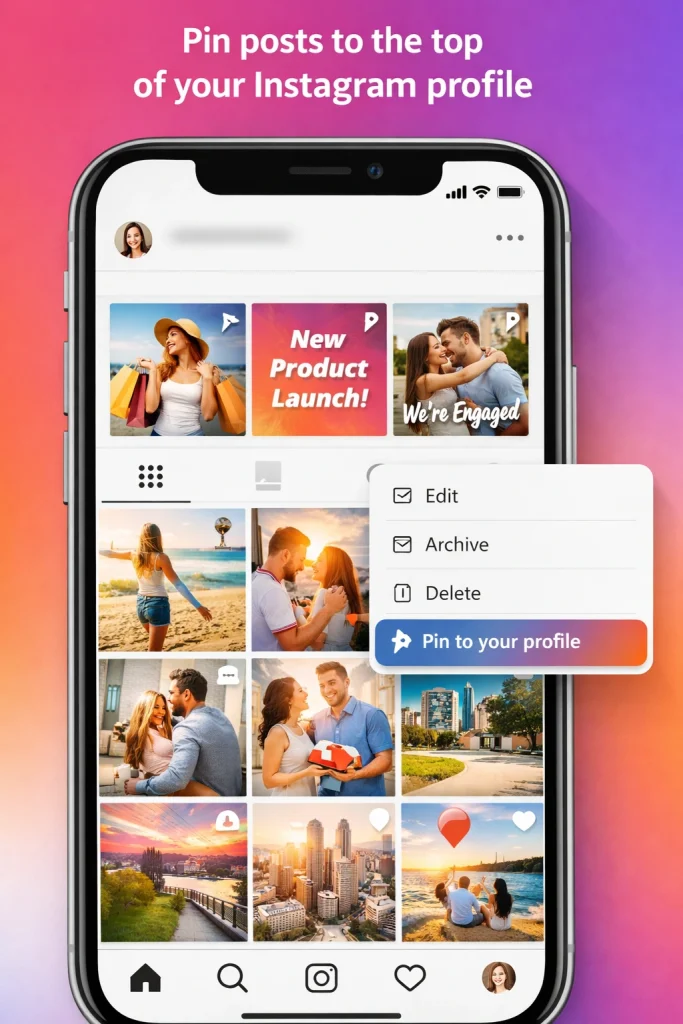

Knowing how to pin a post on Instagram can be the difference between getting noticed or being overlooked. With so many posts competing for attention, creators and businesses feel pressure to highlight their best content at the top of their profile.
How we verified this: We referenced Instagram’s Help Center and publicly available documentation and reputable guides to explain what Instagram currently shows (and doesn’t show). Features can vary by app version and region, so if your menus look different, update the app and check Instagram’s settings/help pages.
To pin a post on Instagram, go to your profile, open a post, tap the three-dot menu, and select ‘Pin to your profile.’ You can pin up to three posts at once.
In this guide, you’ll learn how to pin posts to your Instagram profile step by step, so your most important content stays visible to every visitor.
Quick Summary
– Explain how to access the pin option on Instagram posts
– Show which types of posts can be pinned to your profile
– Debunk the myth that only business accounts can pin posts
– Clarify how many posts you can pin at one time
– Protect your pinned posts from being accidentally unpinned
What Is a Pinned Post on Instagram?
Pinning a post on Instagram means selecting a specific post to stay at the top of your profile grid, regardless of when it was originally posted. This feature ensures that certain content remains prominently displayed, even as you continue to share new posts.
How to Identify a Pinned Post on Instagram
Pinned posts are visually identifiable by a small pin icon in the top-right corner of the image or video on your grid. For example, a business might pin a post about an ongoing promotion to ensure it’s the first thing visitors see when viewing their profile. Similarly, individuals often use this feature to highlight personal milestones, such as a graduation photo or an engagement announcement.
How to pin an Instagram post (step-by-step)
Pinning a post on Instagram is a simple way to highlight your favorite content at the top of your profile. Whether you’re using a mobile device or a desktop browser, the process is straightforward. You can pin photos, videos, and even carousel posts on Instagram, which are often useful when you want to showcase multiple images or steps in a single pinned post.
Below, we’ll walk you through the steps for both platforms.
Steps for mobile devices
1. Open the Instagram app and go to your profile.
Launch the Instagram app on your mobile device and tap the profile icon in the bottom-right corner to access your profile page.
2. Choose the post you want to pin.
Scroll through your posts and select the one you’d like to pin. Tap on it to open the post in full view.
3. Tap the three-dot menu.
At the top-right corner of the post, you’ll see a three-dot menu icon. Tap on it to open a dropdown menu of options.
4. Select ‘Pin to your profile.’
From the menu, choose the ‘Pin to your profile’ option. The post will now appear at the top of your profile grid, marked with a small pin icon for easy identification.
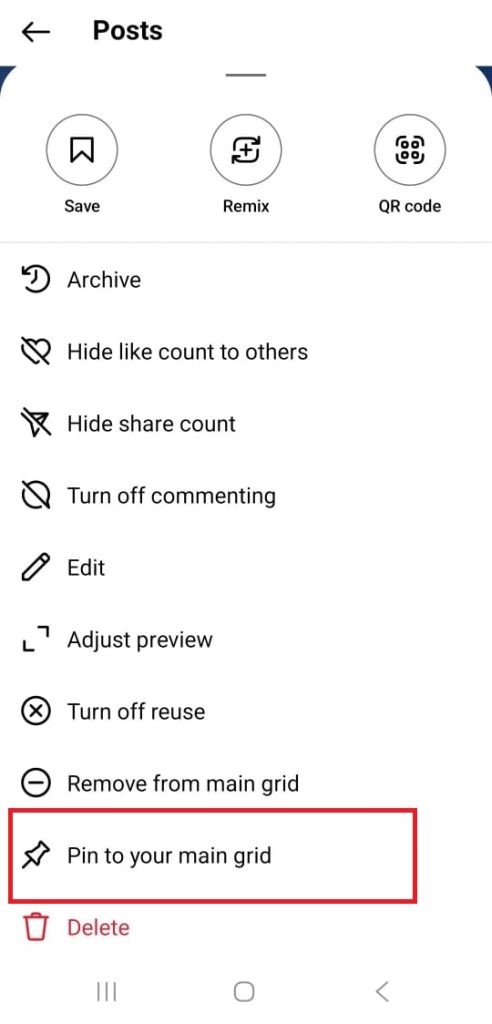
💡 Pro Tip: You can pin up to three posts at a time. If you try to pin a fourth post, Instagram will automatically unpin the oldest pinned post to make room.
Steps for desktop
1. Log in to Instagram via a browser.
Open Instagram in your preferred web browser and log in to your account.
2. Navigate to your profile.
Click on your profile picture or username in the top-right corner to access your profile page.
3. Select the post you want to pin.
Find the post you’d like to pin and click on it to open it in full view.
4. Access the three-dot menu and pin the post.
Similar to the mobile process, click the three-dot menu in the top-right corner of the post. Choose the ‘Pin to your profile’ option from the dropdown menu. The post will now appear at the top of your profile grid.
Why Pin Posts on Instagram? Key Benefits for Visibility and Engagement
Pinning posts on Instagram gives you the ability to control how your profile appears to visitors. Instead of relying on your most recent content, you can showcase your most important or relevant posts right at the top of your grid.
Here are the key benefits of using pinned posts:
-
Make a strong first impression
Visitors typically glance at your top posts before deciding whether to follow or engage. Pinning lets you feature content that introduces who you are, what you do, or what’s currently most important. -
Extend the visibility of key content
As you publish new posts, older content naturally gets pushed down your profile. Pinning prevents this by keeping high-performing or important posts at the top, regardless of when they were originally published. -
Guide engagement and actions
Pinned posts can drive traffic to a product, highlight an announcement, or showcase social proof. By positioning these posts upfront, you help visitors quickly understand what to do next—whether that’s clicking a link, reading more, or following your account. -
Curate your profile strategically
Instead of your grid being purely chronological, pinning allows you to highlight content that reflects your brand, campaign, or creative identity—without constantly reposting it.
How to Use Pinned Posts on Instagram: Business vs Creator Use Cases
Pinned posts are a simple but powerful way to shape how visitors engage with your Instagram profile. Whether you’re running a business or building a personal brand, pinning the right posts can strengthen your message and guide your audience’s attention.
For Businesses
-
Highlight current promotions or limited-time offers
Pinning sale announcements, event details, or discount codes ensures they stay visible throughout the campaign, even as you continue posting other content. -
Feature new product launches
Keep a launch post at the top of your profile to drive early engagement and make sure new visitors don’t miss your latest release. -
Showcase testimonials or press coverage
Social proof builds trust. Pinning a customer review, media mention, or case study helps establish credibility with potential buyers. -
Direct visitors to a key action
Use a pinned post to tell people what to do next—like visiting your website, signing up for a newsletter, or checking out a full product catalog.
For Creators
Alongside pinned posts, creators often refine their profile by choosing to hide Instagram Highlights they no longer want visible, keeping the focus on their most relevant content.
-
Introduce yourself to new followers
Pin a post that explains who you are, what kind of content you create, and what people can expect from following you. -
Feature your best-performing content
A pinned viral post or collaboration can immediately show the quality of your work and the kind of engagement you attract. -
Keep evergreen content accessible
Tutorials, guides, or personal highlights that stay relevant over time are strong candidates for pinning. This keeps them visible without resharing.
By tailoring your pinned posts to your audience and goals, you turn your Instagram profile into a curated entry point—making it easier for visitors to connect, engage, and take action.
Frequently Asked Questions About Pinned Instagram Posts
The ‘Pin to profile’ option disappeared. Where is it?
On some app versions, Instagram hides the Pin option behind a long-press gesture on the profile grid. Try press-and-hold the post on your profile grid, then drag to the menu/three dots to reveal pin/unpin. Also update the app.
Why can’t I pin/unpin from a computer browser?
Instagram’s web/desktop experience is inconsistent—many users report you can’t pin/unpin reliably on desktop, and it often requires using the mobile app instead.
Why can’t I pin a collab post (I’m the collaborator, not the original poster)?
This is a common limitation/bug: collaborators often don’t see the Pin option, while the original poster does. In practice, the workaround is inconsistent (some users report success on iPhone vs Android), but the underlying issue is that pinning may only be fully available to the original publisher in certain cases.
How do I reorder pinned posts?
Instagram doesn’t provide drag-and-drop ordering for pinned posts. The usual method is to unpin and re-pin in the order you want, since the most recently pinned appears first.
Conclusion: How To Pin A Post On Instagram
Pinning posts on Instagram gives you control over how your profile is perceived. By keeping your most relevant or engaging content at the top, you help visitors quickly understand who you are and what matters most.
Whether you’re promoting a product, sharing a milestone, or highlighting your best work, pinned posts act as a curated showcase. Just be selective—pinning without purpose can weaken the impact.
Review and update your pinned posts regularly to align with your current goals. If you haven’t used this feature yet, now’s the time to start. It’s a simple move that can significantly shape your audience’s first impression.

Benjamin Amiri
Benjamin Amiri is a digital growth consultant and senior contributor at InstaDeal. He specializes in Instagram engagement strategies, Facebook ads innovation, and TikTok product marketing. With a track record of scaling brands and creator accounts, Benjamin turns performance data into actionable growth tactics that deliver measurable results.


