


Ever opened Instagram at night and felt like your phone just flashed a mini sun in your face? Yeah, that’s where dark mode comes in. It’s cleaner, easier on the eyes, and even helps your battery last longer if you’re using an OLED screen. In this quick guide, you’ll see exactly how to switch Instagram to dark mode—on iPhone, Android, or straight from your browser—in under a minute.
How to Make Instagram Dark Mode — Quick Steps for iPhone, Android & Web
If you just want the steps—no fluff—here’s the quick rundown:
- On iPhone: Go to Settings → Display & Brightness → Dark.
Instagram follows your system theme automatically (no in-app toggle). - On Android: You’ve got options. Either switch on Dark theme in Settings → Display, or inside the Instagram app itself:
Profile → ☰ → Settings & privacy → Accessibility & translation → Dark mode.
Tap Dark or System default, and you’re done. - On Web/Desktop: Head to Instagram.com
How to Enable Instagram Dark Mode on iPhone (iOS 13 and Later)
If you’re using an iPhone running iOS 13 or later, dark mode’s already built in your phone. Instagram automatically follows whatever your iPhone’s appearance setting is, so there’s no separate “dark mode” button hiding in the app.
Here’s the path:
- Open Settings.
- Tap Display & Brightness.
- Under Appearance, choose Dark.
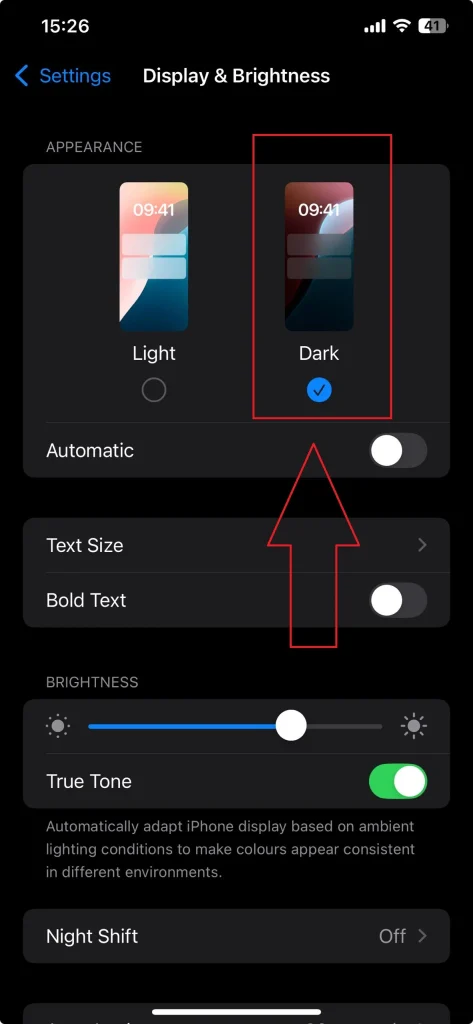
You can also toggle it faster: swipe down to open Control Center, long-press the brightness slider, and tap the Dark Mode button.
Want it to change automatically at night? Under the same Display & Brightness menu, turn on Automatic, then pick Sunset to Sunrise or set a custom schedule.
(If you like this idea, you can even link to Apple’s official Dark Mode guide for deeper steps.)
How to Turn On Instagram Dark Mode on Android (Android 10+)
Android users actually get more flexibility here. Depending on your phone brand and Android version, you can enable dark mode either for your whole system or just for Instagram app.
Option 1: System-wide dark mode
This affects on your whole device—menus, notifications, and apps that follow system settings (Instagram included).
Here’s the path:
- Open your Settings app.
- Tap Display.
- Toggle on Dark theme.
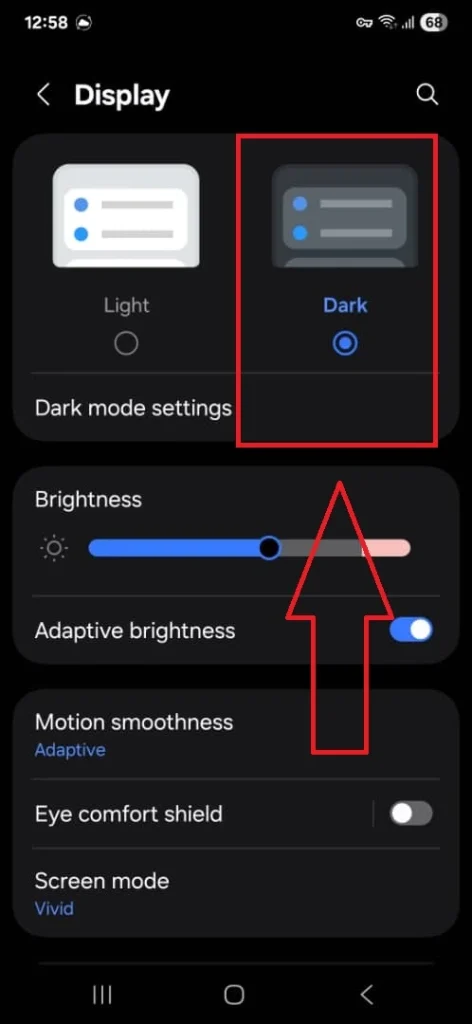
On some phones (like Pixels or newer Samsungs), you’ll see extra options like Schedule or Turn on from sunset to sunrise. That’s a nice touch if you only want things dark at night.
Option 2: Dark mode inside Instagram App
You can turn dark mode on Instagram only:
- Open Instagram.
- Tap your profile → ☰ (menu) → Settings & privacy.
- Scroll to Accessibility under “Your app & media”.
- Tap Dark mode.
- Choose On, Off, or System default.
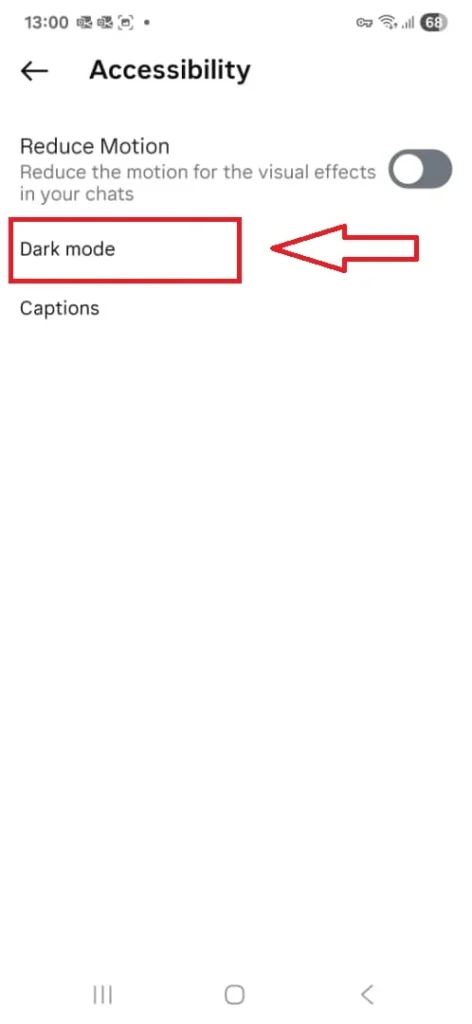
If this option is not available, maybe it’s rolling out gradually, and some android brands hide it behind settings. Just use the system dark theme in the meantime.
And one more tip: if your Instagram keeps flipping back to light mode, try clearing the cache or restarting the app. It usually fixes those visual hiccups.
How to Make Instagram Dark Mode on Web or Desktop Browser
Instagram finally made this easy on desktop too. Whether you’re scrolling through Reels on your laptop or replying to DMs from your browser, you can switch to dark mode in just two clicks.
Here’s the path:
- Go to Instagram.com and log in.
- Click More (bottom left corner of the sidebar).
- Select Switch appearance.
- Tap the toggle to turn dark mode on or off.
If it doesn’t change, check your browser theme or system theme settings. Some browsers (like Chrome, Edge, or Safari) have their own dark mode that can override what you see in Instagram. On macOS, for example, switching your Mac to Dark Mode via System Settings → Appearance will instantly flip Instagram too.
The best part? Instagram remembers your preference on the web. So once you set it, it stays dark—even when you close the tab.
Instagram Dark Mode Not Working? Try These Fixes
1. Check your app version.
Use the latest Instagram update from the App Store or Google Play Store. In some cases, the older versions simply ignore your system theme.
2. Restart Instagram (and your phone).
Sometimes it’s just a refresh issue. A solution could be force-closing the app, reopen it or even restart your device.
3. Verify your system settings.
On iPhone: Settings → Display & Brightness → Dark.
On Android: Settings → Display → Dark theme (or Night mode).
4. Look inside Instagram itself (Android only).
Open the app → Profile → ☰ → Settings & privacy → Accessibility & translation → Dark mode.
Make sure it’s set to Dark or System default.
5. Clear cache (Android).
If none of that helps, try to clear your Instagram cache. Go to Settings → Apps → Instagram → Storage → Clear cache. Then reopen the app.
If none of that works, log out and back in, or reinstall Instagram completely, it usually resets any theme bugs.
Does Instagram Dark Mode Save Battery or Reduce Eye Strain?
Dark mode can genuinely make a difference, though not always in the way people think.
Consider the battery life.
If your phone uses an OLED or AMOLED screen (most modern iPhones and Androids do), black pixels are basically “off.” That means your display uses less power when showing darker colors. In day-to-day use, this can stretch your battery by 5–30%, depending on brightness and how much you scroll.
At night, it could be less harsh on your eyes as dark mode lowers glare and brightness. But it’s important to note that dark mode doesn’t actually reduce blue light, the wavelength that messes with sleep cycles. For that, you’ll want features like Night Shift on iPhone or Night Light/Eye Comfort Shield on Android.
But does it help during daylight same as night? Light mode often wins for readability. A lot of designers now test their content in both themes to make sure text contrast stays comfortable either way.
(If you want to read the deeper science, Android Support’s dark theme guide and Apple’s Dark Mode overview explain it nicely.)
Best Creator Tips for Posting in Instagram Dark Mode
Your content doesn’t always look the same in dark mode. The background changes, contrast shifts, and suddenly that pale-gray text you used on your story… completely disappears.
Here’s how to make sure your posts still stand out even your visitors use dark mode:
1. Test your graphics in both themes.
Switch your phone’s mode before posting your content and check the preview. You can fix things like unreadable captions or logos that blend in.
2. Use contrast smartly.
Use white, off-white, or bright colors for text and visuals instead of mid-tone grays or pastels.
3. Add outlines or shadows to text.
It’s a tiny design tweak that makes titles and stickers pop, especially in stories and reels.
4. Keep your brand colors flexible.
If your brand palette was built around a white background, consider creating dark-friendly alternates.
5. Avoid pure black backgrounds in your designs.
Instagram’s dark mode isn’t true black, it’s a deep gray (#121212, roughly). So, using 100% black can make your post edges look harsh or “cut out.”
This is the stuff pro creators quietly pay attention to. When your visuals read clearly in both modes, your content instantly feels more polished, and viewers stay longer.
FAQs About How to Make Instagram Dark Mode (2025 Edition)
Here are most common questions regarding dark mode on Instagram, collected by InstaDeal:
Can I make only Instagram dark on iPhone?
No. On iOS, Instagram follows your system appearance.
Where’s the dark mode switch on Android?
Two places. System-wide and in the app.
Does dark mode reduce blue light?
Not by itself. For blue-light reduction, use your phone’s Night Shift.
Why does Instagram keep switching back to light (or the toggle disappears)?
It’s often an app version or rollout quirk.

Benjamin Amiri
Benjamin Amiri is a digital growth consultant and senior contributor at InstaDeal. He specializes in Instagram engagement strategies, Facebook ads innovation, and TikTok product marketing. With a track record of scaling brands and creator accounts, Benjamin turns performance data into actionable growth tactics that deliver measurable results.


