

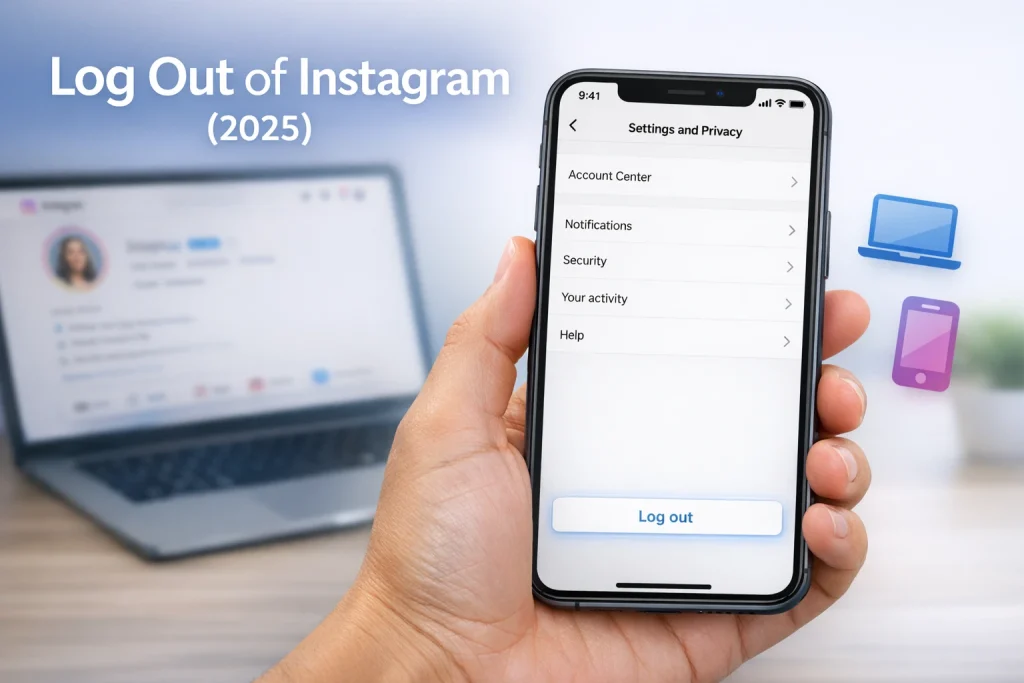

Knowing how to log out of Instagram might seem simple, but it’s easy to overlook—especially when you’re switching devices or sharing access. Many users leave accounts open without realizing the privacy risks or confusion it can cause.
How we verified this: We referenced Instagram’s Help Center and publicly available documentation and reputable guides to explain what Instagram currently shows (and doesn’t show). Features can vary by app version and region, so if your menus look different, update the app and check Instagram’s settings/help pages.
Safety note: Avoid third-party “viewer” or “hide chat” tools that ask for your Instagram login—these can risk account access.
This guide will show you exactly how to log out of Instagram on different devices, including mobile and desktop. Whether you’re protecting your account or just taking a break, you’ll learn the right steps to log out securely.
Quick Summary
– Explain how to log out of Instagram on iPhone and Android apps
– Show how to log out of Instagram from a desktop browser
– Debunk common myths about logging out versus switching accounts
– Clarify how to log out of all Instagram sessions remotely
– Protect your account by confirming logout and clearing saved login info
Quick Answer: Log Out of Instagram in 5 Steps
To log out of Instagram, go to your profile, tap the menu (☰), select Settings and privacy, tap Log out, and confirm. This ends your session on that device.
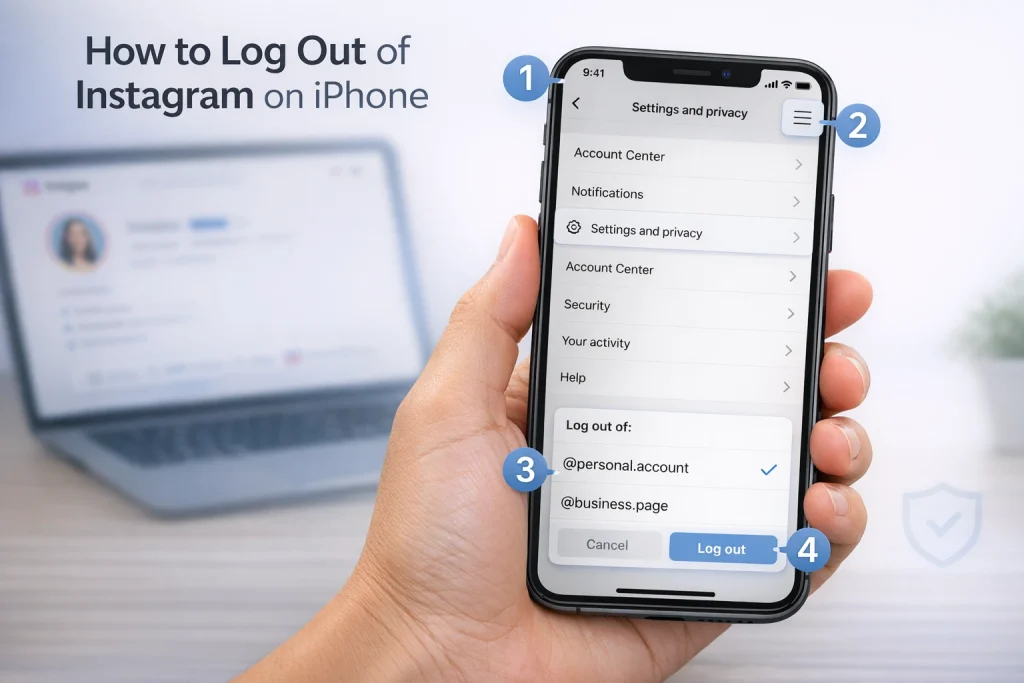
How to Log Out of Instagram on iPhone
Logging out of Instagram on an iPhone is a straightforward process, but it’s important to follow the correct steps, especially if you manage multiple accounts. Here’s how you can do it:
Step-by-step guide
1. Open the Instagram app: Launch the Instagram app from your iPhone’s home screen.
2. Go to your profile: Tap the profile icon in the bottom-right corner of the screen. This takes you to your personal profile page.
3. Access the settings menu: In the top-right corner, tap the three horizontal lines (also known as the hamburger menu). From the dropdown, select Settings and privacy.
4. Scroll to the bottom and log out: In the settings menu, scroll all the way down until you see the Log out option. Tap it.
5. Choose the correct account: If you are logged into multiple accounts, Instagram will prompt you to select which account you want to log out of. Make sure to pick the correct one before confirming.
If you don’t see “Log out” (iPhone fixes)
– Forgotten password concerns: If you’re worried about forgetting your login details after logging out, ensure your account is linked to an email or phone number for easy password recovery.
– Multiple accounts confusion: If you manage multiple accounts, double-check which account you’re logging out of. Accidentally logging out of all accounts can be inconvenient.
– App glitches: Occasionally, the app may not display the ‘Log out’ option due to bugs. Restarting the app or updating it often resolves this issue.
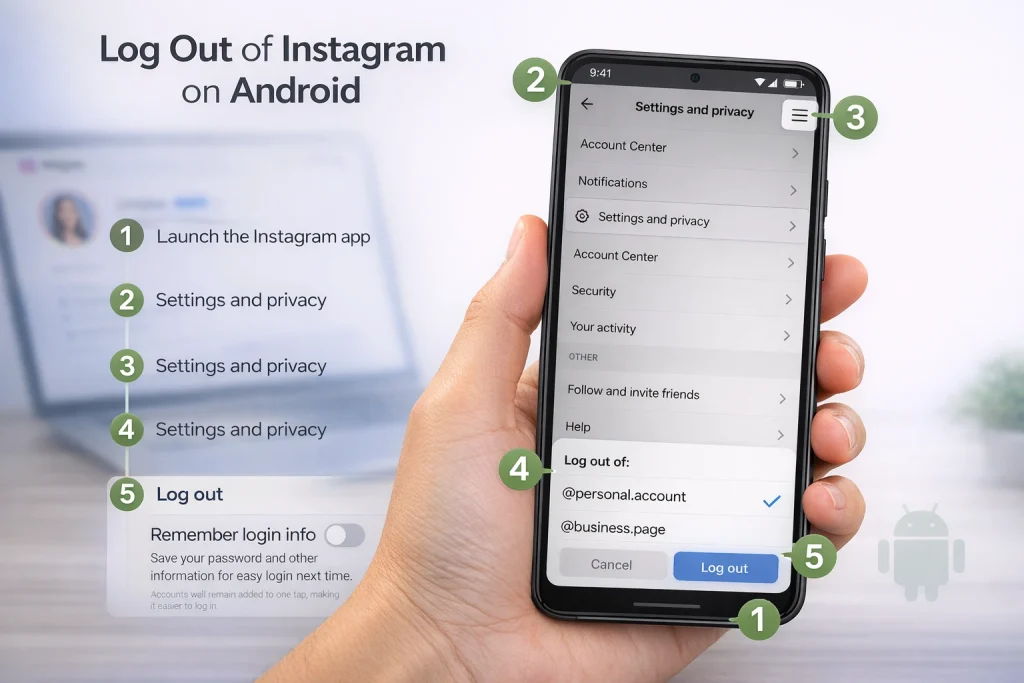
How to Log Out of Instagram on Android
Logging out of Instagram on Android is straightforward and involves just a few steps. Here’s how to do it efficiently:
Step-by-step guide
1. Launch the Instagram app on your Android device. Open the app from your home screen or app drawer.
2. Navigate to your profile. Tap the profile icon located in the bottom-right corner of the screen. This will take you to your personal Instagram feed and settings.
3. Access the menu. Tap the three horizontal lines (commonly called the hamburger menu) in the top-right corner of your profile page. From the dropdown, select Settings and privacy.
4. Scroll and find the ‘Log out’ option. Scroll down to the bottom of the settings menu until you see the Log out option. Tap it to initiate the logout process.
5. Manage saved login info. If you want to remove your saved credentials, ensure the Remember login info option is unchecked before confirming your logout. This prevents Instagram from keeping your account information for quick logins in the future.
Saved Login Tips
If you’re managing multiple Instagram accounts on the same device, logging out works slightly differently. Instead of logging out of all accounts at once, Instagram allows you to log out of individual accounts. Simply select the account you want to log out of, then follow the same steps outlined above. Be cautious when using the Remember login info feature if you frequently switch accounts, as it can lead to confusion about which credentials are saved.
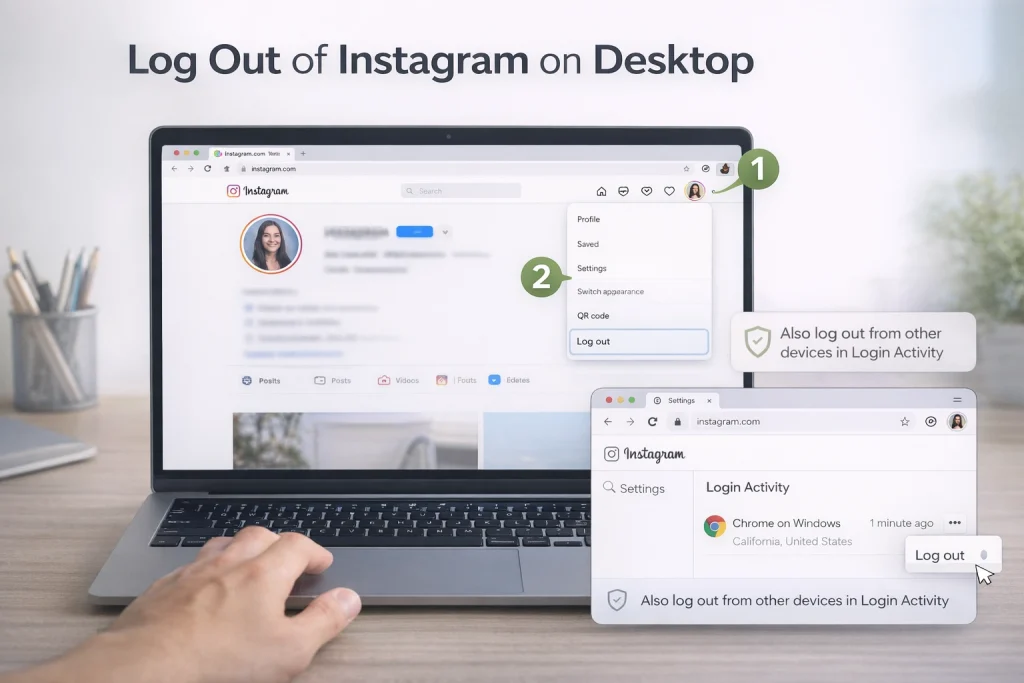
How to Log Out on Desktop/Web
Logging out of Instagram on a computer is a straightforward process, but it’s crucial to follow the right steps, especially when using shared or public devices. Here’s how you can do it effectively.
Log out (desktop)
1. Log in to Instagram via a web browser : Open your preferred browser and navigate to Instagram. Enter your credentials to access your account.
2. Click on your profile picture: In the top-right corner of the screen, you’ll see your profile picture. Click on it to open a dropdown menu.
3. Select ‘Log out’: From the dropdown menu, click on the ‘Log out’ option. This will immediately end your session on the web browser.
Log Out of One Account vs Log Out of All Accounts (Same Device)
When you’re logged into multiple Instagram accounts on the same device, logging out can behave differently than many users expect. Instagram does not always offer a simple “log out of just one account” button that leaves the others fully logged in. In most cases, logging out ends the session for the account you’re currently using, but the other accounts may still appear on the login screen if their login information was saved.
If you want to remove only one account from the device, the key difference is whether the login info is saved. Logging out ends the session, while removing a saved account deletes that profile from the login screen entirely. This distinction matters on shared devices, where simply logging out may still allow quick re‑access unless the saved login is removed manually.
How to Log Out of Instagram on All Devices
Logging out of Instagram on all devices is done through your account’s security settings rather than the regular log‑out button. This option is useful if you signed in on a public computer, lost a phone, or suspect someone else has access to your account.
Instagram lets you review every active session through the Account Center under Password and security, where you’ll find a section called “Where you’re logged in.” From there, you can see each device, its location, and the last activity time. You can log out of individual sessions or end them all at once. As an extra safeguard, changing your password will automatically log you out of every other device except the one you’re currently using.
How to Remove a Remembered Instagram Account (Remove Profile / Saved Login Info)
Removing a remembered Instagram account is different from logging out. When Instagram remembers your login, it stores the account on the login screen so it can be accessed again without entering credentials. This is convenient on personal devices but risky on shared ones.
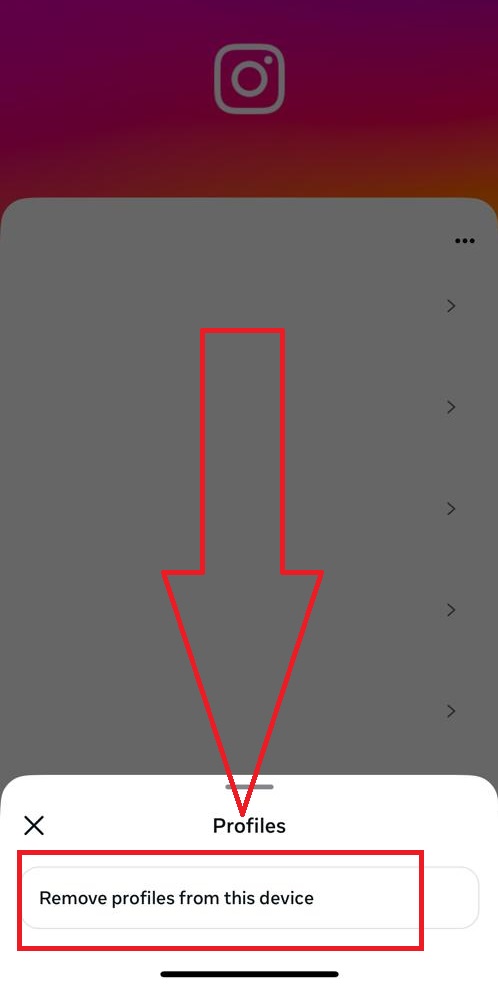
To fully remove an account from a device, you need to do it from the Instagram login screen. After logging out, tap the options menu on the login page and choose to remove profiles from the device. Once removed, the account will no longer appear on the login screen, and anyone using the device will need the username and password to sign in again.
Logging Out vs Switching Accounts vs Disabling
Logging out, switching accounts, and disabling your account are often confused, but they serve very different purposes. Logging out simply ends your session on a device while keeping your account fully active. Switching accounts allows you to move between multiple profiles without logging out at all, as long as those accounts are already added to the app.
Disabling your account is a separate action entirely. When you temporarily disable Instagram, your profile, photos, and interactions are hidden from everyone until you log back in through a browser. If your goal is to step away entirely rather than just sign out on a device, temporarily deactivate your Instagram account so your profile and content are hidden until you return. Also, logging out should not be confused with permanently deleting an Instagram account, which is a separate action that removes your profile and data entirely.
Can’t Find the Log Out Button? Fixes
If the “Log out” button is missing from your Instagram app, the problem is usually temporary and easy to fix. Here are the most common causes and how to resolve them:
-
Outdated App Version
An older version of the Instagram app might not display all current features correctly. Go to the App Store or Google Play, search for Instagram, and tap “Update” if it’s available. Once updated, reopen the app and check if the log out option appears at the bottom of the Settings and privacy menu. -
App Cache or Temporary Glitch
In some cases, clearing the Instagram app cache can resolve hidden or missing menu options when the interface doesn’t load correctly. -
Poor Internet Connection
A slow or unstable internet connection may prevent Instagram from fully loading your settings menu. Try switching to a different network or reconnecting to Wi-Fi, then check the menu again after refreshing the app. -
Reinstall the App
If none of the above steps work, uninstall Instagram from your device and reinstall it from the official app store. This ensures that you’re running the latest version with no corrupted files. -
Check for Saved Login Info Settings
In rare cases, the “Log out” option may be hidden due to how login sessions are saved. Go to your device’s login screen after logging out of all accounts, tap the small menu icon, and look for options like “Remove profile” or “Remove saved login.”
Once the app is up to date and fully refreshed, the “Log out” button typically reappears at the bottom of the Settings and privacy section.
Conclusion: How to Log Out of Instagram
Logging out of Instagram is a simple action, but understanding how it works across devices, saved logins, and multiple accounts makes a real difference for privacy and security. Whether you’re signing out temporarily, removing a remembered account, or ending sessions on other devices, knowing the right option helps you avoid confusion and unintended access.
Understanding how login sessions, saved credentials, and device access work is especially important in situations where account ownership or management responsibilities change. Marketplaces like InstaDeal, which focus on buying and selling Instagram accounts, highlight why maintaining clear control over logins, security settings, and recovery details matters beyond everyday use. Whether an account is managed personally or transferred between parties, knowing how to properly log out, remove saved access, and secure sessions helps reduce the risk of unauthorized use and long-term access issues.

Benjamin Amiri
Benjamin Amiri is a digital growth consultant and senior contributor at InstaDeal. He specializes in Instagram engagement strategies, Facebook ads innovation, and TikTok product marketing. With a track record of scaling brands and creator accounts, Benjamin turns performance data into actionable growth tactics that deliver measurable results.


