



Thinking about stepping away from Instagram for a while? You’re not alone. Whether it’s to cut distractions, take a mental health break, or just breathe without endless scrolling, plenty of people hit that point.
In this guide, I’ll walk you through how to deactivate your Instagram account on iPhone, Android, and desktop. You’ll see the difference between deactivation and deletion, the steps for each device, what actually happens to your profile when you pause it, and how to get everything back when you’re ready. I’ll also cover a few quick prep tips—like backing up your data—plus some common snags people run into (and how to fix them fast).
By the end, you’ll know exactly how to hit pause without losing your photos, messages, or connections. And if you’re running a business or creator account, I’ll flag the extra details you’ll want to check before going dark.
The Quick Answer: How to Deactivate Your Instagram Account in Seconds
If you just want the bare steps, here they are. Open the Instagram app or head to instagram.com, then follow this path:
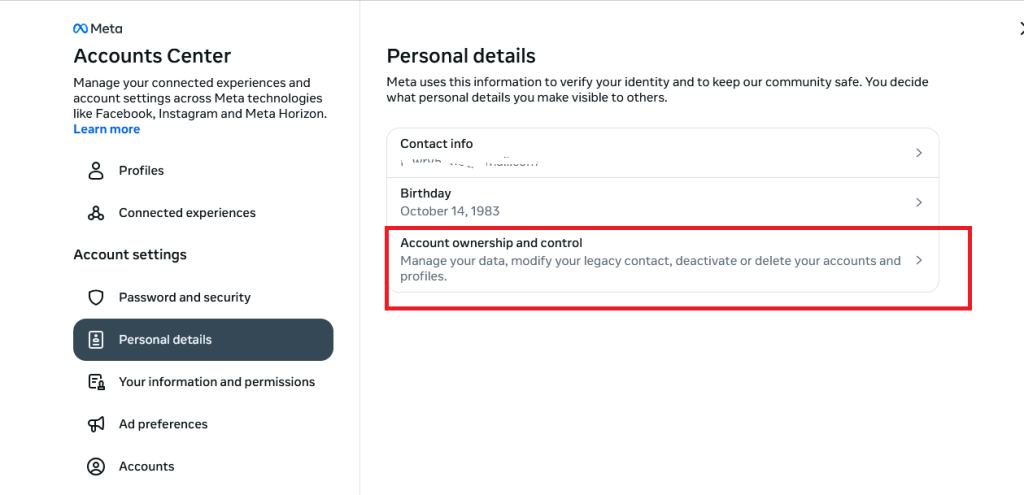
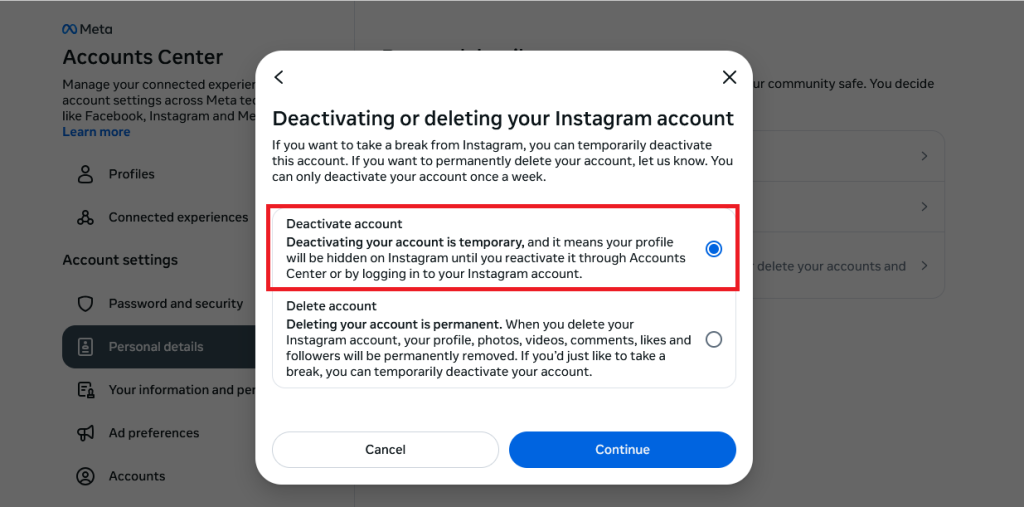
Accounts Center → Personal details → Account ownership and control → Deactivation or deletion → Deactivate account. That’s the menu chain, whether you’re on iPhone, Android, or desktop.
A couple of things to know before you tap through: Instagram will ask you to choose a reason, re-enter your password, and confirm. As soon as you hit that last button, your profile, posts, and likes vanish from public view. They’re not gone—they’re just hidden until you decide to come back. Reactivation is simple: log back in with your username and password, and everything reappears.
If you’d like the official reference, Instagram’s Help Center has the full breakdown in official Instagram Help Center guide.
Deactivation vs Deletion: Which One Makes Sense for You?
Deactivation is temporary, deletion is permanent. When you deactivate, your profile, photos, comments, and likes all disappear from public view, but they sit safely on Instagram’s servers until you log back in. With deletion, there’s no coming back after a short grace period—your content is wiped for good. And a detail many people miss: if you delete your Instagram, you also lose your connected Threads account.
Make sure to check this Meta’s explanation of deletion vs deactivation guide before deciding.
Now, not everyone really needs to go as far as deactivation. If you’re just looking for some breathing room, a few lighter options exist;
-
Mute notifications — turn them off in your phone’s settings or in-app.
-
Quiet Mode — a built-in feature that silences alerts for set hours and auto-replies to DMs.
-
Remove your account from the device — log out instead of deactivating, so you’re not tempted.
-
Unfollow or mute accounts — cut down the noise without disappearing entirely.
Sometimes these small switches are all it takes to get a mental break without hitting the “deactivate” button. And if you’re on the fence, testing these lighter measures first can help you see if you truly need the full pause.
Before You Deactivate Instagram: A Quick Prep Checklist
Here’s what you’ll want to do first:
-
Download your data. Instagram lets you export your data such as photos, videos, DMs, and profile info in one big file. You’ll find this under Your information & permissions → Download your information in the app or on desktop. It might take a few hours for the file to arrive, so request it before you pull the plug.
-
Check your security. If you haven’t enabled two-factor authentication (2FA), now’s the time. It’s an extra layer of login protection, and it’ll make reactivating smoother if something feels off later.
-
Confirm the right profile. Many people manage multiple Instagram accounts inside Meta’s Accounts Center. Double-check you’re selecting the one you want to deactivate—sounds obvious, but it happens.
-
Give people a heads-up (optional). If you chat with close friends or run a small business account, consider a quick story or DM to let people know you’ll be “offline.” Saves confusion when your profile suddenly disappears.
These aren’t mandatory steps, but they’re smart moves. Think of it like cleaning out your bag before you put it in storage. You’ll thank yourself later if you ever need to recover something or if you plan to return without hassle.
How to Deactivate Instagram Account on iPhone or Android (In-App Steps)
You don’t need a laptop for this anymore. Instagram built deactivation right into the app, whether you’re on iPhone or Android.
Here’s the path:
-
Tap your profile picture in the bottom right.
-
Hit the three-line menu (top right corner).
-
Go to Settings & privacy.
-
Scroll down to Accounts Center.
-
Select Personal details → Account ownership and control → Deactivation or deletion.
-
Pick the right Instagram account (important if you manage more than one).
-
Tap Deactivate account, choose a reason, and re-enter your password.
A couple of quirks worth knowing:
-
Instagram may occasionally change menu labels—if you don’t see “Deactivation or deletion,” look for “Account ownership and control.” Same place, different wording.
-
You can only deactivate once per week, so plan your break timing.
-
The app sometimes kicks you into a browser tab to confirm. That’s normal, and you’ll just log back in to finish the process.
How to Deactivate Instagram on a Computer (Desktop & Web Guide)
Here’s the step-by-step:
-
Go to instagram.com
- Click More (bottom left menu).
- Select Settings → Accounts Center.
- Open Personal details → Account ownership and control → Deactivation or deletion.
-
Pick the Instagram account you want to pause.
-
Choose Deactivate account, add your reason, and confirm with your password.
What Happens When You Deactivate Instagram (And How to Reactivate Later)
So what really happens the moment you hit Deactivate? Everything tied to your profile disappears from public view. Your posts vanish, your comments stop showing up, and your likes are hidden. To friends, it looks like you’ve stepped off the platform entirely.
Reactivating is almost too easy. You log in with your username and password, and boom—your account reappears like nothing ever happened. No setup. No re-approval. Just back in business.
A couple of details that don’t get talked about enough:
-
Direct messages (DMs): People you’ve messaged can still see past conversations, but you won’t show up as an active account.
-
Mentions and tags: They’ll remain in place, but since your profile is hidden, no one can tap through to you.
-
Search visibility: If someone tries to look you up, your account won’t show until you reactivate.
Extra Notes for Business & Creator Accounts
If you’re running a business or creator account, deactivation comes with extra wrinkles. Regular users just disappear for a bit. But if you’ve got ads running or partnerships linked, you’ll want to know what shuts down the moment you hit pause.
Here’s the short version:
-
Ads stop delivering. Anything you’re running through Instagram will halt the second your account goes inactive. No refunds for the unused budget—it just pauses.
-
Shop and bio links vanish. Your storefront, contact buttons, and creator features disappear from public view until you’re back.
-
Third-party tools disconnect. Schedulers, analytics dashboards, and influencer platforms may lose access because they rely on your live account. You’ll likely need to reconnect them when you return.
This is usually the part that trips creators up. You plan to take a two-week break but forget you scheduled posts through a tool like Buffer or Later. Those posts won’t go out, because your account isn’t active to push them.
Another quirk: if your Instagram is tied to a Facebook Page through Meta’s Accounts Center, deactivation only hides Instagram. The Page stays live. That’s good if you want your business presence on Facebook to keep running, but double-check your settings so you don’t accidentally knock both offline.
Bottom line—if you’re running a business, give yourself a 10-minute checklist before deactivating. Cancel or pause ads, warn collaborators, and make sure you’re not leaving a brand partner confused when your profile suddenly vanishes.
FAQs About Temporarily Disabling Your Instagram Account
1) Can I deactivate from the app, or do I need a browser?
You can do it from the Instagram app
It lives inside Accounts Center; Redditors often miss it or report label changes. Path: Accounts Center → Personal details → Account ownership and control → Deactivation or deletion.
3) Is there a limit—how often can I deactivate?
Yes: once every seven days.
4) Do my DMs disappear when I deactivate?
Past conversations generally remain visible to others (often labeled “Instagram User” with a blank avatar)
5) Can I deactivate for as long as I want? Will Instagram auto-delete?
Users report you can stay deactivated indefinitely; Instagram doesn’t auto-delete just because you’re deactivated.

Alex Morris
Alex Morris is a social media strategist and lead writer at InstaDeal. He specializes in Instagram, TikTok, and creator monetization trends, helping influencers and brands grow smarter online. With over 10 years of digital marketing experience, he simplifies complex topics into practical insights.


