


How to change your Instagram password is a question many users scramble to answer after a security scare or suspicious login. Whether you’ve forgotten your current password or just want to stay ahead of hackers, knowing the exact steps is crucial.
How we verified this: We referenced Instagram’s Help Center and publicly available documentation and reputable guides to explain what Instagram currently shows (and doesn’t show). Features can vary by app version and region, so if your menus look different, update the app and check Instagram’s settings/help pages.
Changing your Instagram password takes less than two minutes. Open your account settings, go to Security, select Password, and follow the prompts to update it safely on mobile or desktop.
In this guide, you’ll learn how to change your Instagram password quickly and securely using the app or website. We’ll also cover what to do if you’re locked out or can’t remember your old password.
Quick Summary
– Explain how to change your Instagram password in the mobile app settings
– Show how to reset your password if you’ve forgotten the current one
– Debunk myths about needing third-party apps to change Instagram passwords
– Clarify the difference between password reset and account recovery
– Protect your account by enabling two-factor authentication after changing password
When You Should Change Your Instagram Password
Changing your Instagram password regularly is a simple yet crucial step to protect your account from potential security threats. Password updates act as a preventive measure, reducing the risk of unauthorized access and keeping your personal information safe.
One key moment to update your password is if you suspect any unauthorized activity on your account. Signs of this include unrecognized login attempts, changes to your profile, or posts you didn’t create. For example, if Instagram notifies you about a login from an unfamiliar device or location, it’s time to act immediately.
Another important habit is to avoid reusing old passwords or using the same password across multiple platforms. Reused passwords are a common vulnerability, as a breach on one service could expose your Instagram account too. Instead, create a unique and strong password for Instagram—one that combines uppercase letters, lowercase letters, numbers, and special characters.
Can hackers change your password?
Yes, hackers can change your Instagram password if they gain access to your account. This typically happens when someone obtains your login credentials through phishing, reused passwords from other sites, or malware on your device. Once inside your account, an attacker can not only change your password but also update the email and phone number associated with the account—locking you out completely.
Instagram attempts to protect users by sending an alert email whenever changes are made to key account information. If your email address was changed, Instagram allows you to revert it by clicking a secure link in that notification. But if the hacker has already taken over your email or deleted the recovery options, it may be harder to regain control.
If you believe your account has been hacked, visit instagram.com/hacked to start the official recovery process. If you regain access, it’s important to change the email address on your Instagram account to ensure recovery messages go only to an address you control.
What Happens After You Change Your Instagram Password?
When you change your Instagram password, the platform typically logs you out of all other devices—especially if the change was made in response to suspicious activity. This security measure ensures that anyone else who may have had access to your account is immediately removed.
Instagram may also prompt you to review your recent login activity. From the Settings > Security > Login Activity menu, you can see a list of all devices currently logged into your account. You can also manually log out of Instagram on other devices to make sure no old sessions remain active after the password change.
How to Change Your Instagram Password on Mobile
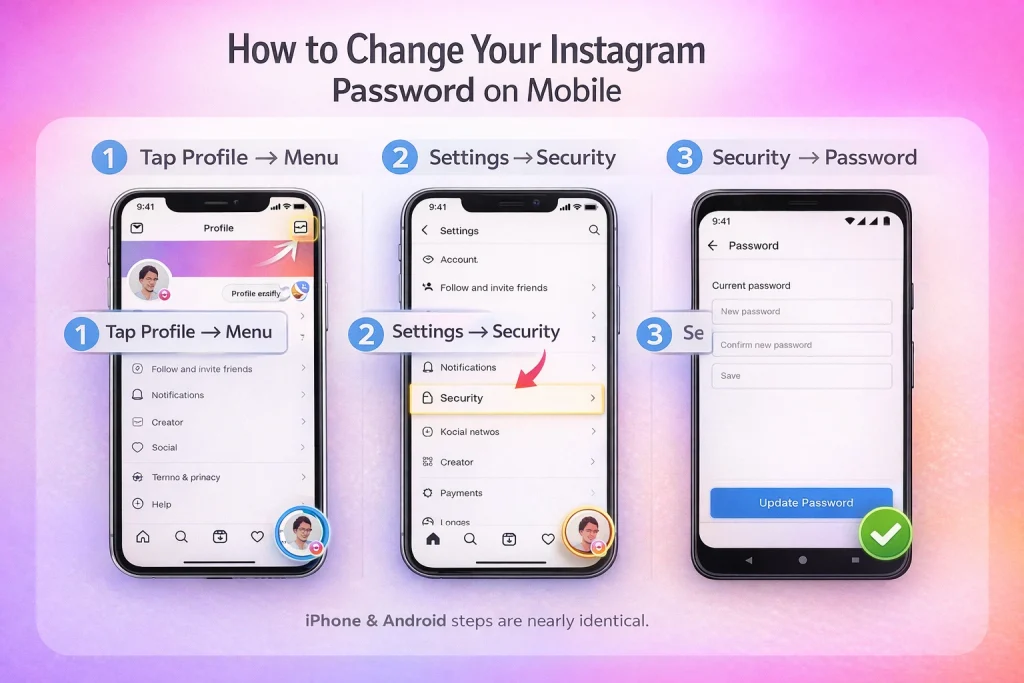
Changing your Instagram password on mobile is straightforward and can be done in just a few steps. Whether you’re using an iPhone or an Android device, the process is nearly identical, with slight variations in interface design.
Step-by-step instructions for iPhone
1. Access the settings menu in the Instagram app: Open the Instagram app and tap on your profile icon in the bottom-right corner. Next, tap the three horizontal lines (hamburger menu) in the top-right corner and select **Settings**.
2. Navigate to ‘Security’ and select ‘Password’: Within the Settings menu, tap on **Security** and then choose **Password**. This will take you to the password management screen.
3. Enter your current password and create a new one: Type in your current password, followed by your new password. Make sure your new password is strong by including a mix of letters, numbers, and special characters. After confirming the new password, tap **Save** to finalize the change.
Step-by-step instructions for Android
1. Access the settings menu in the Instagram app: Launch the Instagram app, then tap your profile icon in the bottom-right corner. Tap the three horizontal lines in the top-right corner and select **Settings**.
2. Navigate to ‘Security’ and select ‘Password’: In the Settings menu, choose **Security**, then tap on **Password**. This will open the password update screen.
3. Enter your current password and create a new one: Input your current password, followed by your desired new password. Ensure it meets Instagram’s security guidelines for strength. Tap **Save** to update your password.
How to Reset Your Instagram Password If You Forgot It
If you’ve forgotten your Instagram password, resetting it is straightforward with a few different methods available. Below, we’ll cover how to use your email, phone number, or Facebook account to regain access.
Using your email or phone number
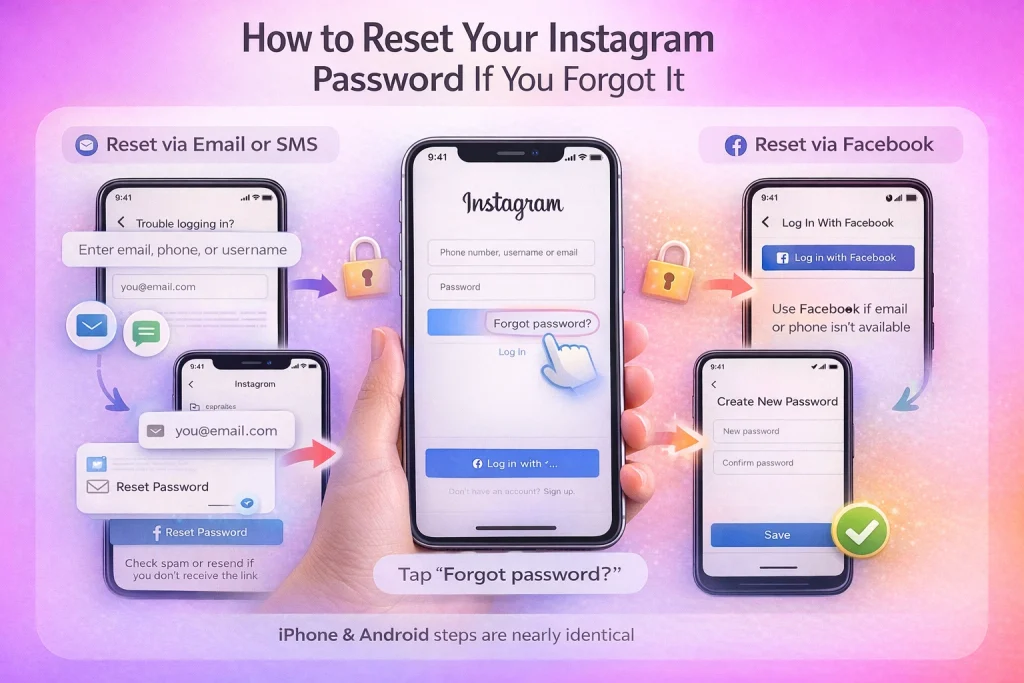
Start by tapping **’Forgot password?’** on the Instagram login screen. You’ll be prompted to enter your email address, phone number, or username associated with your account. Once entered, Instagram will send a password reset link to your email or an SMS to your phone.
Click the link in the email or text message, and you’ll be redirected to a page where you can create a new password. Make sure your new password is strong and unique to protect your account.
Troubleshooting Tip: If you don’t receive the reset email or SMS, check your spam or junk folder. For SMS, ensure your phone has a stable network connection and that you’ve entered the correct number. If the issue persists, try resending the link or verify that your email address or phone number is up to date in Instagram’s settings.
Using your Facebook account
If your Instagram account is linked to your Facebook profile, you can reset your password through Facebook. On the login screen, tap **’Forgot password?’** and then select the option to log in with your Facebook account. Once authenticated, you’ll be able to set a new password directly within Instagram.
This method is particularly helpful if you no longer have access to the email or phone number associated with your account. However, ensure that your Facebook account is secure and up to date to avoid potential access issues.
By following these steps, you can quickly regain access to your Instagram account, even if you’ve forgotten your password. Always double-check your recovery options in your account settings to prevent future login problems.
Privacy and Security Tips After Changing Your Password
Changing your Instagram password is a solid first step, but securing your account requires additional measures to protect your privacy and prevent unauthorized access. Here’s how to stay safe:
Enable two-factor authentication
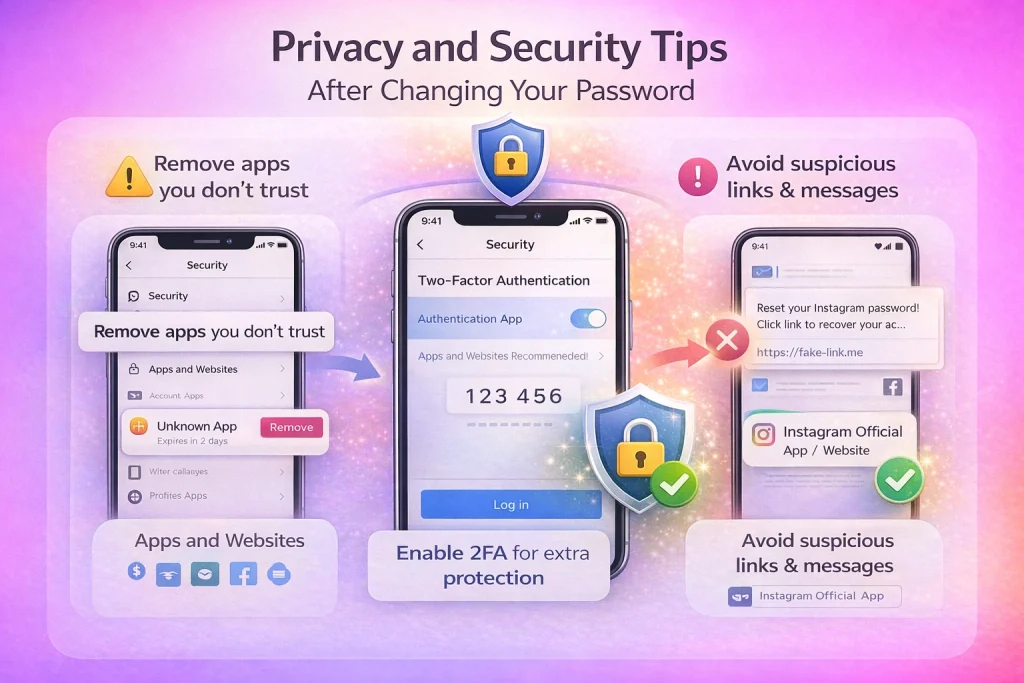
Two-factor authentication (2FA) adds an extra layer of security by requiring a second verification step, such as a code sent to your phone or an authentication app. To enable it on Instagram, go to **Settings > Security > Two-Factor Authentication** and follow the prompts. This ensures that even if someone obtains your password, they can’t log in without the second factor. For the best security, use an authentication app like Google Authenticator instead of SMS codes, as phone numbers can sometimes be targeted by SIM-swapping attacks.
Avoid third-party apps and scams
Review the third-party apps connected to your Instagram account. Some apps, especially those promising follower boosts or analytics, may misuse your data or compromise your account. Navigate to **Settings > Security > Apps and Websites** to see the list of connected apps. Revoke access to any app you no longer trust or recognize.
Be wary of phishing attempts, too. Scammers often send fake password reset links via email or direct messages. Always verify the sender’s email address and avoid clicking suspicious links. Instead, reset your password directly through Instagram’s official app or website.
By taking these steps, you not only protect your Instagram account but also reduce the risk of data breaches and identity theft. A little vigilance now can save you from major headaches later.
FAQ: Password Rules, How Often to Change, and Linked Accounts
Why does Instagram keep asking me to change my password even after I did?
Sometimes Instagram repeatedly prompts a password change when it detects suspicious activity or conflicting session data. Users often fix this by logging in through a mobile browser or desktop, resetting the password there, and then reinstalling the app. If the issue continues, clearing the Instagram app cache can help remove corrupted session data that sometimes causes repeated password prompts.
I tried “Forgot Password” but it still won’t let me change my password—what now?
If you see the account compromised screen and traditional reset links aren’t working, try resetting your password from a different device or browser. Some users found success by opening Instagram in a web browser (not the app), resetting from there, and then reinstalling the app.
I’m getting emails saying someone requested a password reset—should I be worried?
If you receive password reset notifications you didn’t initiate, Instagram is alerting you that someone may be attempting unauthorized access. Don’t click any links in emails unless they clearly come from Instagram’s official domain, and enable two-factor authentication to block repeat attempts. You can safely ignore the reset requests if you didn’t initiate them, but tighten your account security immediately.
Conclusion: How to Change Your Instagram Password
Changing your Instagram password is a simple but essential step in protecting your account. Whether you’re updating it as a precaution or recovering from a security issue, following the correct steps helps you stay in control and prevent unauthorized access.
For stronger protection, enable two-factor authentication and use a unique, secure password that isn’t reused elsewhere. Staying alert to phishing attempts, keeping the app updated, and reviewing login activity regularly can further reduce security risks.
Account Security During Instagram Account Transfers
Account security becomes especially important when Instagram account ownership changes hands. Marketplaces like InstaDeal, which facilitate the buying and selling of Instagram accounts, operate in contexts where updating passwords, recovery emails, and security settings is a necessary part of transferring control responsibly. Changing login credentials helps ensure that access is clearly defined and that previous owners no longer retain entry to the account. This step supports continuity, accountability, and long-term stability after an account transfer.

Benjamin Amiri
Benjamin Amiri is a digital growth consultant and senior contributor at InstaDeal. He specializes in Instagram engagement strategies, Facebook ads innovation, and TikTok product marketing. With a track record of scaling brands and creator accounts, Benjamin turns performance data into actionable growth tactics that deliver measurable results.


