

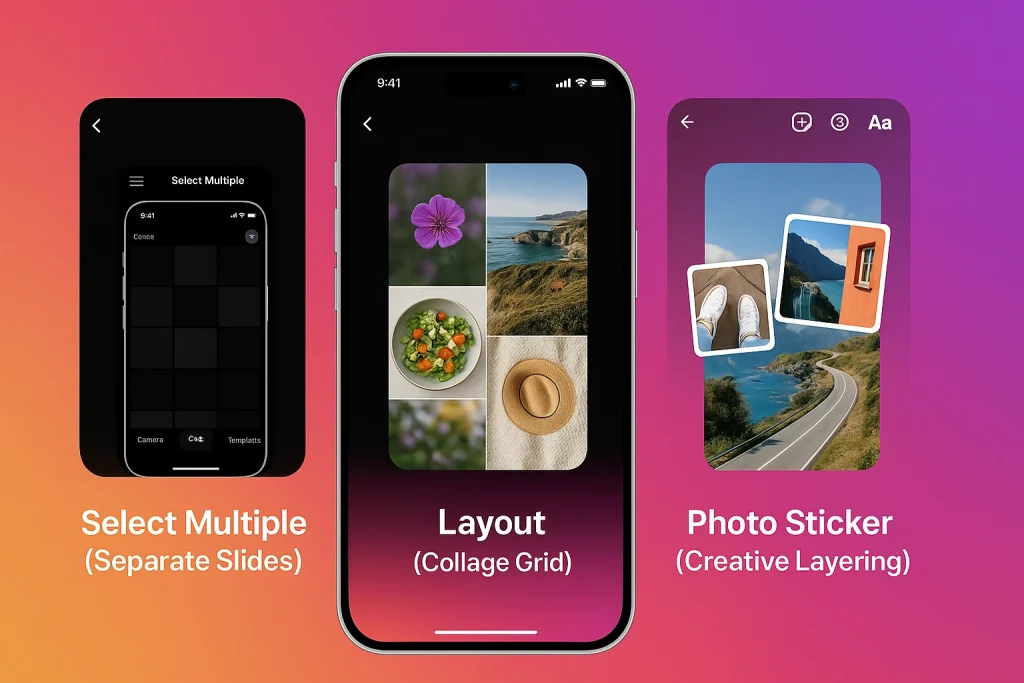

Posting one photo to your Instagram Story sometimes just doesn’t cut it. Whether you’re showing off a product launch, a behind-the-scenes reel, or just a night out with friends, you need more. The good news? Instagram gives you a few clever ways to stack, layer, and collage your images. And I’m about to walk you through all of them—plus some pro tricks most people don’t know.
How to Add Multiple Photos to Instagram Story Using Built-In Features
To add multiple photos to your Instagram Story, you can use three main methods: Select Multiple, Layout, and Photo Sticker. Here’s how to do each:
1. Select Multiple (aka the Slide Stack)
When you want each photo to stand out on its own, this is your go-to.
Steps:
-
Open your Instagram app and tap the Story icon.
-
Swipe up to open your camera roll.
-
Tap “Select Multiple” near the top.
-
Pick up to 10 photos or videos, then tap Next.
-
Edit each slide if you’d like (text, stickers, music).
-
Hit Share, and Instagram will post them as consecutive Story frames.
💡 Pro tip: The order you tap them in is the order they’ll play. Think of it like editing a mini slideshow.
2. Layout (the Built-In Collage Grid)
Want all your photos in one cohesive image? Layout is your friend.
Steps:
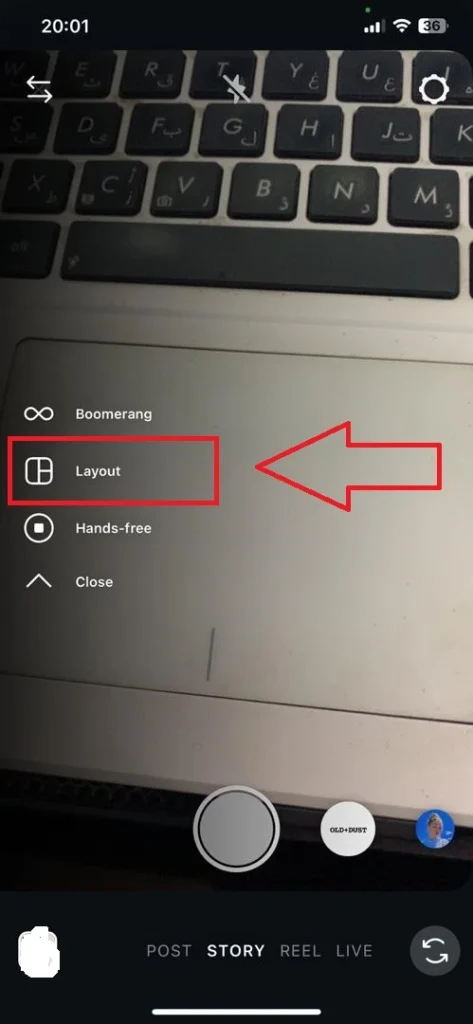
-
Tap Story, then find the Layout icon on the left toolbar (looks like a grid).
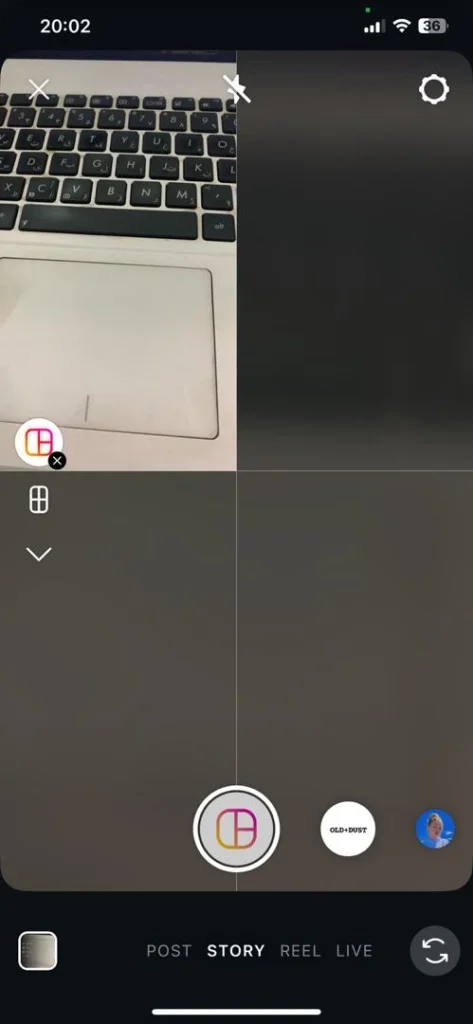
-
Choose your favorite grid layout (2–6 spots).
-
Add your images from the gallery—each fills one section.
-
Drop in stickers, text, or music for style.
-
When it looks right, hit Share.
Perfect for: product ranges, before-and-after shots, or quick event summaries.
3. Photo Sticker (Creative Layering)
This one’s underrated but super fun for creating collages or “scrapbook” vibes.
Steps:
-
Upload your base photo first.
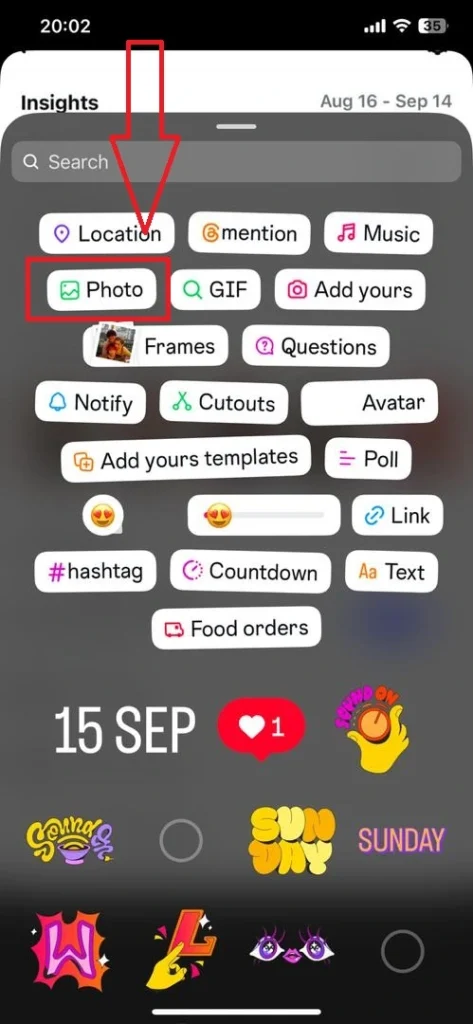
-
Tap the Sticker icon (the square smiley face).
-
Select the photo sticker (the tiny gallery + sign).
-
Choose an extra image to overlay—it’ll appear like a sticker.
-
Resize, rotate, or crop into shapes (circles, hearts, stars).
-
Add text or doodles if you want a playful finish.
Best for: moodboards, outfit lookbooks, or story collages with personality.
Each option gives your Story a different rhythm. Check official Instagram guide on creating Stories for more information.
Once you’ve mastered adding multiple photos, you can also repost an Instagram Story to keep your best content visible or share user-generated posts that mention you.
Collage vs Sequence: What’s the Best Way to Add Multiple Photos to Instagram Story?
The answer depends on what you’re trying to achieve and how long you want your audience to stick around.
When you’re telling a story—like behind-the-scenes clips, travel diaries, or product launches—go with the sequence format (aka Select Multiple). Each frame acts like a mini chapter, giving people room to follow your narrative.
-
Best for: storytelling, step-by-step tutorials, or anything that builds momentum.
-
Benefit: holds attention longer. Instagram’s own data shows multi-frame Stories keep viewers watching up to 2x longer than single-photo posts.
Now, if your goal is to make a strong visual impression fast—no tapping, no waiting—then collages (using Layout or Photo Sticker) are your move.
-
Best for: product showcases, recipes, before-and-afters, or outfit grids.
-
Benefit: gives a quick visual summary at a glance—perfect for short attention spans.
Most people start swiping after five frames unless something changes—new color, text, or interaction. So if your sequence drags, switch to collage mode for a cleaner break. It resets their focus.
Quick rule of thumb:
-
Use sequence when your story builds (progression, emotion, surprise).
-
Use collage when your story shows (variety, contrast, overview).
You can even blend both—kick things off with a collage “cover,” then roll into a story sequence. It’s basically your movie trailer, then the full film. Smooth, engaging, and visually satisfying.
How to Make Instagram Stories with Multiple Photos More Engaging
Use one or more of followings to increase engagement on your stories:
Stickers:
Try adding a poll after a mini photo series (“Which cake design wins—A or B?”). It’s simple, visual, and your audience doesn’t even have to think hard before tapping. That’s key.
Emoji sliders:
Drop one emoji slider over a close-up photo (“How much do you love this color?”) and watch the reactions roll in. And don’t forget the quiz sticker—ask a fun, low-stakes question about what’s in the next photo. The goal is participation.
Link stickers:
For brands or businesses, link stickers and DM prompts are where the conversions happen. Adding a short CTA like “Tap for the recipe” or “DM me for pricing” increase engagement with your visitors.
You can also add music to your Instagram posts or Stories to set the tone and make your content more memorable—sound plays a bigger role in retention than most creators realize.
Instagram Story Design Tips for Posts with Multiple Photos
You can have the best content in the world, but if your slides look messy or hard to read, people will skip them. A couple of suggestions:
1. Keep it clean
Just remember the basics here, good contrast (light text on dark images, or vice versa), plenty of breathing room around your captions, and no more than two fonts per Story.
2. Stick to Center
Instagram crops the top and bottom of your Story with the username and buttons so you shouldn’t put important text there. Make sure everything is in center, about an inch from the edges.
3. Match your tone with color
Bright and punchy for lifestyle or fashion? Cool neutrals for professional brands? Stick with one palette through your frames, it makes your Story feel intentional instead of random.
4. Choose Stickers
You can crop extra images into circles or hearts, then layer them over a base photo. It feels dynamic and a little more “designer,” without actually using design software.
5. Add accessibility touches
Using auto-captions for videos, short alt-text-style descriptions for complex visuals is not only useful for SEO, but also are thoughtful. Instagram picks up engagement from longer dwell time, and clear content keeps people watching.
How to Add Multiple Photos to Instagram Story on iPhone vs Android
On iPhone, most features are tucked visibly into the top toolbar of Story mode.
When you tap to add a Story, you’ll usually see the Layout icon (it looks like a grid) right away on the left side. The Select Multiple option shows up above your camera roll once you swipe up. And the Photo Sticker (for layering images) lives under the regular sticker menu.
On Android, the Layout button sometimes hides under the camera icons, especially on older versions. You might need to tap the “Layout” text instead of the grid icon. The Select Multiple button appears as a small layered-square icon above your photos. As for the photo sticker, if you don’t see it immediately, try updating your app or clearing cache.
Fix: Can’t Add Multiple Photos to Instagram Story?
1. Update the App
Instagram releases new updated for story tools all the time, and if your app’s a few updates behind, features like Layout or photo stickers might vanish. Try to update your app first.
2. Permissions are blocked
If Instagram doesn’t have access to your camera roll or photos, it can’t show them—so multiple uploads simply won’t appear.
Go to your phone settings → Instagram → enable Photos or Media.
3. Your cache is overloaded
Cached data can cause certain stickers or icons to disappear. Clear your cache (Android) or offload the app (iPhone) and relaunch.
4. Feature rollout delay
Maybe this feature is not available in your region yet, no solution for this but only waiting.
5. Slow Connection
Slow Wi-Fi or mobile data can make some UI elements fail to load. Try switching networks or toggling airplane mode for a quick refresh.
If all above solutions fail, uninstall and reinstall the app (it resets the feature library).
Pro Workflow: Schedule and Measure Instagram Stories with Multiple Photos
After you’ve learned to add many photos, you’ll want to repeat it with minimal effort, so you need a good workflow:
Batching:
You can simply drop all your photos into a shared folder or album, then plan your sequence. Something like:
Frame 1: hook, Frame 2-4: product close-ups, Frame 5: poll or CTA.
Doing this upfront saves you from last-minute mistakes and keeps your visuals consistent.
Schedule the content:
Instagram now lets business and creator accounts schedule Stories directly in-app through Meta Business Suite. Later, Buffer, or Agorapulse also all work smoothly. Just upload, set the time for publishing it, and the post goes live even if you’re offline.
Measure the outcome:
Focus on:
- Completion rate: how many users watched till end.
- Taps forward/back: where users speed up or linger.
- Replies and link clicks: it’s the main goal.
Those numbers tell you which formats hit hardest—maybe your collages grab quick attention, but your sequences drive more DMs.
You can find all this under Insights → Content → Stories. Track it weekly.
Batch smart, schedule regularly, measure ruthlessly—that’s the growth routine. When you find that rhythm, your stories transform into a well-oiled creative engines
FAQs About Adding Multiple Photos to Instagram Story
Can I really add 10 photos at once to a Story?
Yes—with Select Multiple you can pick up to 10 items from your camera roll and they’ll post as separate slides in one Story sequence.
What’s the current Story video length—15s or 60s?
Instagram supports up to 60 seconds per Story clip.
How many photos fit into one collage frame?
Using Layout, you can combine 2–6 photos into a single Story slide.
Where’s the photo sticker for layering? I don’t see it.
It lives under the sticker tray in Story editor. If it’s missing: update the app, relaunch, and try again
Can I mix photos and videos when I select multiple?
Yep. You can choose any combo of photos and videos
Can I schedule Instagram Stories natively?
Yes. Meta Business Suite lets business/creator accounts schedule Stories on desktop or mobile.

Benjamin Amiri
Benjamin Amiri is a digital growth consultant and senior contributor at InstaDeal. He specializes in Instagram engagement strategies, Facebook ads innovation, and TikTok product marketing. With a track record of scaling brands and creator accounts, Benjamin turns performance data into actionable growth tactics that deliver measurable results.


