



If you’re wondering how to add location to Instagram, the process is simple once you know where to find the option. Whether you’re posting a photo, Story, or Reel, Instagram lets you tag places so people can see where your content was created.
Figuring out how to add a location on Instagram can be oddly frustrating, especially when everyone else seems to have neat place tags on their posts and yours doesn’t. If your post or Story feels unfinished, or you can’t find the location option at all, this guide walks you through it clearly.
You’ll learn how to add a location to an Instagram post, Story, Reel, and profile, plus what to do when the option doesn’t appear. By the end, you should know exactly where to tap, how to search for the right place, and how to get the location to show up properly.
How to add a location to an Instagram post
Add a location while creating a new post (iPhone/Android)
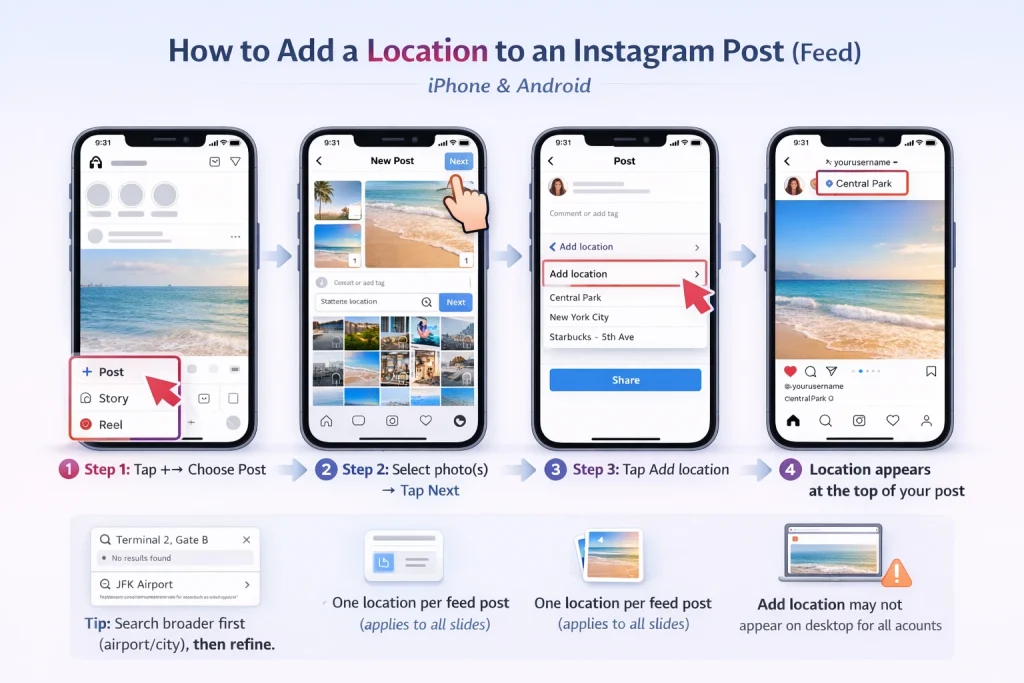
On the Instagram app, you usually add a location on the final screen before sharing your post. The exact labels can vary a little depending on your app version or account type, but the process is usually the same:
-
Tap + / Create and choose Post
-
Select your photo or video, then tap Next
-
Tap Next again to go to the caption screen
-
Tap Add location
-
Search for a place, venue, or city
-
Choose the correct result
-
Tap Share
Add a location to a carousel post
If you’re posting multiple photos or videos in a carousel, the process is basically the same. Choose your media first, then add the location on the final caption/share screen before publishing.
If you’re still learning the format, this guide explains how posting multiple photos in one Instagram post works and how to set up carousel content correctly.
Add a location from desktop
If you’re posting from instagram.com, you may not always see an Add location option. That can depend on your account, device, or region. If the option isn’t there, the easiest fix is to publish from the mobile app instead. In some cases, you can also publish first and edit the post later to add a location, as long as that post type supports editing.
How to add location to Instagram Stories
Add the Location sticker to a Story
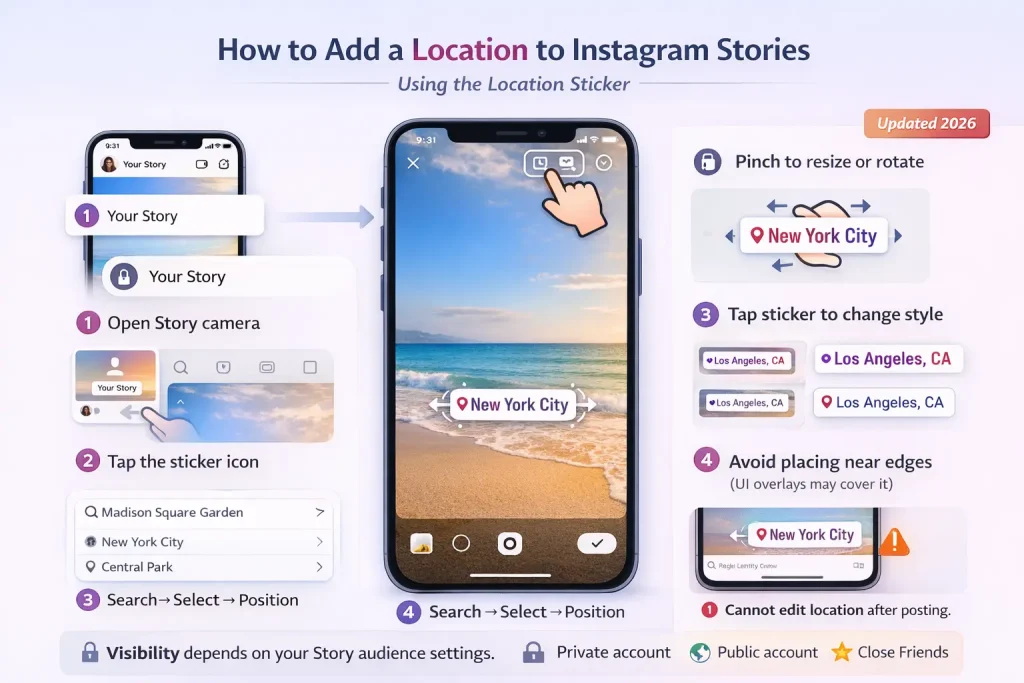
To add a location to a Story, open the Story camera by swiping right, then take a photo or video or upload one from your gallery. Tap the sticker icon, choose Location, search for the place you want, and select it. After that, place the sticker wherever you want on the Story and post it to Your Story or Close Friends.
If you’re posting from an event or with friends, you might also want to learn how tagging someone in a Story works so viewers can see both the location and the people involved.
Change the sticker style and placement
Once you’ve added the Location sticker, you can move it around, resize it, and rotate it just like other Story elements. If you tap the sticker, Instagram usually cycles through a few different style options, though the exact look can vary depending on the app version.
You can also hide the sticker visually by placing text, a GIF, or another sticker over it. Just keep in mind that the location tag may still be attached behind the scenes, so people may still be able to interact with it.
Control who can see your Story location
Who sees your location depends on who can see your Story. If your account is private, only approved followers can view it. If your account is public, the location may be visible to a much wider audience.
If you’re sharing your location in real time, Close Friends is usually the safer choice. It’s also worth checking your Hide story from settings and your Story reply or sharing settings, since those affect who can view and potentially reshare your Story.
Why your Story location may not be searchable
Not every location tag on a Story becomes easy to find in search or gets featured on a place page. That can depend on the place itself, Instagram’s moderation, and what’s available in your region.
One important limitation: once a Story is posted, you can’t edit the location sticker. If you tagged the wrong place, the only real fix is to delete the Story and repost it with the correct location.
How to add a location to Instagram Reels
Add a location before sharing a Reel
After you record or upload your Reel and finish editing it, tap Next to go to the publish screen. There, look for Add location. Search for the place you want to tag, whether that’s a business, venue, neighborhood, or city, then select the right result and share your Reel.
It’s worth double-checking the listing before posting, especially if several similar names appear.
What viewers see
When a Reel has a location tag, viewers can tap it to open the related location page. That said, visibility still depends on your privacy settings. If your account is private, or if the Reel is only shared with a limited audience, only those viewers will be able to see and use that location tag.
Best practices for local discovery
If you want better local reach, try to tag locations consistently, especially if you’re posting a series of related Reels. It also helps to support the location tag with clear caption keywords and a few relevant hashtags instead of relying on the location alone.
If you’re posting for a business, tag your real storefront or your city rather than an unrelated place. Accurate location tags build trust and help avoid confused messages from people wondering whether you were actually there.
How to edit, change, or remove a location after posting
Edit the location on a feed post
If you added the wrong location to a post, or you want to remove it for privacy, you can usually change it after publishing. Open the post, tap the three dots, choose Edit, tap the location name, then either pick a new location or remove it. Finish by tapping Done or Save.
Change or remove a location on a Reel
Reels can be less predictable. If your Reel has an edit option, open it, tap the three dots, and look for something like Manage or Edit. From there, you may be able to tap the location field and change or remove it.
If Instagram doesn’t give you that option on your version or account, the most reliable workaround is to delete the Reel and repost it with the correct location.
What changes and what doesn’t
If you update a location, the label shown on the post changes too, and anyone who taps it will be taken to the new location page.
What doesn’t change is everything outside Instagram’s live post data. Editing the tag won’t erase screenshots, won’t update copies shared elsewhere, and won’t prove where you actually were. If someone already saw the original location, they may still remember it.
Why you can’t add a location?
Check your location permissions
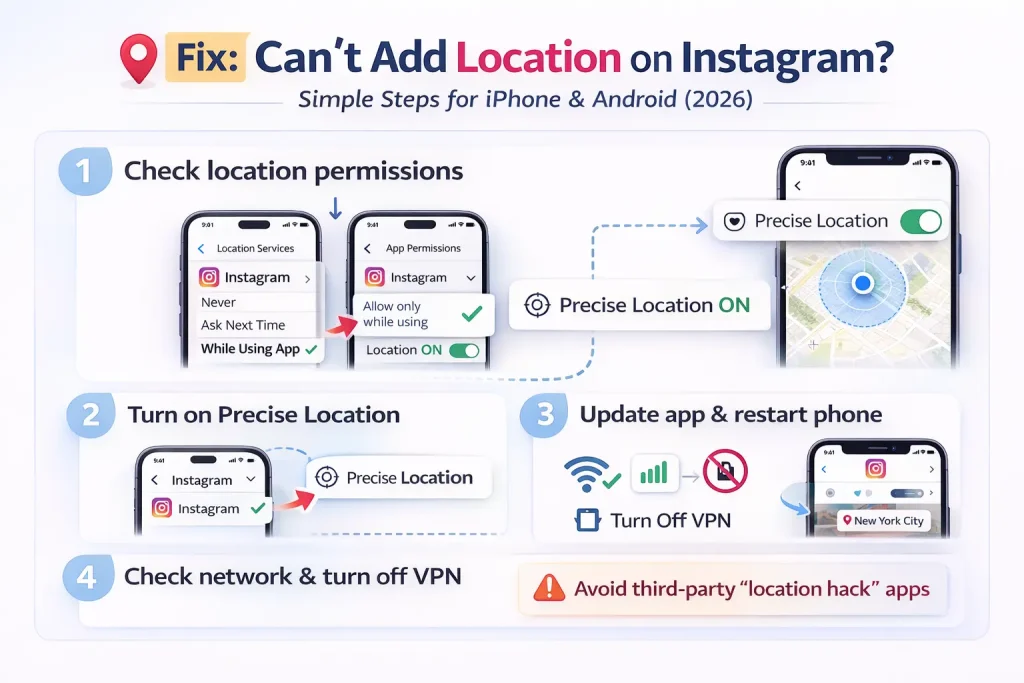
If Instagram doesn’t have permission to access your location, the place search may look empty or the location option may disappear altogether.
On iPhone:
Go to Settings → Privacy & Security → Location Services → Instagram, then set it to While Using the App.
On Android:
Go to Settings → Location → App permissions → Instagram, then choose Allow only while using.
Also make sure your device’s main location setting is turned on.
Turn on Precise Location if needed
If Instagram is showing places that are far away, or not showing nearby options at all, it may help to turn on Precise Location for Instagram on iPhone. On Android, if your phone has a high accuracy location mode, that can help too.
And if you’re indoors, try moving closer to a window or stepping outside. GPS can be unreliable inside buildings.
Update Instagram, clear cache, and restart
A lot of location issues come down to temporary app glitches. A quick reset often fixes them.
Try this:
-
Update Instagram from the App Store or Play Store
-
Force close the app
-
Open it again
-
Restart your phone if the issue continues
On Android, you can also clear Instagram’s cache by going to Settings → Apps → Instagram → Storage → Clear cache.
Try not to use Clear data unless you’re okay with logging back in and resetting local app settings.
Check your network or VPN
Location search can also fail if your connection is unstable or if a VPN is interfering with how Instagram loads place results. Try switching between Wi-Fi and mobile data, and temporarily turn off your VPN to see whether that fixes the issue.
Conclusion
Adding a location tag is one of the easiest ways to make your content more discoverable on Instagram. Now that you know how to add location to Instagram posts, Stories, and Reels, you can quickly tag places, help people understand where your content was created, and make it easier for others to find your posts.
In most cases, adding a location only takes a few taps—either through the Add location option when posting or the Location sticker in Stories. If the option isn’t showing up, checking your app permissions, updating Instagram, or restarting the app usually fixes the issue.
Just remember to choose locations thoughtfully. Tagging the right venue, neighborhood, or city can help your posts appear in Instagram location pages and local discovery feeds, while still giving you control over how much location detail you want to share.
Once you’ve used it a few times, adding a location becomes a simple step that can improve both visibility and context for your Instagram posts.
Frequently Asked Questions
Why is the Instagram location sticker not showing?
If the Location sticker doesn’t appear in Stories, your app might be outdated or glitching. Updating Instagram, logging out and back in, or restarting your phone often restores the sticker.
Why can’t I find a specific location on Instagram?
Sometimes Instagram doesn’t list every place immediately. Locations are pulled from Meta’s shared places database, so new or custom locations may take hours or even days to appear.
Can I add a location to a Story after it’s posted?
No. Once a Story is published, the location sticker can’t be edited or removed without deleting the Story and reposting it.
Do you have to be physically at a place to tag it on Instagram?
No. Instagram lets you tag any location in the search results, even if you’re not physically there. However, misleading location tags can confuse followers or hurt trust.
Why is my Instagram location wrong or far away?
This usually happens when Precise Location or GPS accuracy is turned off. Turning on precise location or moving somewhere with better GPS signal can help Instagram detect nearby places correctly.
Can I create a custom location on Instagram?
You can’t create a new place directly inside Instagram anymore. New locations typically have to be created through Facebook’s check-in system, then they sync to Instagram’s location database.
Does adding a location help reach on Instagram?
Yes. Location tags allow your post to appear on location pages and local discovery feeds, which can help more people find your content—especially if they are browsing posts from that place.

Alex Morris
Alex Morris is a social media strategist and lead writer at InstaDeal. He specializes in Instagram, TikTok, and creator monetization trends, helping influencers and brands grow smarter online. With over 10 years of digital marketing experience, he simplifies complex topics into practical insights.


