

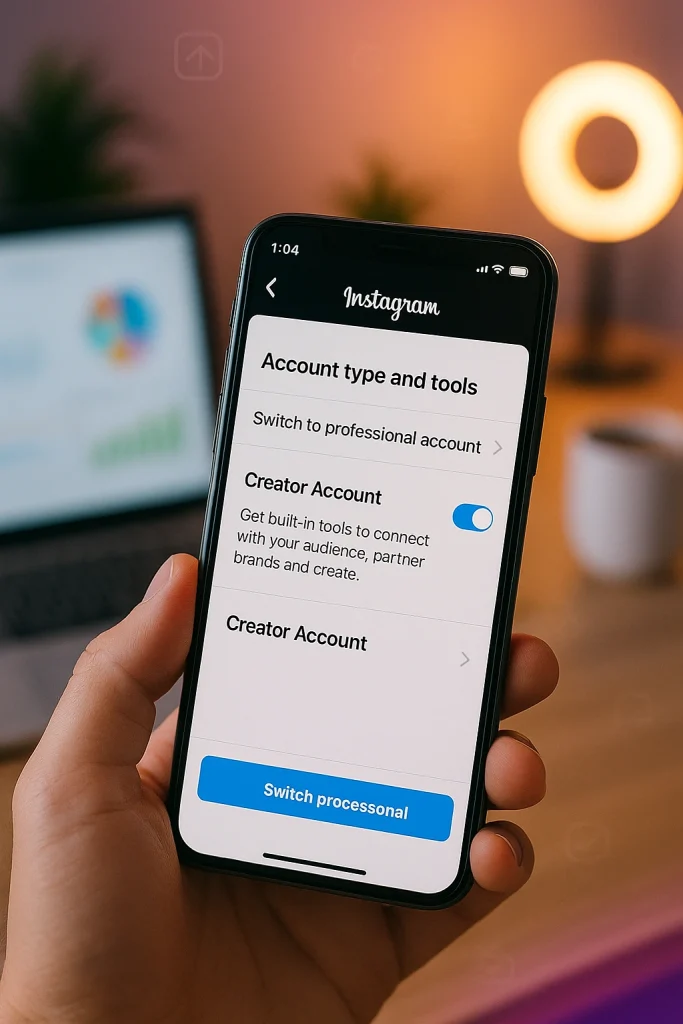

Step-by-Step: How to Switch to a Creator Account on Instagram (iOS & Android)
You can switch in under a minute. Here’s the exact path most users see today: open Instagram → go to your profile → tap the menu (☰) → Settings & privacy → Account type and tools → Switch to professional account → pick Creator → choose your Category → done. If you’re currently on a Business profile, the path is: Business tools and controls → Switch account type → Switch to creator account. No, you don’t need a Facebook Page just to switch—though it helps for certain tools later. (Source: Instagram help center)
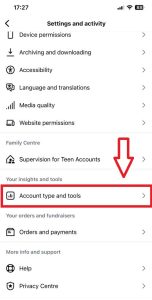
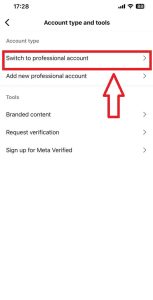
What changes right away? You’ll unlock the Professional Dashboard, Insights, contact controls, and creator-specific messaging tools. The interface may use slightly different labels by region, but the core steps above are Meta’s official flow. If you don’t see “Creator,” update the app and check again from Account type and tools; some users must first switch to Professional and then select Creator during setup.
When Instagram asks for your Category (e.g., Blogger, Artist, Public Figure), pick the one that aligns with your search intent and brand deals—not just your vibe. It affects how your profile is understood by users and, indirectly, by discovery systems. If you plan to schedule content or manage across multiple accounts, connect a Facebook Page later and use Meta Business Suite—Creator Studio has been folded into Business Suite.
Creator vs Business vs Personal Instagram Accounts — Which One Should You Choose?
Short answer: if you’re a solo brand or influencer, pick Creator; if you sell products/services as a company with team workflows, pick Business; if Instagram’s just for friends, stay Personal. That’s the clean cut—and it lines up with Instagram’s own intent for professional accounts.
Here’s the nuance people miss. Creator is built for individuals growing an audience: cleaner control over how you appear, Insights without the heavy “business” baggage, better DM organization (Primary/General/Requests), and flexible contact buttons you can show or hide. It’s the “I am the brand” track. If you pitch collabs, use Reels aggressively, and want straightforward analytics inside the Professional Dashboard, this fits.
Business shines when you need organization-level tooling—ad accounts, multiple admins, catalog/commerce, and deeper integration with the Meta ecosystem. You can connect a Facebook Page for ads and cross-platform campaigns and run things through Meta Business Suite without friction. If you’ve got a store, staff, or local services, Business keeps ops tidy. You can switch between Creator and Business later, but it’s smarter to choose based on your near-term goals (growth as a personality vs. sales/delivery as a business).
Personal keeps things simple. No Insights, no pro inbox, fewer levers. That’s fine for private sharing, but you’ll outgrow it fast if you care about reach, scheduling, or collaborations. If you ever change your mind, you can switch back and forth from Account type and tools using Instagram’s built-in flow.
Instagram Creator Account Setup Checklist (What to Do Right After Switching)
Do these right after you hit “Creator.” It locks in clarity, discoverability, and sanity in your inbox.
1) Set your Category and profile display.
Go to Edit profile → Category. Pick the label that brands you best (Artist, Coach, Blogger). Then decide whether to show the category and contact buttons on your profile via Profile display. You can hide them without losing the benefits of a professional account—handy if you want a cleaner look.
2) Turn on the Professional Dashboard (and peek weekly).
You’ll see View professional dashboard at the top of your profile. That hub shows performance trends, tool shortcuts, and education modules. It’s the quickest way to check reach, content interactions, and audience growth without diving into five different menus. Bookmark it mentally; we’ll use it in the analytics section.
3) Clean up your DMs with Primary/General/Requests.
Creator accounts unlock a triage inbox: Primary (must-see), General (respond later), and Requests (screen first). Move threads between folders, tweak notifications per folder, and stop the 2 a.m. ping spiral. If you use third-party tools, Instagram may automatically file some replies into General to keep things tidy.
4) Link a Facebook Page only if you need ads, cross-posting, or team workflows.
You don’t need a Page to be a Creator. But if you plan to schedule in Meta Business Suite, run ads, or collaborate with partners who require Page connections, link it via Edit profile → Page or Accounts Center. Easy to add, easy to change.
5) Sanity sweep (quick but important).
Update app, confirm your contact options are correct, review privacy settings for Story replies and mentions, and pin a highlight that explains how brands should reach you. Two minutes now saves a dozen “hey, how to contact?” DMs later. For reference on pro features and where settings live, Instagram’s official “Professional accounts” overview is your map.
How to Use Instagram’s Professional Dashboard and Meta Business Suite
Check performance in Professional Dashboard; plan and publish in Meta Business Suite. That split keeps creators sane and your workflow clean.
Use Professional Dashboard inside Instagram for the “how am I doing?” loop. It sits at the top of your profile and centralizes your Instagram Insights, growth trends, and a learning hub with posting tips and best practices. It’s where you quickly scan reach, content interactions, audience changes, and then jump to tools without leaving the app. In 2024, Instagram even tucked a “Best Practices” education section here—bite-size guidance on what the platform currently favors (handy, even if you don’t follow every rule).
When it’s time to schedule posts, manage comments/messages at scale, or handle multiple profiles, switch to Meta Business Suite (mobile or desktop). That’s where you build your content calendar, schedule Reels/Posts, cross-post to Facebook, and keep everything in one inbox. If you used Creator Studio in the past: it’s gone, and those tools moved into Business Suite—so don’t waste time hunting for an old URL.
What to check weekly:
-
Reach & non-follower reach in Dashboard → are new people actually seeing you?
-
Saves, watch time, and shares on Reels/Posts → stronger signals than likes.
-
Audience activity windows → schedule your queue in Business Suite accordingly.
Two tabs, one ritual. Five minutes tops.
Quick paths: Profile → View professional dashboard for insights; then open Business Suite for scheduling and cross-platform management. If you run ads or collaborate with partners, linking a Facebook Page in Accounts Center makes this even smoother. (You can still be a Creator without a Page; the link just unlocks more tooling.)
Instagram Creator Account Monetization Options (Subscriptions, Gifts & Brand Deals)
Short answer: three practical routes—Subscriptions, Gifts on Reels, and Branded Content/Creator Marketplace. Turn on what you qualify for, then build content around it—never the other way around.
Subscriptions (recurring fan revenue)
If you meet eligibility (professional account, age 18+, and in supported regions; Instagram commonly lists 10,000+ followers as a threshold), you can enable Subscriptions and offer exclusive content, badges, and perks. The toggle usually lives in Professional dashboard → Subscriptions. Read the requirements first so you don’t apply before you’re ready.
Curious what creators actually earn? Check out this breakdown of how much Instagram pays for various features.
Gifts on Reels (micro-tips)
Viewers send virtual gifts on eligible Reels; you earn once you’ve onboarded and agreed to the Gifts terms. Requirements include having a professional account, being 18+, and meeting monetization policies; you can manage this in Professional dashboard → Gifts. If you don’t see the option, it’s likely a region/eligibility gating issue—check the help doc and try again after updating the app.
Branded Content + Creator Marketplace (brand deals)
This is still the most reliable income for many creators. Turn on Branded content tools in Creator tools and controls, then join the Creator marketplace to get discovered by brands and run partnership ads compliantly. Tag partners using the paid partnership label to stay within policy and make boosting easy later.
Workflow tip: Use Meta Business Suite to schedule sponsor deliverables alongside your organic posts so pacing looks natural (no back-to-back #ad blocks). The Planner/Content tabs handle Instagram and Facebook in one place.
Instagram Creator Insights: How to Read Analytics Like a Pro
Start here: track Views, Watch time, Sends/Shares, and Non-follower reach every week. Those four tell you if new people are seeing you, if they’re sticking around, and if your content’s worth passing on. Instagram’s own guidance also emphasizes ranking signals like viewing time and interactions—so optimize for attention and sharing, not just likes.
Where to look? Open Professional dashboard → Insights. At the account level, check Reach (unique accounts), Accounts engaged, and which surfaces are driving discovery. Posts/Reels have their own detail pages: scan Views (plays or displays of your content), Watch time and Average watch time on Reels, then compare to saves and shares to see if attention is translating into distribution.
A simple weekly loop:
-
Discovery check: Non-follower reach up or down? If down, refresh hooks (first 2–3 seconds) and topics.
-
Attention check: Average watch time moving closer to content length? Tighten intros; front-load payoff.
-
Transfer check: Saves and sends rising? If not, create utility (checklists, how-tos) or emotional “share bait” without clickbait.
-
Timing check: Use audience activity windows in Insights to schedule inside Meta Business Suite.
Quick metric definitions you’ll use a lot:
-
Reach = unique accounts that saw content; Views = total plays/displays (a person can view multiple times).
-
Accounts engaged = unique accounts that interacted (and their top demographics).
-
Watch time / Avg. watch time (Reels) = total minutes watched and average per play; stronger quality signal than raw views.
Instagram Creator Account Troubleshooting — Missing Options, Lost Reach, or Inbox Issues
Here’s the fast fix list, in order. Try each one before you spiral.
Can’t find “Creator” anywhere?
-
Update the app first. Many users miss new labels because they’re a version behind.
-
Go Profile → Menu → Settings & privacy → Account type and tools. If you only see Switch to professional account, tap that, then choose Creator during setup.
-
Already on Business? Use Business tools & controls → Switch account type → Switch to creator account.
-
Still missing? Two common blockers: you’re on a restricted region/age or you’ve got policy issues. Check Account status in your Professional Dashboard and resolve any violations.
-
As a last resort, switch to Personal, force-close the app, reopen, then switch to Professional → Creator again. It often refreshes the menu.
Reach dropped after switching?
-
Breathe. Switching account type doesn’t nuke distribution; your recent content signals matter more.
-
Run a 7-day reset: publish 4–5 posts/Reels with tight hooks in the first 2–3 seconds, add 1 save-worthy carousel (utility or checklist), and post inside your audience’s peak windows.
-
Track non-follower reach, watch time, saves, and shares. If non-follower reach is flat but engagement is good, test broader topics/hashtags; if watch time is weak, shorten intros and front-load value. If your numbers still look off even after tweaking content, you might need to reset your Instagram algorithm to refresh recommendations.
DM chaos after the switch?
-
Open Inbox and move threads into Primary (urgent) and General (later).
-
Toggle notifications off for General to stop constant pings.
-
Create 2–3 Saved replies (pricing, collab form, availability) so you can respond in seconds.
Weird profile display?
-
Edit Profile → Category and Profile display. You can hide contact buttons and the category label without losing pro tools.
Instagram Creator Account FAQs (Real User Questions from Reddit & Forums)
Here are most related questions about Instagram creator account which users ask the most, presented to you by InstaDeal:
Does switching to Creator hurt reach?
No direct penalty; reach swings are usually content-signal issues, not account type—lots of creators report no change, some report temporary dips.
Do I need a Facebook Page to switch?
No—you can be a Creator without a Page; link one only if you need ads, scheduling, or Business Suite.
Can a Creator account be private?
No—professional accounts (Creator/Business) are public; you must switch back to Personal to go private.
Will I lose Insights if I switch back to Personal?
Yes—Insights and some pro tools disappear, and historical insights aren’t retained while you’re Personal.
Is music access worse on Business vs Creator?
Some Business accounts see limits on trending tracks due to licensing; many switch to Creator to use a broader music library.

Alex Morris
Alex Morris is a social media strategist and lead writer at InstaDeal. He specializes in Instagram, TikTok, and creator monetization trends, helping influencers and brands grow smarter online. With over 10 years of digital marketing experience, he simplifies complex topics into practical insights.


