


Instagram story collages are basically a collection of multiple photos (or videos) combined into one story slide. In this article, InstaDeal explores all methods of creating collages in the simplest and fastest way:
Quick Answer — The 3 Fastest Ways to Make a Collage on Instagram Story
1. Use Instagram’s Layout mode.
This is the built-in grid feature inside stories. You pick a layout (two, four, or more sections), add photos, adjust, and post. It’s perfect when you want something clean and balanced.
2. Try the Photo Sticker trick.
You start a Story, then use the “Photo” sticker to add multiple images on top of your background. You can layer, resize, rotate, or overlap them however you like.
3. Use templates from third-party apps.
3rd Party apps like Canva, Unfold, or Adobe Express give you ready-made Story templates. You just drop in your images, tweak colors or fonts, and export.
To summarize each methods benefits:
- Fast & built-in: Layout mode.
- Creative & flexible: Photo Sticker.
- Polished & on-brand: Template apps.
Method 1 — How to Make a Collage on Instagram Story Using Layout Mode
You can find the layout mode within Instagram stories. It lets you combine multiple photos into one on your story (official Instagram guide)
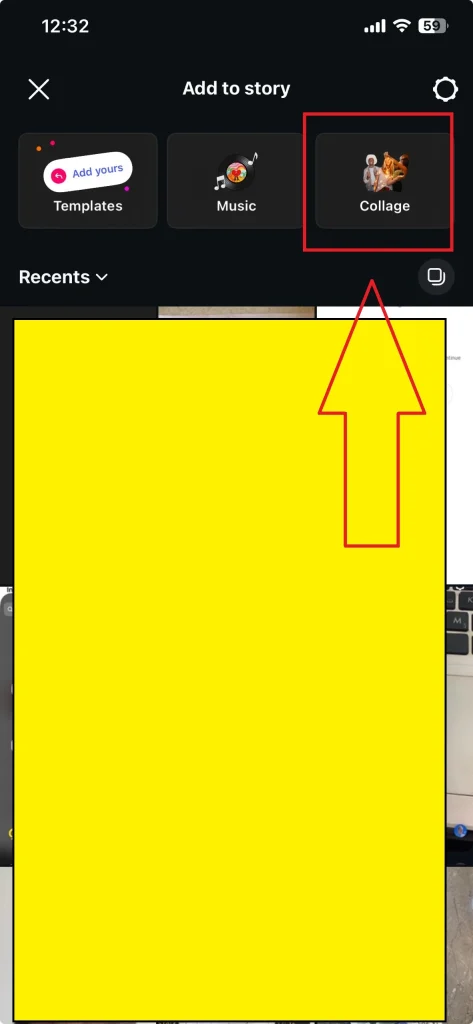
- Open Instagram → swipe right to enter story mode.
- On the top toolbar, tap the Collage icon
- Either take photos on the spot or tap the bottom-left corner to select from your gallery.
- Once your images fill the grid, tap the checkmark to preview, then hit “Your Story” to post.
You can also:
- Long-press an image to reposition or swap it.
- Use the Draw tool to add borders or highlights.
- Change the background with a solid fill (long-press on a color in the palette).
We suggest to keep your layout simple. Two or four photos usually look best in a 9:16 frame. Overcrowding it makes each image lose impact. And remember, faces and text should sit inside Instagram’s “safe zone” (avoid the top and bottom UI areas).
Method 2 — How to Make a Collage on Instagram Story with the Photo Sticker
The Photo sticker option lets you build collages like a scrapbook. You can layer, resize, and overlap photos in any order, right inside the Instagram story editor.
- Open Instagram → Story and choose a background photo or color. (Tip: long-press any color from the palette to fill the screen.)
- Tap the sticker icon.
- Look for the “Photo” sticker — it shows your camera roll.
- Select a photo → it appears on your Story as a moveable sticker.
- Repeat the process to add more photos. Resize or rotate each one with two fingers.

Also you can try these little tricks:
- Tap a photo sticker to change its shape, you’ll get rounded corners or circle crops.
- Use the Draw tool underneath to add shadows, brush lines, or tape effects.
- Drop in a text label or emoji to connect photos with a theme (travel, outfits, moodboard).
- For extra flair, use the cutout sticker feature (new on iPhone) to remove a photo background automatically.
You can also check our full guide on how to add multiple photos to Instagram if you want to explore every option beyond Story collages
Method 3 — How to Create an Instagram Story Collage with Canva or Adobe Express
Using template apps like Canva or Adobe Express, you can create scroll-stopping Instagram story collages that match your personal or brand aesthetic perfectly.
Here’s how to do it:
- Open Canva (or Adobe Express) and search Instagram Story collage.
- Pick a template — you’ll see tons: minimal grids, scrapbook styles, magazine layouts.
- Swap in your own photos by dragging and dropping them into frames.
- Edit colors, fonts, and stickers to match your vibe (brand palette, event theme, etc.).
- Export your design at 1080×1920 pixels (9:16), then upload it straight to Stories.
A few pro moves:
- Use consistent fonts across stories — it creates visual flow.
- Try Canva’s Elements → Frames to make irregular cutouts or tape effects.
- Add motion in Adobe Express (like a gentle zoom or fade-in) if you want your collage to feel dynamic.
- Always preview your design on your phone before posting — what looks perfect on desktop might crop awkwardly in-app.
If you’re featuring someone else’s photo or want to share a follower’s collage, here’s exactly how to repost an Instagram Story safely and easily.
Design Tips — Make Your Instagram Story Collage Look Professional (No Designer Needed)
First, keep it simple. Two to four photos is normal. When everything’s fighting for attention, nothing stands out. Pick one main image as your “hero” and let the others support it.
Next up, use the rule of thirds. Imagine your screen split into nine equal boxes; placing key elements (like faces or text) along those lines instantly makes things more balanced. It’s a photographer’s trick that works for stories, too.
Then, mind your colors. Try to stick with two or three tones that complement each other. Images come to life when you use contrast.
For text, less is more. Use short captions (five words max) and bold headlines. Make sure everything stays inside Instagram’s safe zones (best practices for Instagram Stories (via Hootsuite)).
Resolution, Ratios, and Quality — Avoid Blurry Collages on Instagram Story
Nothing kills a good collage faster than blurry, pixelated photos. Make sure of quality of your images before posting them. Here are a couple of habits that make all the difference.
Start with the right dimensions:
- Instagram Stories use a 9:16 ratio — that’s 1080 × 1920 pixels.
- If you’re in Canva or Adobe Express, choose the “Instagram Story” template — it’s pre-sized.
- Avoid stretching smaller images to fit. It looks fuzzy every time.
Watch your file types:
- PNG = crisp edges and clean text (best for designs).
- JPG = lighter file, fine for photos, but compresses slightly.
- Skip screenshots when you can — they lose clarity with every save.
Mind the lighting and contrast.
A bright, well-lit photo almost always beats filters and heavy edits. If your pics look grainy, bump exposure just a touch before adding them. Subtle tweaks = pro results.
Posting tip:
Instagram compresses uploads to save bandwidth. To outsmart it:
- Boost brightness and contrast just a hair before exporting.
- Keep key visuals (text, faces, logos) away from the very top and bottom — that’s where Instagram’s UI covers stuff.
Troubleshooting — Can’t Find Layout or Photo Sticker for Your Instagram Story Collage?
Instagram rolls out features slowly, and sometimes they play hide-and-seek across devices.
Let’s go through a quick checklist to find a solution:
1. Update your app
- Open the App Store or Google Play.
- Search Instagram → tap Update.
- Relaunch the app and swipe right into Stories again.
New tools, including the Photo sticker, often arrive through silent updates.
2. Still missing Layout mode?
- Tap the camera icon → swipe through the Story tools at the left or bottom.
- The Layout grid looks like a rectangle split into smaller boxes.
- If it’s gone, you can download the separate Layout from Instagram app and it integrates directly with Stories once installed.
3. No Photo Sticker option?
- Open your phone’s gallery, copy an image (long-press → Copy photo).
- Jump back into your Story → it’ll show a “Add sticker” pop-up.
- Tap it — your copied image pastes right in like magic.
4. Delete cache
- On Android: go to Settings → Apps → Instagram → Storage → Clear cache.
- On iPhone: uninstall → reinstall.
5. Feature rollout timing.
Instagram doesn’t push every update worldwide at once.
If all above fails, proceed to next part where you can use third party apps instead.
Best Apps to Make a Collage on Instagram Story (Free & Paid Tools)
Maybe you want extra filters, animated effects, or layouts that actually look like they belong in a magazine spread. That’s when third-party collage apps come in clutch.
Unfold:
- Think: minimalist, editorial, chic.
- Perfect for clean white spaces, elegant fonts, and modern “aesthetic” templates.
- Most templates are free, but premium packs unlock more story layouts.
Great for travel recaps or brand storytelling that looks straight off Pinterest.
SCRL:
- iPhone favorite.
- Lets you create seamless story slides — imagine your collage stretching across multiple frames.
- Cool extras: film frames, torn-paper textures, and “moodboard” templates.
Pro tip: the film grain feature alone makes everything look more cinematic.
Canva:
- The all-rounder. It’s like the Swiss Army knife of design.
- Easy drag-and-drop templates, customizable fonts, and built-in stickers.
- The free plan is plenty for story collages, though brand kits (paid) save tons of time.
Adobe Express:
- For people who like more structure and clean symmetry.
- Comes with motion effects (gentle zoom, fade-ins) and easy one-tap resizes for Reels or Posts.
Picsart / InShot Collage Maker:
- Fun, colorful, and social-media-forward.
- Has lots of stickers, filters, and playful effects that make your stories pop.
- Slightly more user friendly than Canva.
Layout from Instagram:
- The OG app — free, simple, no login.
- Syncs perfectly with your camera roll and Stories.
FAQ — Common Questions About How to Make a Collage on Instagram Story
Can I make a collage in Instagram without extra apps?
Yes. Use Layout inside Stories for grids, or the Photo sticker.
It sometimes hides after updates or varies by region.
What’s the best size so my collage isn’t blurry?
Design for 9:16 Storie
Can I mix photos and video in a collage?
Inside a single Layout grid, it’s photo-only. To combine media, use the Photo sticker on top of a video background.

Alex Morris
Alex Morris is a social media strategist and lead writer at InstaDeal. He specializes in Instagram, TikTok, and creator monetization trends, helping influencers and brands grow smarter online. With over 10 years of digital marketing experience, he simplifies complex topics into practical insights.


