

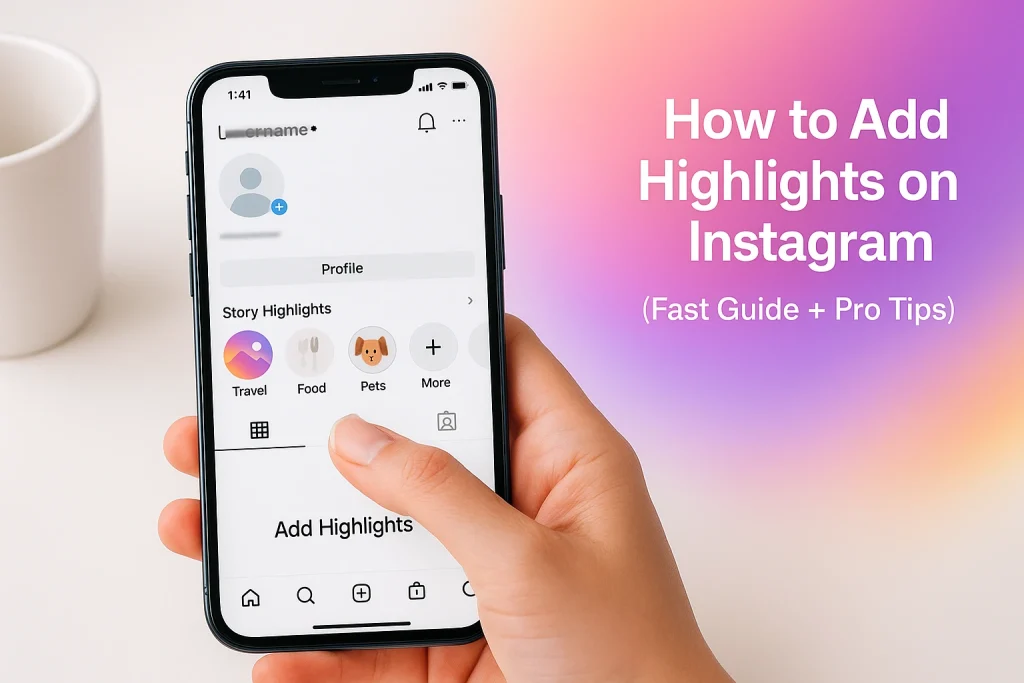

Instagram Highlights let you save your best Stories right on your profile—long after the 24-hour timer runs out. In this guide, you’ll learn exactly how to add Highlights on Instagram, whether from active Stories or your Story Archive. We’ll also cover how to customize covers, organize them neatly, and even add Highlights without posting publicly. By the end, you’ll know how to use Highlights like a pro—without spending hours figuring it out.
Quick Steps: How to Add Highlights on Instagram (Beginner-Friendly Guide)
- Go to your profile page.
- Tap the “+” button right under your bio where your highlights appear.
- Select the stories you want from your story archive (or choose active ones).
- Give your Highlight a name and tap add.
Done. Your new highlight now sits neatly under your bio for everyone to see.
It’s only possible to add stories that are still live or saved in your archive. If your archive is turned off, Instagram won’t save stories automatically. To check, go to Settings → Privacy → Story → Save Story to Archive and toggle it on. (Source: official Instagram Help Center)
Once you’ve made a few, your profile instantly feels more professional. Your visitors can scan your profile quickly without the need to see all your feed.
How to Add Instagram Highlights From an Active Story or Archive
There are actually two ways to add Instagram Highlights, and this part trips people up more often than you’d think. You can do it from an active Story (the one currently live) or from your Story Archive (older Stories that have expired but were saved).
When your Story is still live, you’ll see a little Highlight icon at the bottom right of the screen. Tap it, pick “New,” name your Highlight, and it’s instantly pinned to your profile. That’s the fastest way. Think of it as hitting “save” before time runs out.
But let’s say the Story’s already gone. No problem. Head to your profile, tap the three-line menu → Archive, and open your Story Archive. There you can scroll through every saved Story. Tap one, hit the Highlight icon, and either create a new Highlight or add it to an existing one.
Here’s a quick cheat sheet:
- Active Story: best for real-time saves.
- Archive: best for organizing and curating later.
- Tip: you can mix both—start with live Stories, then fill in gaps from the archive when you’ve got time.
How to Add Highlights on Instagram Without Posting (Private Trick Explained)
The short answer? Not officially. Instagram doesn’t let you upload straight to Highlights without first making it a Story.
But… there’s an add Highlights without posting workaround.
Here’s how it goes:
- Post the Story like normal.
- Before you hit publish, tap “Close Friends” or use the “Hide Story from” option under Story settings.
- Hide it from everyone (or everyone except yourself).
- Once it’s live, add it to a Highlight, then delete it from your Story feed.
The result? Your Story never really went public, but it’s safely sitting inside your Highlight. It’s a small trick most creators use when they want to upload contents like product menus, FAQs, or service lists without spamming followers’ feeds. Also wondering how to hide Instagram Highlights from certain people? check this article.
Instagram Highlight Covers: Exact Sizes, Crops, and Free Templates
Highlight covers are the first thing people notice on your profile. A mismatched cover feels messy but a clean and consistent ones instantly seems professional.
Here’s what you need to know about Instagram Highlight cover sizes:
- The ideal image size is 1080 x 1920 pixels (same as Story format).
- But remember, Instagram crops it into a circle, so keep your icon or text centered.
- Avoid anything near the edges—it’ll get cut off on smaller screens.
You can create covers directly in the Instagram app (by choosing a Story frame) or upload them separately using tools like Canva or Adobe Express. Canva even has free Highlight cover templates—search “Instagram Highlight icons,” and you’ll find hundreds of minimalist, pastel, and branded sets ready to tweak.
To change an existing cover:
- Go to your profile.
- Tap and hold the Highlight you want to edit.
- Edit highlight → Edit cover.
- Upload your custom image from your gallery or pick one from the Stories inside.
How to Name, Order, and Organize Instagram Highlights Like a Pro
Most of the time, you’ve got great stories, nice covers… but the names? “Stuff.” “Random.” “More.” Not exactly clickable. A clear, intentional Highlight name makes all the difference.
Start simple: choose short, descriptive titles—one or two words max. “Travel,” “Recipes,” “Launches,” “Tips.” Instagram cuts names after about 10–12 characters, so keep it tight. Emojis can work, too, if they fit your style.
Instagram automatically displays Highlights in the order they were last updated. That means whenever you add a new Story to a Highlight, it jumps to the front. There’s no drag-and-drop reorder option.
So if you want to rearrange your highlights, the workaround is simple:
- Open the Highlight you want at the front.
- Temporarily add a random Story to it.
- Once it moves forward, delete that Story from the Highlight.
Sneaky? Maybe. But it works.
To stay organized, group Highlights by theme or goal:
- For creators: BTS, Collabs, Q&A, Events.
- For brands: Products, Reviews, Tutorials, Press.
- For personal profiles: Trips, Friends, Memories, Pets.
Instagram Highlight Limits & FAQs (Everything You Should Know)
Can I add Highlights without posting a Story?
Not directly. Instagram requires a Story first (live or in your Story Archive).
How many Stories fit in one Highlight?
Up to 100 Stories per Highlight.
Is there a limit on the number of Highlights?
There’s no official published cap; most sources say you can create as many as you want.
Why did my Highlight order change—and can I reorder them?
Instagram sorts Highlights by last updated. There’s no drag-and-drop.
Can I see who viewed my Highlights? For how long?
You can view the viewer list for 48 hours from when the original Story was posted; after that, you lose the names.
Do link stickers still work inside Highlights?
Yes—link stickers added to a Story remain tappable when saved as a Highlight
Can I change a Highlight cover without posting it as a Story?
Yep. Long-press the Highlight → Edit Highlight → Edit Cover → upload from your camera roll.
Why do my covers look blurry or cropped weird?
Design covers at 1080×1920 (9:16), center the icon/text, and keep key elements away from edges because Instagram crops them in a circle.

Alex Morris
Alex Morris is a social media strategist and lead writer at InstaDeal. He specializes in Instagram, TikTok, and creator monetization trends, helping influencers and brands grow smarter online. With over 10 years of digital marketing experience, he simplifies complex topics into practical insights.


